Read my article on MSDynamicsWorld.com – How to Have a Healthy Relationship With Your Microsoft Partner
Posted: December 13, 2012 Filed under: Uncategorized | Tags: ERP, Microsoft, Partner Leave a commentI’ve got an article out on MSDynamicsWorld.com. Here’s an excerpt:
When is the last time you, as a Microsoft customer, spent time thinking about your relationship with your Microsoft partner? Individually, we spend time investing in our relationships with our personal partners; children, friends, and family. As businesses, we also need to expend energy in tending relationships with our business partners. I’ll venture to guess that as a business with a Microsoft Dynamics ERP system, one of your most important relationships is the one you have with your Microsoft partner. Whether your bond is just beginning, having a little bit a trouble, or ongoing, there is always something that can be done to maintain the health of that relationship.
Head on over to MSDynamicsWorld.com to get the rest of the article.
Guest blog on community.dynamics.com site
Posted: November 20, 2012 Filed under: Uncategorized | Tags: Convergence, Dynamics, Microsoft, networking, user group Leave a commentI’m guest blogging over on the community.dynamics.com site today. Follow the link to learn how to Network and Collaborate at Convergence !
Learning about Microsoft Dynamics NAV 2013
Posted: November 12, 2012 Filed under: Uncategorized | Tags: Convergence, Dynamics, ERP, learning, Microsoft, NAV, NAV 2013, NAVUG, training, upgrading, user group Leave a comment My company has started seriously discussing what we’re going to do about upgrading our NAV ERP system. With NAV 2013 released to market in October, we’ve got plenty to talk about. Of course, just like you and your companies, we’re nailing down exactly what the benefit of upgrading will be to our company specifically. We’ve talked about performance improvements and greater ability to get to data needed for reporting, but some of those concepts can get pretty intangible in these beginning discussions.
We’ve already talked about the big concepts, but what people really want to know about right now are the real concepts: exactly how will an upgrade in the software increase our productivity, make us more efficient in our jobs, and ultimately, help us to drive revenue, decrease costs, or increase cash?
So, I’m beginning to gather ways to start to show people at my company, in a tangible way, what the upgraded version can do for them. Here’s where I’m at so far:
1) Get groups of stakeholders to start to attend webinars about NAV 2013. I’ve had to chance to attend Microsoft Convergence and see all this stuff, they haven’t. I need to get them exposed to seeing this incredibly different version and what it can do for them. One way I’ll do this is to have them attend webinars sponsored by the NAV user group, NAVUG. They’ve got one scheduled called “A Guided Tour of NAV 2013”, and I’ve got a group organized to attend already. I’m betting we’ll see quite a bit of material about NAV 2013 from the user group in the next year. One of the best things about the user group webinars is that they’re recorded, so if we want to review the webinar later, anyone in my company has that option.
2) Learn as much as I can about the nitty-gritty details so I can promote them in a real way. I’m constantly searching the web (seriously, I “Bing” everything) for new information about just about anything. Right now, I’m focusing on NAV 2013. I just found a great YouTube video, “What’s New Dynamics NAV 2013 – User Productivity Enhancements“. In six quick minutes I got about five takeaways that I can start to use. My favorite? NAV 2013 has improved error messages to help end users resolve problems. I’m going to take this info back to work with me and make sure people know we could have less help desk traffic because the new NAV version makes it a lot easier for end users to solve their own errors on the spot.
3) Get a test copy of NAV 2013 installed so I can start to play around with it myself. I’ve done this with previous versions, so now it’s time. I can get a demo copy installed and start touring the menus, trying things out, and teaching myself how to use the new version. What’ll I try out first? I can’t wait to get my hands on the cash flow forecast! Once I’ve got some level of mastery of the new version, I can start showing folks what improvements will apply to them personally, in their jobs.
I’ll keep posting here as I find useful things to share with you. Hopefully, as you begin your process to discuss the upgrade plan for your company, you’ll find some ideas on things that’ll work for you and your companies.
This posting is one of the Top 20 Most Viewed in the last year! Follow this link to see the entire list.
NAVUG at Microsoft Dynamics Convergence – it’s all about the networking
Posted: November 5, 2012 Filed under: Uncategorized | Tags: Convergence, Microsoft, NAVUG, networking, user group Leave a comment This time of year, you might be thinking about what events you want to attend next year. There are many reasons we attend conferences: for professional development, to keep current with upcoming technologies, and to investigate solutions for new business challenges. For me, attending Convergence is all about the networking. I go every year to refresh relationships with business contacts I’ve already made and to meet new folks as well. Check out this quick one minute video clip that talks about the networking value of the NAV user group (NAVUG) at Microsoft Dynamics Convergence.
Not sure if you can get approved to go? Make sure to include going to Convergence in your annual budgeting process. Documenting the ROI of attending Convergence should be a part of your process. For some quick advice on how to do that, see my article Convincing Your Boss You Should go to Convergence.
The 2013 Microsoft Dynamics Convergence event is held in New Orleans from March 18-21.
Expand your use of dimensions in NAV account schedules by using analysis views
Posted: October 2, 2012 Filed under: Uncategorized | Tags: Account Schedules, analysis views, budgets, Classic Client, codeunit 410, column layout, date compression, dimensions, Dynamics, Microsoft, NAV, row setup, RTC, update Leave a commentIf I had to pick only three basic elements to Microsoft Dynamics NAV account schedules, I’d have to choose row setups, column layouts and analysis views. Of course, row setups give you access to basic general ledger accounts and column layouts give you options on how to show that data in different time periods. So what do analysis views do for us? Analysis views give us the ability to reach into our dimensions, past the two globals, and into the list of shortcuts, allowing us to combine any four dimensions we want at a time in any account schedule.
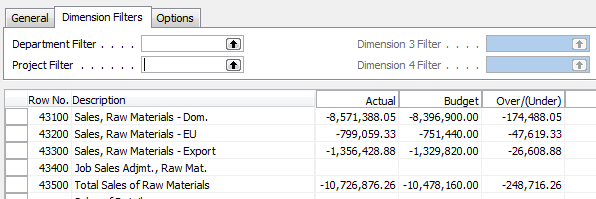
For illustration, I’m showing you an account schedule from NAV2009 Classic, which shows the dimension filters on an account schedule where no analysis view has been applied. The two global dimensions for CRONUS USA (Department and Project) are available to be selected on the dimensions filter tab and the remaining options are greyed out, unable to be used.
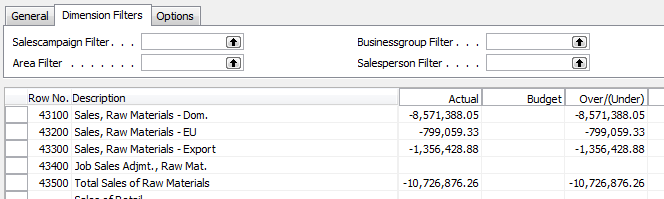
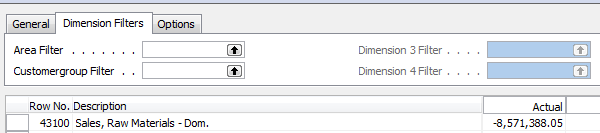
By selecting a different analysis view on the account schedule name page, you will have expanded options. Perhaps you’d like to apply an entirely different set of dimensions filters to your account schedule or limit the dimensions filters to only two of your shortcut dimensions. Any combination of four dimensions is available to you through analysis views.
There are a few things you need to know about analysis views before you start using them:
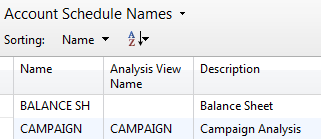
You can add a default analysis view to any account schedule. If you always want a certain account schedule to filter on a selected group of dimensions, this is the best way to do this.
Analysis Views must be updated. You can do this at any frequency you wish. Some companies choose to update once a month, some companies update once a day. Be aware that the process of updating pulls in any transactions that have been posted since the last update to your analysis view. This means if you post some entries during your close process, you’ll need to update your analysis view in order to show the change on your account schedule.
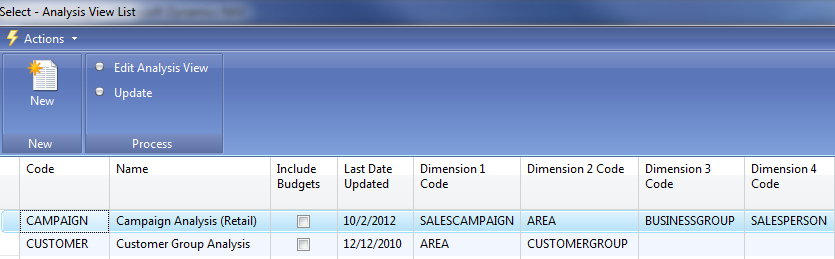
Updating can be done manually or it can be automated. To manually update analysis views, just hit the update button. You’ll need to do each one separately. Alternatively, you can choose to schedule codeunit 410 Update Analysis View as a regularly scheduled maintenance item in order to automate this process.
When you set up an analysis view for the first time, it can take a long time to update. Depending on the size of your database, if you don’t limit how far back your update goes, it could take a long time to update initially. Be careful by trying this out in a test system first. This process, which will normally take seconds when run daily, will take many hours if you don’t limit it and will cause table locks for other users.
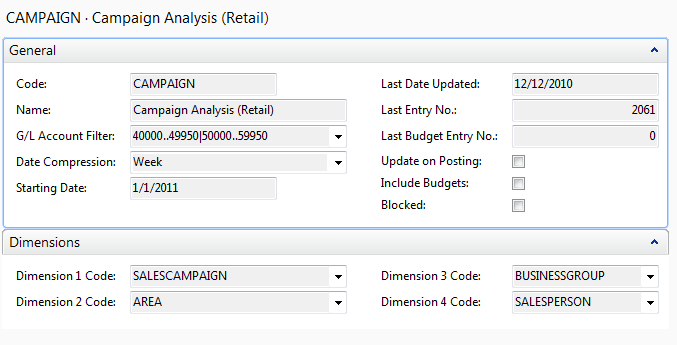
If you test out an update and are afraid it will take up too much processing time, you have a couple of options. First, you can limit the start date of your update. One reason you might need a new analysis view is because you’ve added a new dimension. In this case, you really don’t need to go back to the beginning of time on your update. Choose the date you started gathering data on your new dimension as your starting date. You can also choose date compression. By compressing your data by day, week, month, quarter, period, or year, you limit how much detail you can see when you drill down. If you use this option, you’ll need to remember that this is a compressed view if you change column layouts to different time frame than your compression setting. Choosing date compression of none will allow you to drill down to full transactional detail.
Avoid using the update on posting button. This option updates your analysis view every time you post something to your system. Every sales order, every sales tax entry, every cash receipt, etc. will update real time. I’ve seen one small company use this option and it brought their system performance to a crawl.
Remember to include your budgets. If you make any changes to your budgets, you need to update that information on your analysis views as well.
Business Intelligence and Reporting Track helps solve user challenges at NAVUG Forum.
Posted: September 24, 2012 Filed under: Uncategorized | Tags: analysis views, business intelligence, Dynamics, JET, Microsoft, NAV, NAV 2013, NAVUG, reporting, RTC, user group Leave a commentJason Chance, Senior Programmer/Analyst at Seventh Generation and Business Intelligence and Reporting Track Leader for NAVUG Forum, guest blogs today on what the BI and Reporting Track has to offer end users at NAVUG Forum, the annual NAV end-user conference held in Seattle, October 15-18 2012.
 Without fail, whenever I lead a NAV roundtable discussion or training class, people talk about the reporting. I’ve only met a handful of people who are completely happy with their business reporting and most of them have spent significant resources developing reporting solutions outside of NAV. But before you throw in the towel on reporting in NAV, and spend a lot of time and money, you owe it yourself and your organization to understand what’s available in NAV. This is where NAVUG Forum 2012 comes in.
NAVUG Forum is an excellent event led by NAV users and professionals. It’s not a sales pitch. It’s not a glossy brochure full of fluff. It’s real NAV users sharing their experience and insight gained through years working with NAV. In the reporting and BI track we’ll focus how you can get the most out of the existing tools in NAV. With sessions like Reporting 101 and Reporting 102, you’ll learn how to create and modify NAV reports. Sessions on the Role Tailored Client will show you how to use the RTC to customize the data that you see in NAV. The Analysis Views and Jet Reports session will highlight two often under utilized reporting tools in NAV. The NAV 2013 sessions will give you a preview of what to expect in the newest version of NAV.
If you have issues and concerns with your reporting capabilities, chances are someone else has the same concerns, who knows, maybe they’ve already solved their problems. Come to NAVUG Forum, learn from your peers, build a network of colleagues that can help you get the most out of NAV.
See you in Seattle.
Microsoft’s concept of how 2019 will look like
Posted: September 21, 2012 Filed under: Uncategorized | Tags: Dynamics, Kinect, Microsoft, NAV, video demo 1 CommentMicrosoft Dynamics NAV users have already gotten the chance to see Jesper Lachance Raebild’s video demo using Microsoft Kinect in a NAV manufacturing environment. If you missed it, find the link to the video here.
What else does Microsoft have in store for us? Take a five minute break to see what 2019 could look like.

10 easy tips for payment terms success in Microsoft Dynamics NAV
Posted: September 13, 2012 Filed under: Uncategorized | Tags: accounts payable, accounts receivable, aging, customer, discounts, document date, due date, Dynamics, immediate, invoices, Microsoft, NAV, payment terms, suggest vendor payments, tips and tricks, vendor Leave a comment1.  Know that the Document Date is what controls the calculation of payment terms. This is true for both vendor invoices as well as customer invoices.
2. The vendor and customer areas share the same Payment Terms setup. Make sure the folks who maintain these tables know they’ll need to share the codes that are set up here.
3. Basic terms use very basic setup. Payment terms of Net 30 simply require a Due Date Calculation of 30D in order to work.
4. Immediate payment terms can be accomplished in two ways. The first way is to leave the payment terms field blank on the vendor or customer card. When this occurs, NAV makes the assumption that the payment terms are immediate. The second way is to populate the Due Date Calculation with 0D. By putting in zero days, you can still define a payment term and name it as immediate. I don’t like to see blank fields in any of my data, so I recommend using this method.
5.  Discounted terms follow a specific combination in the payment terms table. For discounted terms like 1/10 Net 30 (one percent discount if paid in ten days, otherwise due at thirty days), use this setup.
6. You may have some things you always pay on the first of the month, like rents. How do you get invoices to show up on your payables aging on the first day of the month regardless of whether the month has 31, 30, or 28 days? In the due date calculation, use this simple formula: CM+1D.
7. If you send checks, and you need for that first of the month payment to get in the mail in time to be received on the first, get a little fancier with the formula and use CM-3D. This will calculate the due date as the third to last day of the month, no matter how many days are in the month.
8. If you need to date something as always due the last day of the month, set up the Due Date Calculation as D31. This will always calculate the due date on the last day of the month, regardless of how many days the month has.
9. When running the suggest vendor payment process for payables, the last payment date corresponds to the due dates calculated by the payment terms. The date you put in this field will suggest payments to be made with due dates up to and including the date listed.
10. If any invoice gets posted with incorrect payment terms and you need to correct the due date in order for it to show up properly on your aging, you can go in and correct the due date on the already posted invoice. This can be done from the end-user level and does not require use of the object designer. Drill down to the correct invoice record from the Balance ($) field found on the general tab of the vendor card. Use a triple-click with your mouse on the due date field to change the date quickly and easily. The same steps can be accomplished from the customer card.
This posting is one of the Top 20 Most Viewed in the last year! Follow this link to see the entire list.
The NAV user community wants the ability to copy and paste rows in the RTC
Posted: August 13, 2012 Filed under: Uncategorized | Tags: Account Schedules, copy and paste, ilovenav, Microsoft, NAV, RTC 3 CommentsAs a long time account schedule user, I was pretty excited to see how the role tailored client would change or enhance account schedules. I got my hands on a copy of the Cronus database with the role tailored client and began to test drive my existing account schedules. I discovered a few things that were really great, a few things that were a bit of a step back, but one thing that was a real problem. In the role tailored client, account schedules had completely lost the ability to copy and paste rows from one schedule to another. This was a problem because it was a gigantic efficiency loss in account schedules functionality. Really? Was this such a big deal? Let me give you some examples of how I use this capability which is alive and well in all prior versions of NAV.
1) Creating slightly different versions of a similar column layout. If I create a monthly net change column layout, I can easily create a monthly balance column layout, or a monthly budget column layout, simply by copying the original column layout and changing one variable on the new layout. Copy and paste allows me to create three valuable looks for one report in less than a minute.
2) Testing or trouble shooting a new schedule. I’ll frequently take an existing schedule and change it to serve a different purpose. When doing this, I’ll copy the existing one that I know works, and then paste it into a new schedule to try what I want on it. This ensures I start with setup information exactly the same as the one I know works, so I don’t have to doubt whether I missed something. I can just change what I need for the new schedule and test the new variables one at a time.
3) Section replication. If I have a schedule where I need a section to repeat, I can copy the existing one and paste it in the new spot.
So what do you do in the RTC in order to accomplish any of these things? The answer is: you have to retype and reselect options for the entire schedule manually. Ugh. Really Microsoft?
I’ve talked to a bunch of folks about this. At first, I thought there was just something I was missing, some new navigational feature that I hadn’t yet figured out. The best story I’ve gotten was that with changing account schedules to the matrix form, they just weren’t able to bring along clipboard functionality. Account schedules isn’t the only area in RTC where the copy and paste ability are gone.
The NAV user community has definitely spoken loud and clear about this. An organization called ilovenav asks users:
 “Help us make Microsoft Dynamics NAV an even better product. Please submit and vote on your favorite product suggestions for Microsoft Dynamics NAV. Our goal is to crowd-source this feedback to Microsoft and pick suggestions that we can develop and distribute to the community free of charge”.
To date, there are 161 votes for this fix, and this is the most requested fix registered on the site. Matt Traxinger, the admin for the site says, “This has been announced for NAV 2013. It is not known whether they will include it in a service pack for NAV 2009.”
I think users can make a difference in what happens with their product, and I firmly believe that Microsoft is listening. I see evidence of this again and again in the awesome features they continue to release in the tools we all use every day. If you’ve read this blog for a while, you already know I’m a big account schedules advocate, but I really think Microsoft goofed on this one.
Save yourself a lot of typing and save new NAV users some frustration. Get out there to the ilovenav site and cast your vote for this important product suggestion.
End users talk about why Microsoft Dynamics NAV is simple and easy to learn and use
Posted: August 10, 2012 Filed under: Uncategorized | Tags: Dynamics, end user, Microsoft, NAV, training 2 CommentsI love to hear why other end users have chosen Microsoft Dynamics NAV for their companies and what their experiences have been.

Christopher Patten, CTO with CyraCom International says that Microsoft Dynamics NAV “cuts down on the number of clicks” for end users and “delivers simplified interfaces but also allows us to have back end integration flexibility”. Marc Allman, Executive Vice President of AMS Controls says that Microsoft Dynamics NAV “works in the same fashion that our Outlook and our Excel work; there is a similar look and feel and that has made our users training much much easier”. He says, “our users are comfortable with it and are trained very very quickly”.
See this short video where real end users talk about their experiences with Microsoft Dynamics NAV.







 Dynamics NAV Financials