The finance professional’s perspective on NAV dimensions (part 3 of 15)
Posted: March 13, 2013 Filed under: Uncategorized | Tags: dimensions, financial statement, general ledger, NAV, tips and tricks Leave a commentAs the finance person for your company who will make decisions about dimensions, you bring a unique perspective to how dimensions can be valuable in your accounting department. Some of the concerns you have will surround reporting requirements, some will pertain to consistency and control, and others will relate to efficiency. Let’s go through each of those concerns.
Efficiency
As a corporate controller, I’m concerned that my staff work in an efficient manner. In regard to coding invoices or general ledger entries, this means they shouldn’t need to look up a lot of information and they don’t engage in any more data entry than they absolutely have to. When choosing how dimensions will be set up in NAV, you can make some specific choices regarding how data can be populated. Do you want the coding to come in as a default value? Are your coding relationships rule-based enough to make that possible? Are there some things you can populate to always default so the coding appears as if by magic 100% of the time and an employee never needs to be responsible for making a coding decision?
Consistency and Control
In the same way that I’m a stickler about operating efficiently, I’m even more so about having consistency and control. If you ever work with me, at some point you will hear me say, “we do not allow optional data”. This means we don’t gather dimensions for some data and not for others. I use the default value code mandatory a lot in my system. This setting will force a dimension to be populated whether it is through a default value or by a person, but it will never allow the data to come through with a blank value, creating holes and reduced value data in my reporting.
Reporting Requirements
Ultimately, you’re using dimensions in your ERP system so you can get great reporting out of it to make important business decisions. As your company’s finance professional, you know what you’re reporting on now. Take a minute to think about that. Is what you’re reporting on still relevant or is it what you’ve always reported on? Has your business changed? Does your reporting need to change too? Think about what your business really needs to see in its reporting and structure your dimension choices to match.
Keep reading this month as we continue our series, 15 Days of NAV Dimensions.
5 reasons you need to use NAV dimensions (part 2 of 15)
Posted: March 12, 2013 Filed under: Uncategorized | Tags: accounts payable, dimensions, financial statement, general ledger, NAV, tips and tricks 1 Comment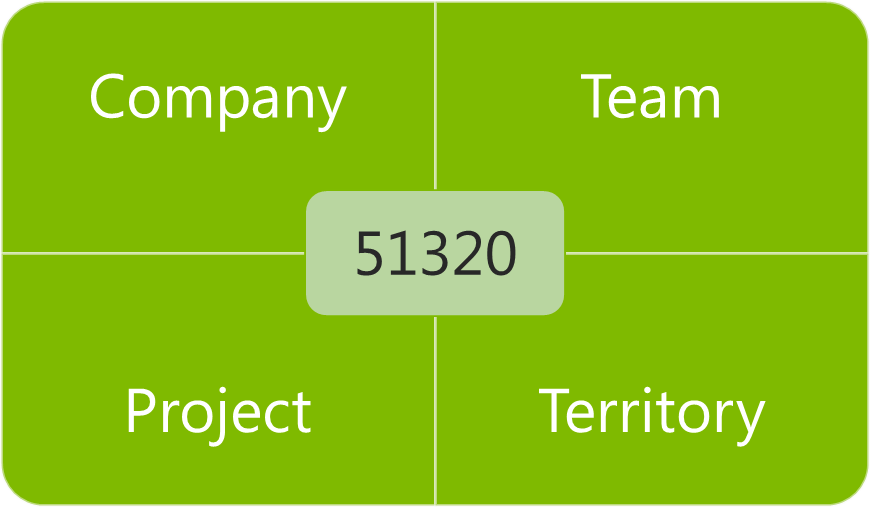 Still not convinced that leaving your old multi-segmented chart of accounts behind is a good idea? Don’t know exactly what in the world that crazy grid illustration with a number in only one box and words in the rest has to do with accounting, at all? Here are my five reasons for why you should be using dimensions.
1) Your chart of accounts is shorter. Seriously now, my company was the one with the 4,000 accounts in the chart of accounts before we installed NAV. We used project codes heavily, and had three to four segments to each base general ledger account number. Every member of the accounting team had this gigantic dog-eared book on their desk they would reference as they went through their day. Not only was it impossible to remember all that detail, it took a long time to type those numbers into the system, and with so many manually entered numbers, it was very easy to make a mistake. We spent a full two days every month during the close investigating and researching whether things went into the right place and then constructing reclassifying entries to correct the errors. My chart of accounts is less than 200 accounts now, and we eliminate a few more every year.
2) Account coding becomes intuitive. We still use project codes heavily, but now we’re able to give them a name as well as a number, which makes the coding process much more intuitive, less prone to error, and allows people outside the accounting department to enter data into the system. We work with a lot of non-numbers people at our company, and just talking about money has become easier since we started using dimensions. Nobody needs to get out the big dog-eared book to “determine the coding for your recent T&E”. We can use actual English and say things like, “Code that expense report to the Marketing team for the recent children’s sunday school event in Ohio” and everyone knows where that will be coded when the invoice gets entered to NAV.
3) Better control and accuracy. Certainly with having more intuitive coding and a shorter chart of accounts, we should all see some improvement in control and accuracy of postings. But wait, there’s more! NAV does a fantastic job of layering in more features for dimensions like allowing automatically populated default values, adding warning messages to make sure you get the right kind of dimension in the right place, allowing control at the level of your master data as well as your chart of accounts, and allowing restrictions on what dimensions can be combined with other dimensions and with what priority. All of these features combine to make sure the computer does the work instead of your employees and does it more accurately. Remember those two days my company used to spend to review and correct entries with reclassifications? Last year, I was able to send out an email out for three month end closes letting my team know they had a perfect posting month – no errors – not a single reclassification.
4) Greater flexibility in your reporting. Even with this shorter chart of accounts, we actually have more detail than we had before, because getting more detail through use of dimensions makes it possible. The idea of adding another segment in the old system to support a changing reporting need was heinously prohibitive. With dimensions, we gain that flexibility without adding another 400 pages to our chart of accounts. We produce more reports with more valuable information now than ever before, and we have the ability to combine the data we’ve gathered in more flexible combinations to assist us in making business decisions.
5) You’ll continue to have more options, even after go-live. I think a lot of people believe the only time they can make decisions about dimensions is when they are initially implementing. While this is a very important time to lay the foundation for your NAV system, you do have the option to add or change dimensions as you go along. We’ve actually added about one new dimension annually, as our business needs have changed, and as we’ve determined we need to report on different priorities.
Keep reading this month as we continue our series, 15 Days of NAV Dimensions.
Video Demo: How to export NAV account schedules to Microsoft Excel
Posted: February 5, 2013 Filed under: Uncategorized | Tags: Account Schedules, dimensions, Excel, export to excel, financial statement, learning, NAVUG, NAVUG Academy, training Leave a commentThere are some quick and easy ways to publish NAV Account Schedules to Microsoft Excel but some of them end up with some pretty ugly formatting unless you know a few secrets on how to make them look better. This short demo video shows you how to create a nicely formatted NAV Account Schedule in Microsoft Excel that only requires formatting the first time you set it up. Each time you replicate the report after that, you can simply update the report with new numbers and the formatting will remain the same every time.
While this demo shows how to create a financial report with three monthly tabs, you can easily extend this technique in a couple of different ways. I use this same technique to produce my monthly financial statement package. I have eighteen pages in the package I produce each month, and each page is a different account schedule. When I start a new month, I copy the Excel workbook and rename it with the new month, then use exactly this same technique to produce the new month’s reports. By using this technique, the new copied workbook acts as a “shell” to receive my new numbers. From month to month, I am able to maintain consistent formatting in my reporting while producing my financial reports in the most efficient way possible. I can apply the same principles to my monthly team budget reports. In this case, I can produce the same actual versus budget report over and over with a new dimension filter applied for each team, one per each Excel worksheet in the workbook.
If you’d like to learn more about account schedules, please visit my 2013 Classes page. This short video demo comes from my Account Schedules Basics class which I teach through NAVUG Academy. This class offering is just one of many classes that are being offered by NAVUG Academy in 2013 to help you get more out of your use of NAV at your company.
This posting is one of the Top 20 Most Viewed in the last year! Follow this link to see the entire list.
Refresh your financial reporting in the New Year
Posted: January 7, 2013 Filed under: Uncategorized | Tags: Account Schedules, financial statement, year end Leave a comment Have you looked at your financial reporting with a fresh eye lately? Is it looking a little tired, out of date, or even irrelevant? The start of a New Year is a great time to take a good look at what you’re producing every month to make sure it is the best quality financial reporting you can be giving to your end users.
One of the reasons I like NAV account schedules for my financial reporting is this tool gives me the flexibility to change what I want when I want. One of those times is at the beginning of the new fiscal year.
Here are some of the things that I look for:
- Primary account use and classification – Look through the accounts and categories used for your balance sheet, income statement, and other primary financial statements. Are they still the main accounts being used or are you showing small balances and tiny net changes because the accounts are no longer being used as much as they used to be? If you find some of those immaterial numbers cluttering up your statements, group them together with some other logical account. This will keep your financial statements crisp, concise, and focused on the big picture.
- Names and labeling used – Think about the wording used on your financial statements. Many times, we call an account, or a brand, or a team one thing on a report, but throughout the year the name we actually use in the company becomes something else. If you’re paying attention through the year, you can catch up the names used on your reports to match the more familiar uses that have currently evolved in your company and instantly make your financial reporting connect with your end users by using the same language they do.
- New accounts – The end of the fiscal year is the most likely time for companies to add accounts. Make sure to trace those new accounts through your financial statements and make sure they’re included everywhere. This should keep you from having to track down some crazy imbalance later in the year.
- New budgeting categories – The annual budgeting process will surface all types of new needs, especially when involving operating or management reports. Make sure new budget categories have been included in your reporting, and that you’ve designed your reports to be flexible enough to report on the coming year’s forecast as well as on the prior year’s historical information.
- Recheck formulas – As always, whenever you make any changes to your financial statements, check and double-check that you haven’t changed or broken any calculations. Spending time now to make sure these essential elements are still working is the best way to save yourself time later.
Use show opposite sign to reflect net income correctly on an income statement using NAV account schedules
Posted: December 11, 2012 Filed under: Uncategorized | Tags: Account Schedules, accounting, financial statement, income statement, net income, show opposite sign, tips and tricks, two consecutive operators Leave a commentOne of the concepts I see students in my NAV account schedules class get stuck on is exactly how to use the show opposite sign function when constructing an income statement. It can be a bit mysterious why it behaves the way it does, and it seems to defy the rules of accounting and basic arithmetic all at the same time. Once you understand why it works the way it does, you’ll know how to use it in the future. From the example shown here, we see a very basic income statement.
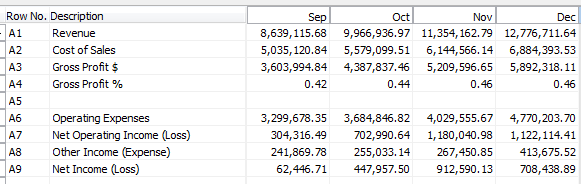
Without using any numbers yet, let’s all agree on some basic calculations:
Revenue – Cost of Sales = Gross Profit $
Gross Profit $ / Revenue = Gross Profit %
Gross Profit $ – Operating Expenses = Net Operating Income (Loss)
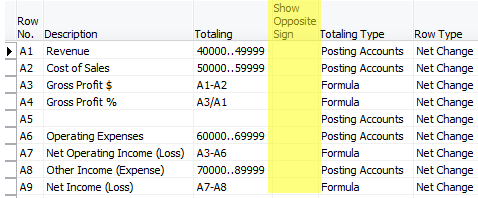
Putting these basic calculations into the design view for this account schedule gives the result below. Notice we’re not going to use the show opposite sign function yet, or make any changes to the basic formulas we just defined.
When we look at the report view for this account schedule we see that we’ve got a significantly wrong result. The revenue is showing as a negative number and all of the calculations below it are incorrect.
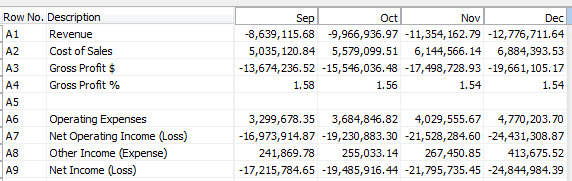
Now, for the accountants out there, you may already have guessed what the problem is. When accounting for revenue, these numbers are assigned a credit value, which shows up as a negative. Most financial statement end users want to see this reflected as a positive number. This is where we need to use show opposite sign. Let’s add that in to the design view, as shown below.
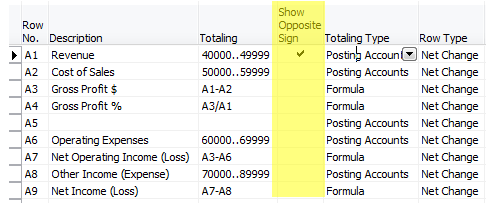
When we look at our new result, you would think all would be correct. We’ve corrected the accounting problem by flipping the sign. However, when you look at the result, we get the following.
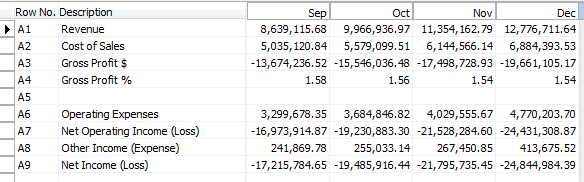
Why in the heck is that gross profit number not right? It seems we’ve got very simple math we’re dealing with here, what could be the problem? Many folks at this point go for the simple solution – just select show opposite sign on the gross profit $ line.
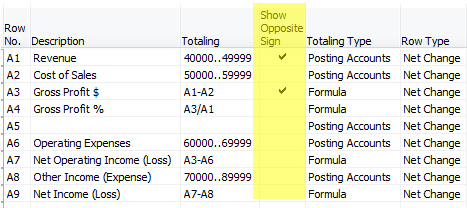
Unfortunately, this doesn’t work either, because you are flipping the sign on both the revenue value as well as the cost of sales value and you simply get the opposite of the same wrong number you got above.
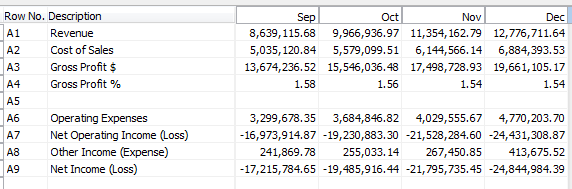
The reason this is happening is because the show opposite sign function is doing exactly what it says it is doing, it is SHOWING the opposite sign. This is really only a presentational mask, and when calculations are done against the value, revenue is still calculating as a negative number, even though it appears on your report as a positive number. This little bit of arithmetic defying programming can make an accountant a little cranky, but it is easy to solve with a little mathematic trickery. In order to fix this, we need to put into place a two part solution. The first part we already know; we must select show opposite sign for our revenue accounts. The second part manipulates the Gross Profit $ and Gross Profit % as shown below, changing the value of the revenue account within the equation in order to calculate correctly.
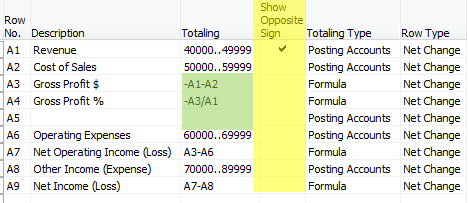
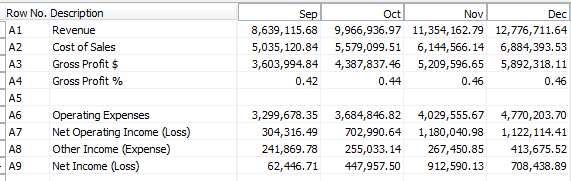
The end result gets us correct results every time.
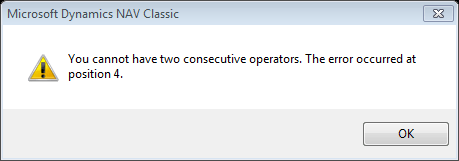
For those of you who are really paying attention, there is one more math mystery in the show opposite sign puzzle. Why have I chosen to show the calculation for Gross Profit % as -A3/A1 instead of simply using A3/-A1? Again, we’ve got to defy the programming with math tricks. Choosing A3/-A1 gives the error shown below. Get around it by moving the negative value to the other side of the equation and you’re good to go.
This posting is one of the Top 20 Most Viewed in the last year! Follow this link to see the entire list.
Basic column layout options for NAV Account Schedules
Posted: September 10, 2012 Filed under: Uncategorized | Tags: Account Schedules, balance at date, Classic Client, column layout, comparison date formula, comparison period formula, financial statement, fiscal year, general ledger, NAV, net change, RTC 5 CommentsColumn layouts in NAV account schedules are what you build to add more flexibility to your financial statements. You can have an unlimited number of column layouts to match together with your already existing row setups. In general, most basic row setups contain general ledger numbers and column layouts contain dates. As an example, when I produce my income statement, I will have one row setup that reflects a summarized income statement and at least four different column layouts that reflect different configurations of month to date, year to date, comparisons against budget, and twelve month trended views.
Just like with row setups, there are many available options in the column layouts. This large variety of options can sometimes be overwhelming to the new account schedule user. I’ll show you which columns to choose in the column layouts for account schedules as a beginning point, and go through some simple explanations of how they are used.
Fields to start with:
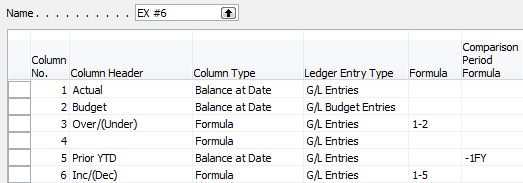
Column No. – The column number is completely optional, but highly recommended. This simple element of the column layout will eventually be one of the key features of your account schedule, allowing you to calculate and organize with ease.
Column Header – This is where you’ll define, in words, what you’re showing in each column of your report. Keep it short; there is a 30 character limit.
Column Type: Net Change, Balance at Date, or Formula – There are actually seven options to choose from here, but I recommend that you limit yourself to these three when you’re just getting started. The key here is knowing what type of accounts you’re reporting on. If you’re using income statement accounts (Revenue/Expense), then you need to use net change. If you’re using balance sheet accounts (Assets/Liabilities), then you need to use Balance at Date. Formula allows you to perform calculations in a column.
Ledger Entry Type – This column will allow you to define what type of ledger entries you will show. This is where you can choose actual general ledger entries or budgeted general ledger entries.
Formula – If you’ve chosen Formula as the Column Type, this is where you’ll put the formula.
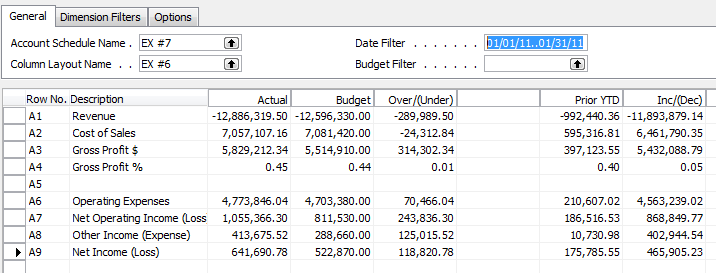
Comparison Period Formula – This column allows you to define date formulas that are used to calculate the amounts shown. I generally recommend that beginning account schedule users start out using the comparison period formula field instead of the comparison date formula field. The comparison period formula field references the accounting periods set up in the fiscal year, so this option seems the most consistent, and is especially necessary for companies that may not follow a calendar fiscal year. Common data labels used in this field are CP for current period or -1CP for previous period and FY for fiscal year or -1FY for prior year.
Shown below are both the design view and the user view of a column layout for a summarized income statement showing year to date and prior year to date information in the columns to demonstrate the use of these six basic options in an account schedule.
Role Tailored Client

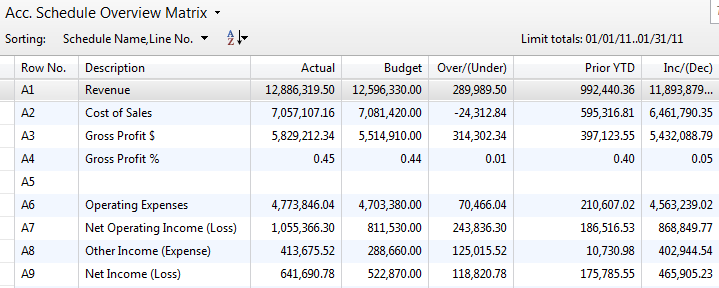
Classic Client
For more information on row setups, please see these posts: Basic row setup options for NAV Account Schedules and Complete row setup options for NAV account schedules.
If you’re just beginning to use account schedules, see Getting started with a new account schedule.
This posting is one of the Top 20 Most Viewed in the last year! Follow this link to see the entire list.
Can you use NAV account schedules to create a statement of cash flows? Yes, you can!
Posted: August 1, 2012 Filed under: Uncategorized | Tags: Account Schedules, financial statement, NAV, statement of cash flows 1 CommentJohn Bellinger of Archerpoint recently posted a great article illustrating how to use account schedules to build the statement of cash flows, using both the indirect as well as the direct methods. For those of you who have struggled with this sometimes challenging financial statement using NAV account schedules, find your answers here!
Here’s a bit from his recent posting:
This blog is an attempt to document how a Cash Flow Statement can be created using standard NAV Account Schedules.
I’ve been asked a few times by Finance Type individuals for a Cash Flow Statement report (yes there is not an out of the box report . . . darn!). It usually takes me a couple attempts to explain how to accomplish using Account Schedules, and I usually kick myself for not keeping an example on hand.
As some may know, there are two methods, Direct and Indirect, that can be used for a Cash Flow Statement. I understand the Indirect Method is the more common of the two, regardless I choose to do both in this blog. Other than the operating activities section, the methods are similar. A well-structured chart of accounts will greatly assist in setup/maintenance of this Account Schedule. You’ll see from my examples that I’m largely using Total Accounts to accomplish; hopefully this will eliminate the necessity to reconsider this account schedule if new accounts are setup in the future. For those of you that are new to NAV or have not yet implanted NAV, a good exercise may be to consider the necessary structure to accomplish a cash flow statement. This may dictate certain accounts/structure in your chart of accounts for your reporting requirements.
For the rest of his posting, including some really useful screen shots to illustrate what he’s showing, follow the link below.
http://www.archerpoint.com/blog/Posts/using-nav-account-schedules-create-cash-flow-statements
Complete row setup options for NAV account schedules
Posted: July 30, 2012 Filed under: Uncategorized | Tags: Account Schedules, balance at date, Classic Client, column layout, dimensions, Excel, export to excel, financial statement, general ledger, microsoft dynamics nav, NAV, net change, posting accounts, row setup, RTC, set base for percent, setup options, show opposite sign, totaling type, trial balance 1 CommentAbout a month ago, I published a post called Basic row setup options for NAV account schedules. This is a great place to look if you’re just getting started. However, if you’re looking for what else you can do with Microsoft Dynamics NAV account schedules, then this is where you want to be. This post will go through each and every field available on the account schedule row setup and talk about the available options. The functionality of these fields are exactly the same between the Classic and Role Tailored Clients. The only difference is in how they look on the screen and how you navigate between screens. Take a look at the pictures below to find the look you’re familiar with, but then keep reading for the explanations of what these fields will do in your financial reporting.
Role Tailored Client
This is a view of what I recommend you start with for basic row setup options.

This is a view of all available row setup options.

Classic Client
This is a view of what I recommend you start with for basic row setup options.

This is a view of all available row setup options.

Row setup options – apply to both clients
Row No. is completely optional, but highly recommended. This simple element of the row setup will eventually be one of the key features of your account schedule, allowing you to calculate and organize with ease.
Description is the one place you have to communicate, in words, what you’re showing on each line of your report.
Totaling Type: 6 options to choose from
- Posting Accounts pull data from your accounts designated as posting accounts on the G/L Account Card Account Type field.
- Total Accounts pull data from your accounts designated as a total or as an end-total on the G/L Account Card Account Type field.
- Formula allows you to calculate a basic formula on this row.
- Underline places a single underline .
- Double Underline places a double underline.
- NOTE: This nifty addition showed up with NAV 2009 R2. If you are NAV 2009 SP1 or earlier, this won’t be available to you.
- Both of the underline functions are there to give folks who print account schedules directly out of NAV some formatting options. If you’re exporting to Excel you’ve got some better format options to work with than these.
- Set Base for Percent allows you to designate which row from your row setup will be used as the beginning point for a section to be included in a percent of total calculation. This feature showed up in version 5.0 and must be used together with a formula on another row to designate the end point of the section as well as some setup in the column layout. It’s a little fussy in the setup and inelegant in execution, but is still effective to get those vital comparative percentages onto your account schedules.
Totaling will be which general ledger accounts you want to pull or what formula you want to calculate, depending on what you selected in totaling type.
Row Type: 3 options to choose from
- Net Change should be used, generally, if you’re reporting on income statement accounts (revenue/expense).
- Balance at Date should be used, generally, if you’re reporting on balance sheet accounts (assets/liabilities).
- Beginning Balance will be sparingly used, but you’ll want this for your statement of cash flows at some point.
Amount Type gives you three options: Net Amount, Debit Amount and Credit Amount. You’re going to use Net Amount almost all the time, but I suppose if you were getting very granular in your account schedules and perhaps using them for detailed reconciling reports, this might be useful. If I’m getting down to this level of transactional detail, I’m usually going to the chart of accounts instead of account schedules.
Formatting Fields: Bold, Italic, and Underline These basic formatting fields are there to allow you to emphasize some of the rows of your account schedules. When you select these options on any row, the whole row is effected. You are not able to effect a single “cell” for formatting. What’s the difference between underline here and underline found in the Totaling Type options? You can get a more snug fit on your underline using this option since it appears in the same row of your data instead of in a row if its own.
New Page inserts a page break. This is commonly used when separating the pages of the balance sheet showing assets on the first page and liabilities and equity on the second page. I have also seen it used when folks build multi page account schedules.
Show Opposite Sign is the option you can select to change revenue credit balances or expense debit balances to the opposite sign for the purposes of presenting this data in a more non-finance friendly manner. No salesperson wants to see sales presented with a negative sign; use this to change that credit to a positive number on your reporting.
Show allows you to designate if a row will show (the default) or be hidden on the printed account schedule only. You can click this box as much as you want, but your rows will still show on-screen or when you export to Excel. If you print directly out of account schedules, this feature will work very well for you.
Dimension Totaling is the last option available and you might have noticed that I didn’t show them on pictures above. This is because they are unique for just about every user, and depending on your analysis view setup, may even be different from schedule to schedule. You can use just one, or you can use all four of the available dimension totaling fields, in whatever combination you like. These fields act very much like the Totaling field because this is where you will tell NAV what Dimensions you want shown and totaled from your general ledger accounts.
This posting is one of the Top 20 Most Viewed in the last year! Follow this link to see the entire list.
NAV Error Message: G/L Account No. ” does not exist
Posted: July 16, 2012 Filed under: Uncategorized | Tags: Account Schedules, consolidation, error, financial statement, general ledger, NAV 1 CommentI was merrily finalizing my financial statements last week, and got this error when running my consolidation. I had successfully run my consolidation error free for over a year, so in disbelief, I immediately reran it, expecting a change in result. Same error. I began to run the mental check list. What was different? What had changed?
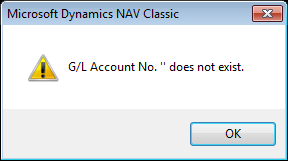
Of course! I had added a new account at the end of the year, and this month was the first month there was activity in the account. Not remembering exactly what I did six months ago, I rechecked my work.
- I had added the new account on my main company
- I had added the new account on my consolidation company
I reran the consolidation; still the same error. What was I missing? The culprit was the Consolidation tab on the on the G/L Account Card. I only had it set up correctly in the consolidation company and had missed filling out these same fields on the main company. I needed for this to be filled out exactly the same on both cards in order for this to work. I fixed the two fields, and voila!, my consolidation was back to its usual, reliable old self and finished up like a champ.
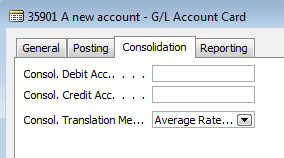 The culprit, showing missed fields
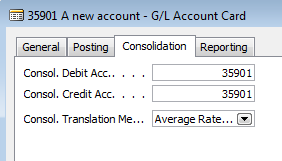 Now properly filled out
Just for good measure, I took a quick tour through my account schedules to make sure I had incorporated this new account either through ranges or individually so this new activity would also be properly captured in the financial statements.
This error can occur in other places, and in plain English is basically telling you that you’ve missed some setup where a general ledger account must be defined. That nifty little double apostrophe means “blank” to NAV. I put “NAV G/L Account No. ” does not exist” into BING looking for someone who may have answered this question before, so if you’re looking for a solution for this error in other areas, try these links.
http://support.microsoft.com/kb/2274642 Microsoft hotfix available when error is generated when you run the export to excel function on the analysis by dimensions reporting in the Spanish version
http://www.mibuso.com/forum/viewtopic.php?t=52338 when posting a sales credit note
http://dynamicsuser.net/forums/p/279520/279520.aspx when posting an invoice







 Dynamics NAV Financials