Communicating to IT about NAV dimensions and NAV2013 dimension sets (part 13 of 15)
Posted: March 27, 2013 Filed under: Uncategorized | Tags: Account Schedules, default dimensions, dimension sets, dimensions, financial reporting, financial statement, NAV, NAV 2013 Leave a commentToday I’ve got some old news and some new news for you regarding dimensions, but first I need to re-emphasize that finance and IT must be of one mind when it comes to dimensions. As a finance professional, you’ll definitely have your perspective on how dimensions will help you to efficiently produce financial reports with control and consistency. But remember that finance and IT need to work in partnership on a NAV dimension strategy in order to be really successful. One way these two roles must work together is regarding how to get your hands on posted dimension data in NAV. If you’re using NAV only tools to get your data, you won’t need this information, but once you progress to using outside reporting tool packages, you need to know a little bit more to get your collective hands on that data.
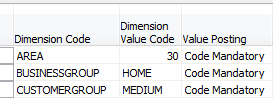 Here’s the old news: if you are using any version of NAV prior to NAV2013, dimensions are kept in a separate table behind your main data. You can see this, though it may not be obvious to you, when you populate dimensions using Ctrl-Alt-D or when you view dimensions through the dimensions button from master data. This table is actually called the default dimensions table (table #352). If you’re using something like SQL for reporting, you’ll need to perform a join between this table and the table(s) to which the data are related. As of today, the large majority of NAV users are using versions prior to NAV2013, so this is important information to have if you’re to get all the data you want into your reports now.
Here’s the new news: With NAV2013, dimension sets are turning dimensions upside down, treating them in an entirely different way, in order to make the way dimensions are stored in NAV more efficient. We’ve all heard the horror stories of ginormous databases with performance problems due to overuse of dimensions. Those stories have always been frustrating to me because it seems we should be able to use dimensions in as robust a manner as we can handle. Well, Microsoft has made a great improvement with the creation of dimension sets. I’ll admit that explaining the mechanics of exactly how dimension sets work is beyond my technical capability, so I’ll hand that off to experts more talented than I. I did get to see a presentation by Jesper Lachance where he showed an example (which he allowed me to share in my recent Dimensions presentation at Microsoft Dynamics Convergence 2013) that shows a twenty fold decrease in number of data items stored by using dimension sets instead of the pre-NAV2013 method.
Faithie Robertson of Archerpoint has a fantastic article A Better Mousetrap! Dimension Sets in Dynamics NAV 2013 (Navision) which does a really great job of explaining exactly what a dimension set does differently.
If you’re looking for a textbook explanation, visit MSDN on their page Dimension Set Entries Overview.
Encore Business Solutions has an illustrated guide NAV 2013 – Dimension Sets.
You can see why, with dimensions being stored in a separate table, and with dimension sets showing up as a new improvement, everybody on the team needs to understand how dimensions work, where they’re kept, what your particular company conventions are, and how you’ll report against them accurately and effectively. I haven’t heard a lot of feedback yet from end users about how working with dimension sets is working for them and whether it is making reporting better or challenging in different ways. But, the feedback from programmers, developers, and database administrators has been a resounding: THANK YOU MICROSOFT!!!
Keep reading this month as we continue our series, 15 Days of NAV Dimensions.
NAV dimensions in budgets and consolidations (part 12 of 15)
Posted: March 26, 2013 Filed under: Uncategorized | Tags: Account Schedules, budgets, Classic Client, consolidation, dimensions, financial reporting, financial statement, global, NAV, shortcut Leave a commentNow that you know you can view dimensions on postings and in financial reporting though account schedules, let me show you how you can utilize dimensions in budgets. NAV budgets opens up a few more possibilities for you where dimensions are concerned. Take a look at this screen shot, using the classic client, that shows clearly what the available dimensions are in budgets.
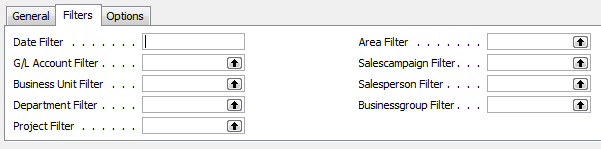 If you look at the left side, you can see the persistent global dimensions of Department and Project which the test database for Cronus uses. Just like all areas of NAV, global dimensions are available everywhere, even in budgets. On the right hand side, you can actually see four more dimensions. These are shortcut dimensions and if you count, you can see you’ve got a total of six dimensions available with NAV budgets to use for your planning process. As long as you budget for a dimension then you can report actual versus budgeted against that dimension.
In addition, you can also see there is a field called business unit filter, which I’ve always counted on as a “bonus” dimension. This field becomes useful when you have multiple companies in NAV and use them to consolidate your financial statements. I’ve got a very simple setup where I have two companies and a consolidation company. When I consolidate my statements monthly, and when I load my budgets, I designate the business unit filter for each of the two companies so I can report on them individually as well as together, on a consolidated level. Because I use separate companies with the business unit filter I don’t need to use a dimension to designate company for my financial statements.
Keep reading this month as we continue our series, 15 Days of NAV Dimensions.
NAV dimensions in account schedules (part 11 of 15)
Posted: March 25, 2013 Filed under: Uncategorized | Tags: Account Schedules, Analysis Reports, analysis views, dimensions, financial reporting, NAV Leave a commentWe’ve spent a good deal of time talking about how to get dimensions into your financial data, now we need to talk a little bit about how to get that information back out in the form of reporting. One of the most direct ways to get financial reporting out of NAV is by using account schedules, which are the native NAV financial reporting package that report on general ledger transactions. Account schedules naturally access the two global dimensions for financial reporting in all cases, as shown below in the old classic client.

By applying analysis views to an account schedule, you get to choose any four of your dimensions, in any combination, to use for your financial reporting. This gives you much more flexibility and power in your financial reporting, allowing you to look at your financial data in many different ways. The most important thing to remember about analysis views is to keep them updated, whether you do this manually or in some automated way.

There are also tools like analysis by dimensions and analysis reports that can be used along with dimensions. For more information see this post Where can I learn more about NAV analysis reports and analysis by dimensions?
Keep reading this month as we continue our series, 15 Days of NAV Dimensions.
Resolving NAV dimensions errors (part 10 of 15)
Posted: March 22, 2013 Filed under: Uncategorized | Tags: code mandatory, dimensions, Dynamics, errors, Microsoft, NAV, tips and tricks Leave a commentError messages related to dimensions can be the bane of a dimension-using NAV user’s existence unless you know how to properly deal with them. The number one thing I tell my end users is, “if the error message has the word dimension in it, the error is generally something you can resolve yourself”. Let’s go through three dimension errors from my system; we’ll resolve each one as we go.
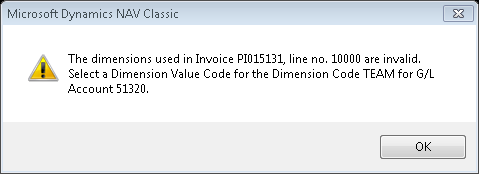 This message says the end-user needs to select a dimension code for team on the first line of this invoice, where they’ve entered general ledger account number 51320. For whatever reason, NAV counts lines by the 10,000, so 10000=line 1, 20000=line 2, etc. The rest of the error message is pretty self-explanatory, but is presented in an “out-of-order” way that doesn’t quite read as well as plain English. This error has occurred because we’ve set a control on the general ledger account 51320 of code mandatory for team. The end-user needs to enter a team code for every transaction that posts against this account number.
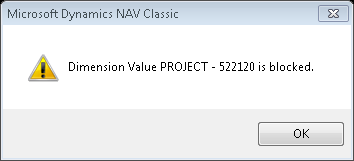
The dimension value of 522120 on the list of dimensions for project has been blocked. You can’t use it/you don’t want to use it/you shouldn’t use it. Our company goes through annually and blocks project numbers that have not been given any budget money. If I block a project, I mean it – I really don’t want anybody posting anything against it. For this error, either the person made a typo, or they were given bad coding so the solution is to either fix the typo or get a correct project number.

This is an example of a team and project combination that has been blocked for use. We do this on purpose in order to keep from making errors and to avoid needing to make reclassifying entries. For this error, the person entering the information either needs to correct a typo or get a correct project number (or team number).
Keep reading this month as we continue our series, 15 Days of NAV Dimensions.
NAV dimension priorities (part 9 of 15)
Posted: March 21, 2013 Filed under: Uncategorized | Tags: dimension priorities, dimensions, Dynamics, Microsoft, NAV, tips and tricks Leave a commentHere’s the deal with dimension priorities. Depending on what you’ve chosen for your dimension strategy, an entry could have more than one dimension proposed at the time you post it. When this happens, NAV needs a way to break the tie, and that way is dimension priorities.

This handy-dandy table allows you to be in control by choosing which table will take priority over the other if NAV is forced to choose. What happens if you don’t define the priority? This is where NAV’s built-in tie-breaker comes in. If you don’t define the priority, NAV will choose the table with the lowest Table ID number.
One sure way to avoid needing to do this at all is to think through your dimension strategy really carefully before you commit to it. If you define team as a dimension on both your customer master data and your item master data, and you give a customer and item different default dimensions, what’s going to happen when you post a sales order? You’re going to get a conflict where the system has to choose. Think through your strategy and I bet you can find a way to make sure that team only corresponds to customer and you could give a different dimension designation to item. By doing so, you’ve automatically designed your system not to have a conflict in the first place.
Keep reading this month as we continue our series, 15 Days of NAV Dimensions.
NAV dimension combinations for additional accuracy (part 8 of 15)
Posted: March 20, 2013 Filed under: Uncategorized | Tags: dimension combinations, dimensions, Dynamics, Microsoft, NAV, tips and tricks Leave a commentOne way to get additional accuracy out of your NAV dimensions is to assign dimension combinations. Dimension combinations are really good for two things: 1) to keep you from posting something that simply doesn’t belong where you’re putting it, and 2) to keep you from posting a combination of dimensions together that don’t belong together. Let’s go through a couple of examples.
Say that, according to your dimension strategy, you’ve designated the dimension team to go with customer master data, and the dimension edition to go with item master data. If you don’t want team to ever be allowable together with edition, set a dimension combination of blocked on the grid where the two dimensions intersect.
Another example is something we do at my company. We rely very heavily on budgeted information and budget all of our product development expenses with two dimensions assigned: team and project. Each team has their own list of assigned projects and no team should ever share a project. In order to keep ourselves from having a lot of reclassification entries, we assign a dimension combination of limited on the grid where team and project intersect. 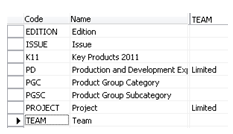 This setting allows us to further drill down and define which projects belong to which team. If we receive bad coding or even just enter a project number incorrectly, if that project number is not one on the “approved” list of project dimensions assigned to that team, we’ll get a message that lets us know we’ve made an invalid choice before we post it into our system permanently.
Keep reading this month as we continue our series, 15 Days of NAV Dimensions.
NAV default dimensions and value postings on the chart of accounts (part 7 of 15)
Posted: March 19, 2013 Filed under: Uncategorized | Tags: Account Schedules, chart of accounts, code mandatory, dimension value code, dimensions, Dynamics, financial reporting, master data, Microsoft, NAV, tips and tricks, value posting Leave a commentValue postings on the chart of accounts are your next line of defense to ensure a solid dimension strategy execution. You could probably be content by only applying value postings to your master data, but by adding value postings to your chart of accounts in addition to your master data, you are adding a layer of consistency and control into your transactional posting.
But what could go wrong, you might ask? How would the value postings on your master data fail you? If you are using code mandatory with a default value posting, what could possibly go wrong? Here’s what could go wrong – you could forget to populate the dimensions on a new master data item. Let’s say you set up a brand new item, or maybe a big group of items; how about a whole season’s worth of new items? You set them up and forget to populate the dimensions on them. You could go days, weeks, even months (hopefully not if you’re watching your financials) with these new items merrily populating your system with blank dimensions compared to all of your other items that are populating with default dimensions. Once you catch the error, you’ll need to track down all those blank pieces of data and do journal entry reclassifications to all the effected accounts, with all the effected dimensions, in order to fix your financial reporting.
[Sidebar: Easiest way to do this is to run an account schedule covering the effected accounts with the dimension filter set to ” (that’s two single quotes, the symbol for blank in NAV). You can then see every transaction that’s posted with a blank dimension, and use that to construct your correcting journal entries.]
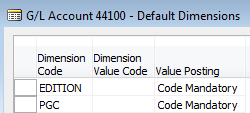 If you’d like to avoid all of that pain, set up value postings on your chart of accounts. Here’s the trick: your should not use a default dimension value code together with your value postings. What you want to accomplish with this is to have your chart of accounts act as a control point for your postings. If your chart of accounts carry a code mandatory on the accounts, they are requiring that they receive dimension data from the master data card before they will allow any transaction to post to them. So, what happens when that rogue item with no dimensions tries to post through? The code mandatory setting on the general ledger account prevents it from posting, ensuring you never end up with any blank dimension postings in your transactions.
Keep reading this month as we continue our series, 15 Days of NAV Dimensions.
NAV default dimensions and value postings applied to master data (part 6 of 15)
Posted: March 18, 2013 Filed under: Uncategorized | Tags: chart of accounts, code mandatory, dimension value code, dimensions, Dynamics, financial reporting, master data, Microsoft, NAV, same code, tips and tricks, value posting Leave a commentYou’ve decided you want to use dimensions, you’ve picked a strategy, you have people in both finance and IT on board with the plan, and you even have two global dimensions and a few shortcut dimensions all planned out. Now what?
Now you need to go through the process of applying your dimension strategy to all of your master data using value postings.
Master data are all the things in NAV that have a “card”. When you think about the sales process in NAV, what might have a card? How about the customer card, the item card, or even the salesperson/purchaser card? Where else are there cards in NAV? How about the vendor card, the bank account card, or the fixed asset card? All of this is master data you will use when applying dimensions to your system.
Value postings are the requirements you set on your master data when defining dimensions. For the sake of an example, lets say we’re going to focus our dimensions on the item card. You have four choices:
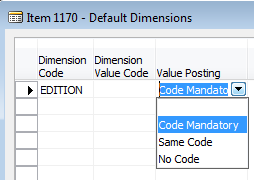 1) Leave the value posting blank. This will impose no requirement for the dimension to be filled out and is the same as not defining a dimension.
2) Choose code mandatory. This option can act in two different ways and is highly useful. If you leave the dimension value code empty, setting the value posting to code mandatory will require the end-user to fill in a dimension value code from the defined dimension code listing before the transaction can be posted to the system. If you fill in the dimension value code with a selection from the list, essentially a default value, any transaction using this item card will populate the dimension value code with the code you have pre-selected as a default. However, if necessary, the end-user can change the value to a different selection.
3) Choose same code. You might think this would be a fantastic option, offering the highest level of control. It is true that choosing same code is the most restrictive. By choosing same code, any transaction must use the code defined in the dimension value code. This can become problematic when your company changes and you need to redefine your default values. Dimensions can be pretty pervasive, getting into places you just didn’t think about when you set them up. For the most part, they’re harmless, just little pieces of data hanging out waiting to be accessed for reporting. But sometimes, when used together with same code, they become vicious nasty little roadblocks. I’ve heard many a horror story of accountants struggling with adjust cost or inventory adjustments or even trying to get sales order postings to finalize because they’re using same code and have needed to make a necessary change.
4) Choose no code. This is the option you choose if you want to tell NAV to never assign a particular code to the item. You could do this if you wanted to reduce the possibility of error from someone trying to apply a dimension that belongs to your customer card to your item card accidentally.
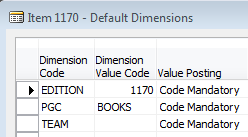 As you can probably tell, my recommendation is to use code mandatory in most situations. It offers the most control over your data while also allowing for necessary flexibility as your business changes. Using code mandatory avoids the problem of “optional” data by requiring some type of data to show up in the dimension value code, whether you put it there as a default to be automatically populated or whether you’ve left it blank so someone down the line can populate it when it is time to make that decision before posting. Using code mandatory can also be a great source of efficiency if you can choose to use default values. If you can decide how to make your dimension postings as automatic as possible, this really can run completely in the background, populating your system with luscious data to be reported on later, with no effort or decision-making required by you. By using default values, you also gain accuracy in your postings since the computer is making the decision the same way every time, whereas you might not be that consistent if you had to define the values manually all year.
Keep reading this month as we continue our series, 15 Days of NAV Dimensions.
Viewing NAV dimensions on postings: where can you see them? (part 5 of 15)
Posted: March 15, 2013 Filed under: Uncategorized | Tags: dimensions, Dynamics, financial statement, global, NAV, shortcut Leave a commentInevitably, once you’ve dipped your toe into the world of dimensions, the next thing you’re going to want to know about is the difference between global and shortcut dimensions.
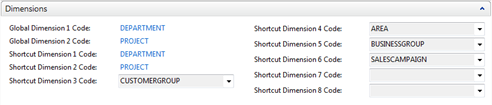 Global dimensions are the two most important dimensions you can choose because global dimensions are the most accessible from anywhere in NAV. They are posted with every transaction you have attached them to, right along side the data, and you can see them on every form as an available choice without having to do anything special. You can see them right along with all your other data in forms (like a sales order or purchase invoice), in journals, in posted history, and global dimensions are even available for selection in every canned NAV report.

A common misconception about global dimensions is that they must be department and project. This simply isn’t so, and in my opinion, is an old holdover from thousands and thousands of NAV demos that use the CRONUS database, where the globals they have used as their demo example are department and project.
The global dimensions your company chooses should be the two most important things your company needs to report on when looking at your financial data. If your company is very customer-centric, maybe one of those globals should be customer related. As an example, if your company groups their customers by wholesale or retail, and uses this designation as a major reporting category when looking at your sales each month (or each day!), you may want to choose this “customergroup” as one of your global dimensions.
If your company is very inventory-centric, maybe one of those globals should be item related. My company has a large number of SKUS, so we find it absolutely essential to relate our global dimensions to our inventory items in order to make sense out of our sales data. We’ve designated a global dimension called PGC or product group category to allow us to group our large list of items into smaller groupings that are easier to digest when we produce reports. In addition, we also use a global dimension called edition that has a one to one relationship with each item we sell. With these two global dimensions, we can look at our sales by large group of items as well as item by item. This comes in mighty handy when it’s time to evaluate gross margin. We can get a macro and a micro view of what’s going on with our gross margin without having to do a lot of digging into the data.
You may have an even different emphasis on what your company needs to monitor. I’ve seen lots of companies who depend heavily on their dimension reporting to allow them to monitor what is going on per salesperson or territory or region. Spend a good amount of time talking this over with your company stakeholders. What really matters? What should you be looking at? Remember too, that just because you are reporting on one measure right now doesn’t mean it’s the right measure to be reporting on in the future. Figure out what those two most important things are, and designate them as your global dimensions.
Shortcut dimensions are what you’ll begin to use once you realize that two dimensions simply aren’t enough! The single largest limitation to shortcut dimensions is that they are not as readily available as global dimensions. They do not have those two designated always there fields that the globals hold. Technically, you can have an unlimited number of dimensions in total, but shortcut dimensions are special because they are more reachable. By designating a dimension as a shortcut dimension, you are making that dimension available as a choice on your forms ((like a sales order or purchase invoice), in journals, in posted history, and in every canned NAV report. The trick is that they don’t show up automatically, and you’ll need to go to the show column area on your forms and purposefully choose them for use the first time.
When you’re looking at posted history, you’ll need to use a new trick to see shortcut dimensions. As an example, choose some transactions from your chart of accounts. You’ll be on the general ledger entry table. Now choose entry and g/l dimension overview. You’ll now get a view that looks like what I’ve pasted below, showing all your shortcut dimensions as well as the global dimensions.

Another perspective on shortcut dimensions is one of efficiency. You will always want to set up a dimension as a shortcut if your end users need to access the field in order to enter or change data on a regular basis. An example of this from my company is our shortcut dimension, team. For all expense accounts, we designate a team in order to track who incurred that expense. My accounts payable person must enter that information for every expense related invoice because the computer simply can’t be trained to make all the decisions she must make in order to determine whose team gets the expense. Team is a shortcut dimension for us because she can set that field up on every form she uses so it is available for her to use for data entry right on the form, keeping her from having to go anywhere else to enter that information.
Keep reading this month as we continue our series, 15 Days of NAV Dimensions.
Why finance and IT need to work in partnership on a NAV dimension strategy (part 4 of 15)
Posted: March 14, 2013 Filed under: Uncategorized | Tags: dimensions, financial reporting, NAV, tips and tricks Leave a comment Who’s responsible for determining which dimensions are used, keeping the database clean, and trouble shooting dimension problems – IT or Finance? The answer really should be BOTH!
While your company’s finance NAV expert has a perspective on dimensions related to financial reporting outcomes, control and consistency of data, and accounting staff efficiency, your company’s IT NAV expert will have a different perspective. Many times, the task of resolving dimension errors, data collection disconnects, and database size and speed fall on the shoulders of your IT team.
By working together on establishing what your company’s strategy is on how dimensions are implemented, used, added, and changed, you can blend the best of both worlds and make sure everyone’s interests are represented. Everyone on the team, no matter what their role, should understand why you’ve chosen to use code mandatory instead of same code and how dimension use for items differs from dimension use for customers. Knowing what your global dimensions are, why they have high priority and visibility in your reporting structure, and how to get your hands on data related to shortcut dimensions is useful to both groups as they formulate new reports for the company.
Keep reading this month as we continue our series, 15 Days of NAV Dimensions.







 Dynamics NAV Financials