Blogiversary Top 20 (#20) Use show opposite sign to reflect net income correctly on an income statement using NAV account schedules
Posted: April 2, 2013 Filed under: Uncategorized | Tags: Account Schedules, financial statement, income statement, net income, show opposite sign, tips and tricks Leave a commentWe’re celebrating our one year blogiversary by reposting the Top 20 Most Viewed in the last year, as determined by you, our readers! Follow this link to see the entire list. Enjoy!
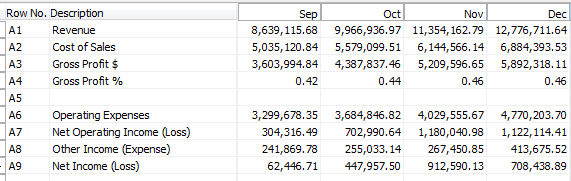
One of the concepts I see students in my NAV account schedules class get stuck on is exactly how to use the show opposite sign function when constructing an income statement. It can be a bit mysterious why it behaves the way it does, and it seems to defy the rules of accounting and basic arithmetic all at the same time. Once you understand why it works the way it does, you’ll know how to use it in the future. From the example shown here, we see a very basic income statement.
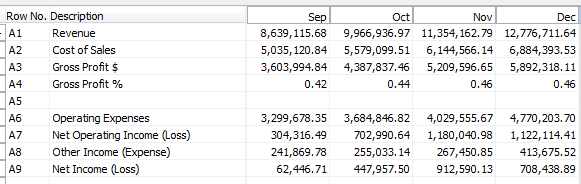
Without using any numbers yet, let’s all agree on some basic calculations:
Revenue – Cost of Sales = Gross Profit $
Gross Profit $ / Revenue = Gross Profit %
Gross Profit $ – Operating Expenses = Net Operating Income (Loss)
Putting these basic calculations into the design view for this account schedule gives the result below. Notice we’re not going to use the show opposite sign function yet, or make any changes to the basic formulas we just defined.
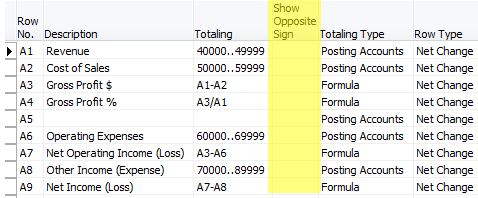
When we look at the report view for this account schedule we see that we’ve got a significantly wrong result. The revenue is showing as a negative number and all of the calculations below it are incorrect.
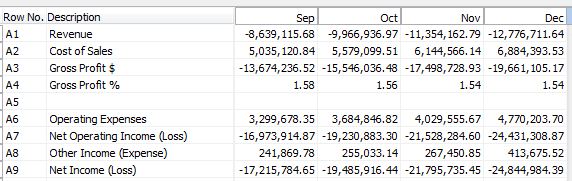
Now, for the accountants out there, you may already have guessed what the problem is. When accounting for revenue, these numbers are assigned a credit value, which shows up as a negative. Most financial statement end users want to see this reflected as a positive number. This is where we need to use show opposite sign. Let’s add that in to the design view, as shown below.
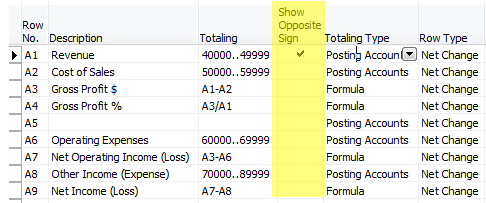
When we look at our new result, you would think all would be correct. We’ve corrected the accounting problem by flipping the sign. However, when you look at the result, we get the following.
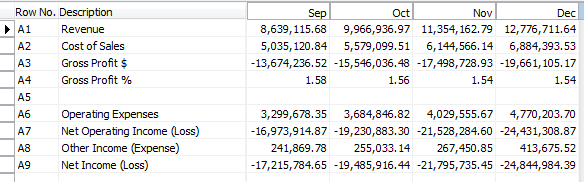
Why in the heck is that gross profit number not right? It seems we’ve got very simple math we’re dealing with here, what could be the problem? Many folks at this point go for the simple solution – just select show opposite sign on the gross profit $ line.
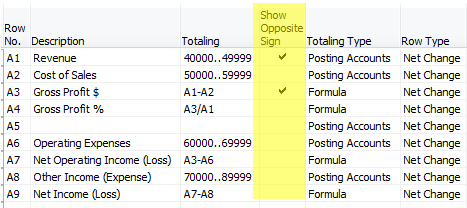
Unfortunately, this doesn’t work either, because you are flipping the sign on both the revenue value as well as the cost of sales value and you simply get the opposite of the same wrong number you got above.
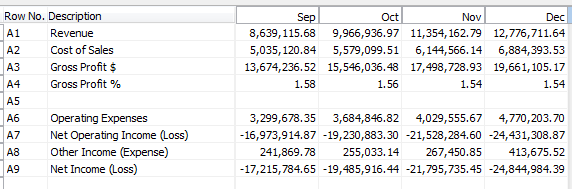
The reason this is happening is because the show opposite sign function is doing exactly what it says it is doing, it is SHOWING the opposite sign. This is really only a presentational mask, and when calculations are done against the value, revenue is still calculating as a negative number, even though it appears on your report as a positive number. This little bit of arithmetic defying programming can make an accountant a little cranky, but it is easy to solve with a little mathematic trickery. In order to fix this, we need to put into place a two part solution. The first part we already know; we must select show opposite sign for our revenue accounts. The second part manipulates the Gross Profit $ and Gross Profit % as shown below, changing the value of the revenue account within the equation in order to calculate correctly.
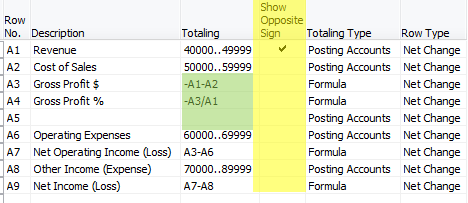
The end result gets us correct results every time.
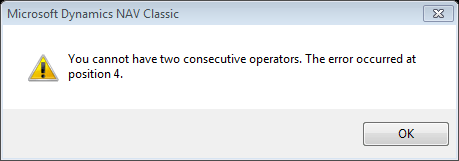
For those of you who are really paying attention, there is one more math mystery in the show opposite sign puzzle. Why have I chosen to show the calculation for Gross Profit % as -A3/A1 instead of simply using A3/-A1? Again, we’ve got to defy the programming with math tricks. Choosing A3/-A1 gives the error shown below. Get around it by moving the negative value to the other side of the equation and you’re good to go.
DynamicsNAVFinancials blog celebrates one year with top 20 postings
Posted: April 1, 2013 Filed under: Uncategorized | Tags: Account Schedules, budgets, Classic Client, Convergence, dimensions, Dynamics, Excel, export to excel, financial reporting, financial statement, general ledger, NAV, NAV 2013, NAVUG, payment terms, PowerPivot, tips and tricks, user group 2 Comments It’s our blogiversary! I started this blog in April 0f 2012, inspired by the number of NAV end users I had met over the last year who had the same questions that just weren’t getting answered. What better way to get that information out to folks than a blog where I could write up the topic in an easy to understand way?
You’ve shown your support! Over that last year, we’ve had over 15,000 views, almost 100 followers via email, have people following us on our new Facebook page, and know that many of you follow postings through the RSS feed. People from more than 120 countries are reading DynamicsNAVFinancials! The blog has gotten enough attention to be picked up for syndication through Microsoft Dynamics Community and I was even asked to participate as one of the eleven official bloggers at Microsoft Dynamics Convergence 2013 last month.
Special thanks has got to go to the NAVUG. The user group has been especially supportive of me and of the blog, finding opportunities for me to speak to NAV users in person, in webinars, online classes, and through this blog. Without the support of the user group this would have been a much longer road and I am so grateful for the constant work they have done to get me in front of as many readers as possible.
Publishing over an entry a week in the last year, there’s a lot to choose from, but in the month of April, I’ll be re-running the top 20 postings determined by the most viewed entries. Enjoy, and thank you so much for reading! There would be no reason to do this without you!
19 The NAV accountant’s little helper: the reconciliation account check box
18 Learning about Microsoft Dynamics NAV 2013: on demand learning from NAVUG is a fantastic resource!
17 Tis the (Budget) Season! Three handy NAV account schedule tips to get you through
16 Tips and tricks for a flawless budget load in NAV
15 Why NAV users should be using dual monitors
14 Video Demo: How to export NAV account schedules to Microsoft Excel
13 Basic row setup options for NAV Account Schedules
12 Aging methods in NAV – which buckets are you looking for?
11 Complete row setup options for NAV account schedules
10 Learning about Microsoft Dynamics NAV 2013
9 Where can I learn more about NAV analysis reports and analysis by dimensions?
8 10 easy tips for payment terms success in Microsoft Dynamics NAV
6 Getting started with a new account schedule
4 Maximize your Microsoft Dynamics NAV 2009 Classic screen space with user level configuration options
3 Basic column layout options for NAV Account Schedules
2 NAV keyboard shortcuts – Classic to RTC
1 The Account Schedules Formulas Page
Communicating to IT about NAV dimensions and NAV2013 dimension sets (part 13 of 15)
Posted: March 27, 2013 Filed under: Uncategorized | Tags: Account Schedules, default dimensions, dimension sets, dimensions, financial reporting, financial statement, NAV, NAV 2013 Leave a commentToday I’ve got some old news and some new news for you regarding dimensions, but first I need to re-emphasize that finance and IT must be of one mind when it comes to dimensions. As a finance professional, you’ll definitely have your perspective on how dimensions will help you to efficiently produce financial reports with control and consistency. But remember that finance and IT need to work in partnership on a NAV dimension strategy in order to be really successful. One way these two roles must work together is regarding how to get your hands on posted dimension data in NAV. If you’re using NAV only tools to get your data, you won’t need this information, but once you progress to using outside reporting tool packages, you need to know a little bit more to get your collective hands on that data.
 Here’s the old news: if you are using any version of NAV prior to NAV2013, dimensions are kept in a separate table behind your main data. You can see this, though it may not be obvious to you, when you populate dimensions using Ctrl-Alt-D or when you view dimensions through the dimensions button from master data. This table is actually called the default dimensions table (table #352). If you’re using something like SQL for reporting, you’ll need to perform a join between this table and the table(s) to which the data are related. As of today, the large majority of NAV users are using versions prior to NAV2013, so this is important information to have if you’re to get all the data you want into your reports now.
Here’s the new news: With NAV2013, dimension sets are turning dimensions upside down, treating them in an entirely different way, in order to make the way dimensions are stored in NAV more efficient. We’ve all heard the horror stories of ginormous databases with performance problems due to overuse of dimensions. Those stories have always been frustrating to me because it seems we should be able to use dimensions in as robust a manner as we can handle. Well, Microsoft has made a great improvement with the creation of dimension sets. I’ll admit that explaining the mechanics of exactly how dimension sets work is beyond my technical capability, so I’ll hand that off to experts more talented than I. I did get to see a presentation by Jesper Lachance where he showed an example (which he allowed me to share in my recent Dimensions presentation at Microsoft Dynamics Convergence 2013) that shows a twenty fold decrease in number of data items stored by using dimension sets instead of the pre-NAV2013 method.
Faithie Robertson of Archerpoint has a fantastic article A Better Mousetrap! Dimension Sets in Dynamics NAV 2013 (Navision) which does a really great job of explaining exactly what a dimension set does differently.
If you’re looking for a textbook explanation, visit MSDN on their page Dimension Set Entries Overview.
Encore Business Solutions has an illustrated guide NAV 2013 – Dimension Sets.
You can see why, with dimensions being stored in a separate table, and with dimension sets showing up as a new improvement, everybody on the team needs to understand how dimensions work, where they’re kept, what your particular company conventions are, and how you’ll report against them accurately and effectively. I haven’t heard a lot of feedback yet from end users about how working with dimension sets is working for them and whether it is making reporting better or challenging in different ways. But, the feedback from programmers, developers, and database administrators has been a resounding: THANK YOU MICROSOFT!!!
Keep reading this month as we continue our series, 15 Days of NAV Dimensions.
NAV dimensions in budgets and consolidations (part 12 of 15)
Posted: March 26, 2013 Filed under: Uncategorized | Tags: Account Schedules, budgets, Classic Client, consolidation, dimensions, financial reporting, financial statement, global, NAV, shortcut Leave a commentNow that you know you can view dimensions on postings and in financial reporting though account schedules, let me show you how you can utilize dimensions in budgets. NAV budgets opens up a few more possibilities for you where dimensions are concerned. Take a look at this screen shot, using the classic client, that shows clearly what the available dimensions are in budgets.
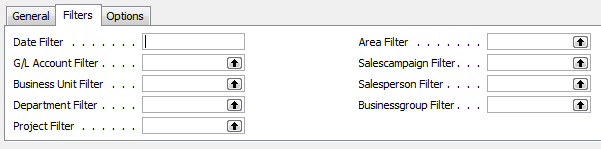 If you look at the left side, you can see the persistent global dimensions of Department and Project which the test database for Cronus uses. Just like all areas of NAV, global dimensions are available everywhere, even in budgets. On the right hand side, you can actually see four more dimensions. These are shortcut dimensions and if you count, you can see you’ve got a total of six dimensions available with NAV budgets to use for your planning process. As long as you budget for a dimension then you can report actual versus budgeted against that dimension.
In addition, you can also see there is a field called business unit filter, which I’ve always counted on as a “bonus” dimension. This field becomes useful when you have multiple companies in NAV and use them to consolidate your financial statements. I’ve got a very simple setup where I have two companies and a consolidation company. When I consolidate my statements monthly, and when I load my budgets, I designate the business unit filter for each of the two companies so I can report on them individually as well as together, on a consolidated level. Because I use separate companies with the business unit filter I don’t need to use a dimension to designate company for my financial statements.
Keep reading this month as we continue our series, 15 Days of NAV Dimensions.
NAV dimensions in account schedules (part 11 of 15)
Posted: March 25, 2013 Filed under: Uncategorized | Tags: Account Schedules, Analysis Reports, analysis views, dimensions, financial reporting, NAV Leave a commentWe’ve spent a good deal of time talking about how to get dimensions into your financial data, now we need to talk a little bit about how to get that information back out in the form of reporting. One of the most direct ways to get financial reporting out of NAV is by using account schedules, which are the native NAV financial reporting package that report on general ledger transactions. Account schedules naturally access the two global dimensions for financial reporting in all cases, as shown below in the old classic client.

By applying analysis views to an account schedule, you get to choose any four of your dimensions, in any combination, to use for your financial reporting. This gives you much more flexibility and power in your financial reporting, allowing you to look at your financial data in many different ways. The most important thing to remember about analysis views is to keep them updated, whether you do this manually or in some automated way.

There are also tools like analysis by dimensions and analysis reports that can be used along with dimensions. For more information see this post Where can I learn more about NAV analysis reports and analysis by dimensions?
Keep reading this month as we continue our series, 15 Days of NAV Dimensions.
NAV default dimensions and value postings on the chart of accounts (part 7 of 15)
Posted: March 19, 2013 Filed under: Uncategorized | Tags: Account Schedules, chart of accounts, code mandatory, dimension value code, dimensions, Dynamics, financial reporting, master data, Microsoft, NAV, tips and tricks, value posting Leave a commentValue postings on the chart of accounts are your next line of defense to ensure a solid dimension strategy execution. You could probably be content by only applying value postings to your master data, but by adding value postings to your chart of accounts in addition to your master data, you are adding a layer of consistency and control into your transactional posting.
But what could go wrong, you might ask? How would the value postings on your master data fail you? If you are using code mandatory with a default value posting, what could possibly go wrong? Here’s what could go wrong – you could forget to populate the dimensions on a new master data item. Let’s say you set up a brand new item, or maybe a big group of items; how about a whole season’s worth of new items? You set them up and forget to populate the dimensions on them. You could go days, weeks, even months (hopefully not if you’re watching your financials) with these new items merrily populating your system with blank dimensions compared to all of your other items that are populating with default dimensions. Once you catch the error, you’ll need to track down all those blank pieces of data and do journal entry reclassifications to all the effected accounts, with all the effected dimensions, in order to fix your financial reporting.
[Sidebar: Easiest way to do this is to run an account schedule covering the effected accounts with the dimension filter set to ” (that’s two single quotes, the symbol for blank in NAV). You can then see every transaction that’s posted with a blank dimension, and use that to construct your correcting journal entries.]
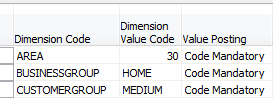
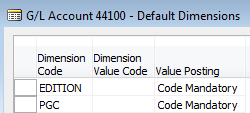 If you’d like to avoid all of that pain, set up value postings on your chart of accounts. Here’s the trick: your should not use a default dimension value code together with your value postings. What you want to accomplish with this is to have your chart of accounts act as a control point for your postings. If your chart of accounts carry a code mandatory on the accounts, they are requiring that they receive dimension data from the master data card before they will allow any transaction to post to them. So, what happens when that rogue item with no dimensions tries to post through? The code mandatory setting on the general ledger account prevents it from posting, ensuring you never end up with any blank dimension postings in your transactions.
Keep reading this month as we continue our series, 15 Days of NAV Dimensions.
15 days of NAV dimensions
Posted: March 11, 2013 Filed under: Uncategorized | Tags: Account Schedules, Convergence, CustomerSource, dimensions, Dynamics, NAV, NAV 2013, tips and tricks 1 CommentMarch Madness may mean basketball for some folks, but for me it means Convergence! Getting a chance to participate as a speaker at Microsoft Dynamics Convergence is a great opportunity to meet new NAV users I haven’t met before. I’m always looking to expand my network of knowledgeable professionals, and one of the ways I do that is by sharing information.
I’m lucky enough to be giving a concurrent session this year called Tips & Tricks for Working with Dimensions in Microsoft Dynamics NAV and I thought I would put together a series for the blog on the same topic to get the information out to a wider audience. For the next 15 days, there will be a brand new post on one of these dimension topics. Enjoy!
Day 1 4 questions to ask when deciding how to use NAV dimensions in your business
Day 2 5 reasons you need to use NAV dimensions
Day 3 The finance professional’s perspective on NAV dimensions
Day 4 Why finance and IT need to work in partnership on a NAV dimension strategy
Day 5 Viewing NAV dimensions on postings: where can you see them?
Day 6 NAV default dimensions and value postings applied to master data
Day 7 NAV default dimensions and value postings on the chart of accounts
Day 8 NAV dimension combinations for additional accuracy
Day 9 NAV dimension priorities
Day 10 Resolving NAV dimension errors
Day 11 NAV dimensions in account schedules
Day 12 NAV dimensions in budgets and consolidations
Day 13 Communicating to IT about NAV dimensions and NAV2013 dimension sets
Day 14 Add NAV dimensions as your business changes
Day 15 Learning more about dimensions from Microsoft Dynamics Customer Source
BONUS View Convergence 2013 session on Microsoft Dynamics NAV dimensions here
This posting is one of the Top 20 Most Viewed in the last year! Follow this link to see the entire list.
I’m presenting at Microsoft Dynamics Convergence 2013 in New Orleans!
Posted: February 11, 2013 Filed under: Uncategorized | Tags: Account Schedules, Classic Client, Convergence, dimensions, NAVUG, RTC, user group 1 Comment For those of you who are regular readers at DynamicsNAVfinancials.com, I wanted to let you know I will be presenting at Microsoft Dynamics Convergence 2013 in New Orleans, coming up in March. I’ll be doing a session on Account Schedules on Monday, a session on Dimensions on Thursday, and will be participating in sessions as a panelist for Ask Your Peers: Finance Professionals, as well as Ask Your Peers: Upgrade Experiences. More detailed session descriptions are below and are hosted by NAVUG. If you haven’t yet had the chance to connect with the NAV user group, check out this link on how to get engaged with NAVUG and the Dynamics NAV community at Convergence 2013.
If you’re attending Convergence, I’d love to meet you! Be sure to stop by and say hello!
Account Schedules in Microsoft Dynamics NAV: UBNAV04
Ask Your Peers: Finance Professionals: IDNAV01-R1
Ask Your Peers: Upgrade Experiences with Microsoft Dynamics NAV :IDNAV03
Tips & Tricks for Working with Dimensions in Microsoft Dynamics NAV:CSNAV08
Video Demo: How to export NAV account schedules to Microsoft Excel
Posted: February 5, 2013 Filed under: Uncategorized | Tags: Account Schedules, dimensions, Excel, export to excel, financial statement, learning, NAVUG, NAVUG Academy, training Leave a commentThere are some quick and easy ways to publish NAV Account Schedules to Microsoft Excel but some of them end up with some pretty ugly formatting unless you know a few secrets on how to make them look better. This short demo video shows you how to create a nicely formatted NAV Account Schedule in Microsoft Excel that only requires formatting the first time you set it up. Each time you replicate the report after that, you can simply update the report with new numbers and the formatting will remain the same every time.
While this demo shows how to create a financial report with three monthly tabs, you can easily extend this technique in a couple of different ways. I use this same technique to produce my monthly financial statement package. I have eighteen pages in the package I produce each month, and each page is a different account schedule. When I start a new month, I copy the Excel workbook and rename it with the new month, then use exactly this same technique to produce the new month’s reports. By using this technique, the new copied workbook acts as a “shell” to receive my new numbers. From month to month, I am able to maintain consistent formatting in my reporting while producing my financial reports in the most efficient way possible. I can apply the same principles to my monthly team budget reports. In this case, I can produce the same actual versus budget report over and over with a new dimension filter applied for each team, one per each Excel worksheet in the workbook.
If you’d like to learn more about account schedules, please visit my 2013 Classes page. This short video demo comes from my Account Schedules Basics class which I teach through NAVUG Academy. This class offering is just one of many classes that are being offered by NAVUG Academy in 2013 to help you get more out of your use of NAV at your company.
This posting is one of the Top 20 Most Viewed in the last year! Follow this link to see the entire list.
Refresh your financial reporting in the New Year
Posted: January 7, 2013 Filed under: Uncategorized | Tags: Account Schedules, financial statement, year end Leave a comment Have you looked at your financial reporting with a fresh eye lately? Is it looking a little tired, out of date, or even irrelevant? The start of a New Year is a great time to take a good look at what you’re producing every month to make sure it is the best quality financial reporting you can be giving to your end users.
One of the reasons I like NAV account schedules for my financial reporting is this tool gives me the flexibility to change what I want when I want. One of those times is at the beginning of the new fiscal year.
Here are some of the things that I look for:
- Primary account use and classification – Look through the accounts and categories used for your balance sheet, income statement, and other primary financial statements. Are they still the main accounts being used or are you showing small balances and tiny net changes because the accounts are no longer being used as much as they used to be? If you find some of those immaterial numbers cluttering up your statements, group them together with some other logical account. This will keep your financial statements crisp, concise, and focused on the big picture.
- Names and labeling used – Think about the wording used on your financial statements. Many times, we call an account, or a brand, or a team one thing on a report, but throughout the year the name we actually use in the company becomes something else. If you’re paying attention through the year, you can catch up the names used on your reports to match the more familiar uses that have currently evolved in your company and instantly make your financial reporting connect with your end users by using the same language they do.
- New accounts – The end of the fiscal year is the most likely time for companies to add accounts. Make sure to trace those new accounts through your financial statements and make sure they’re included everywhere. This should keep you from having to track down some crazy imbalance later in the year.
- New budgeting categories – The annual budgeting process will surface all types of new needs, especially when involving operating or management reports. Make sure new budget categories have been included in your reporting, and that you’ve designed your reports to be flexible enough to report on the coming year’s forecast as well as on the prior year’s historical information.
- Recheck formulas – As always, whenever you make any changes to your financial statements, check and double-check that you haven’t changed or broken any calculations. Spending time now to make sure these essential elements are still working is the best way to save yourself time later.







 Dynamics NAV Financials