Week seven recap: Account Schedules 101
Posted: June 6, 2014 Filed under: Uncategorized Leave a comment Here’s the week 7 recap on the NAV Account Schedules 101 series. Follow the links below to view the posts for each of the lessons we covered this week or view the entire series here.
NAV AS 101 Lesson 15: Dimensions with Account Schedules
NAV AS 101 Lesson 16: Analysis Views
NAV AS 101 Lesson 17: Budgets with Account Schedules
Don’t forget to visit the Account Schedule Formulas and Account Schedule Examples pages if you’re looking for even more ideas on how to improve your financial reporting using account schedules with Microsoft Dynamics NAV.
Article about Dynamics NAV Financials on MSDynamicsWorld.com
Posted: June 6, 2014 Filed under: Uncategorized Leave a comment Jason Gumpert did a nice article about Dynamics NAV Financials today, you can find it here: The finer points of Microsoft Dynamics NAV account schedules: One comptroller’s journey
NAV AS 101 Lesson 17: Budgets with Account Schedules
Posted: June 6, 2014 Filed under: Uncategorized Leave a commentThe single most important thing to know about using budgets with account schedules is: if you want to report on it, you have to budget on it first! Account schedules allows very flexible options for reporting almost any financial measure you can thing of as actual versus budget, but you must set up that level of detail inside your budget in order to be able to eventually report at that level of detail. Keep in mind that you may not want to budget at the same level of detail as the financial transactions you gather in your general ledger, especially when dimensions are involved. If you have very detailed dimensions set up at the item or even customer level, you almost certainly will not budget at that level unless you have very few items or customers. You will more likely choose to budget at a higher more summarized level like product grouping, or department or project.
Setting up account schedules to use budget entries is very simple. When designing any column layout, simply choose budget entries instead of general ledger entries when filling out the ledger entry type field.
NAV budgets open up a few more possibilities for you where dimensions and account schedules are concerned. Take a look at this screen shot, using the classic client, that shows clearly what the available dimensions are in budgets.
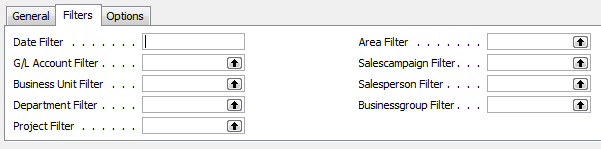 If you look at the left side, you can see the persistent global dimensions of Department and Project which the test database for Cronus uses. Just like all areas of NAV, global dimensions are available everywhere, even in budgets. On the right hand side, you can actually see four more dimensions. These are shortcut dimensions and if you count, you can see you’ve got a total of six dimensions available with NAV budgets to use for your planning process. As long as you budget for a dimension then you can report actual versus budgeted against that dimension in your account schedules. Remember, you’ll need to apply an analysis view to your schedule in order to look at any four dimensions at a time, even when looking at budgets.
In addition, you can also see there is a field called business unit filter, which I’ve always counted on as a “bonus” dimension. This field becomes useful when you have multiple companies in NAV and use them to consolidate your financial statements. I’ve got a very simple setup where I have two companies and a consolidation company. When I consolidate my statements monthly, and when I load my budgets, I designate the business unit filter for each of the two companies so I can report on them individually as well as together, on a consolidated level using account schedules. Because I use separate companies with the business unit filter I don’t need to use a dimension to designate company for my financial statements.
While I do use the budget feature in NAV, I don’t dwell there very long. I use the tool inside NAV to load my budget entries once a year, and after that I leave it alone. Instead of viewing the plan in the NAV budget, I view all budget related entries with account schedules. I find this gives me the most flexibility in switching back and forth between different column layouts that I already use with my actual numbers, and in constructing new ways to compare budget to actual results for my end users.
This posting is part of the NAV Account Schedules 101 series. Find the entire list of lessons here.
Don’t forget to visit the Account Schedule Formulas and Account Schedule Examples pages if you’re looking for even more ideas on how to improve your financial reporting using account schedules with Microsoft Dynamics NAV.
NAV AS 101 Lesson 16: Analysis Views
Posted: June 5, 2014 Filed under: Uncategorized Leave a commentNow that you know you can use dimensions with account schedules, how do you do it? You need to create an analysis view. Analysis views give us the ability to reach into our dimensions, past the two globals, and into the full list of dimensions, allowing us to combine any four dimensions we want at a time in any account schedule.
If you don’t use an analysis view, you’ll still be able to get to your global dimensions as shown below. The two global dimensions for CRONUS USA (Department and Project) are available to be selected on the dimensions filter tab and the remaining options are grayed out, unable to be used.
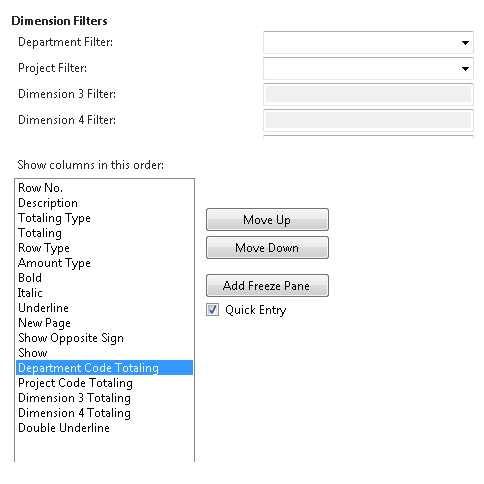
By selecting a different analysis view on the account schedule name page, you will have expanded options. Perhaps you’d like to apply an entirely different set of dimensions filters to your account schedule or limit the dimensions filters to only two of your shortcut dimensions. Any combination of four dimensions is available to you through analysis views.
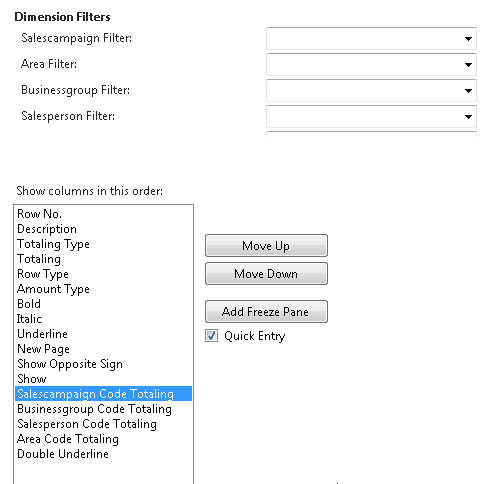
There are six things you need to know about analysis views before you start using them:
1. You can add a default analysis view to any account schedule. If you always want a certain account schedule to filter on a selected group of dimensions every time you open the report, this is the best way to do this.
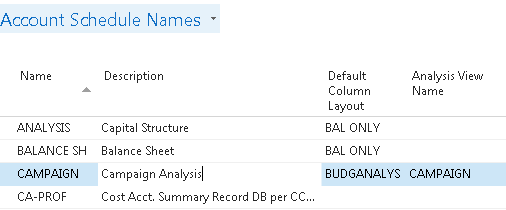
2. Analysis Views must be updated. You can do this at any frequency you wish. Some companies choose to update once a month, some companies update once a day. Be aware that the process of updating pulls in any transactions that have been posted since the last update to your analysis view. This means if you post some entries during your close process, you’ll need to update your analysis view in order to show the change on your account schedule.
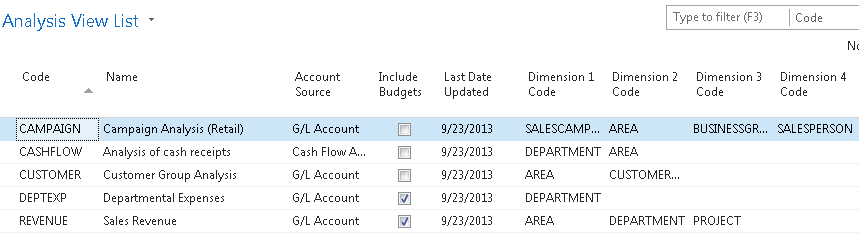
3. Updating can be done manually or it can be automated. To manually update analysis views, just hit the update button. You’ll need to do each view separately. Alternatively, you can choose to schedule codeunit 410 Update Analysis View as a regularly scheduled maintenance item in order to automate this process.
4. When you set up an analysis view for the first time, it can take a long time to update. Depending on the size of your database, if you don’t limit how far back your update goes, it could take a long time to update initially. Be careful by trying this out in a test system first. This process, which will normally take seconds when run daily, will take many hours if you don’t limit it and will cause table locks for other users.
If you test out an update and are afraid it will take up too much processing time, you have a couple of options. First, you can limit the start date of your update. One reason you might need a new analysis view is because you’ve added a new dimension. In this case, you really don’t need to go back to the beginning of time on your update. Choose the date you started gathering data on your new dimension as your starting date. You can also choose date compression. By compressing your data by day, week, month, quarter, period, or year, you limit how much detail you can see when you drill down. If you use this option, you’ll need to remember that this is a compressed view if you change column layouts to a different time frame than your compression setting. Choosing date compression of none will allow you to drill down to full transactional detail.
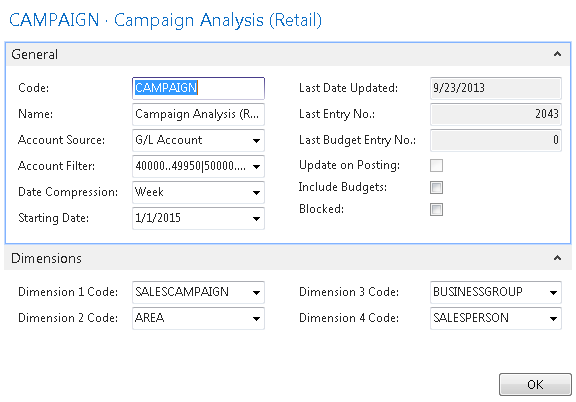
5. Avoid using the update on posting button. This option updates your analysis view every time you post something to your system. Every sales order, every sales tax entry, every cash receipt, etc. will update real-time. I’ve seen one small company use this option and it brought their system performance to a crawl.
6. Remember to include your budgets. If you make any changes to your budgets, you need to update that information on your analysis views as well.
This posting is part of the NAV Account Schedules 101 series. Find the entire list of lessons here.
Don’t forget to visit the Account Schedule Formulas and Account Schedule Examples pages if you’re looking for even more ideas on how to improve your financial reporting using account schedules with Microsoft Dynamics NAV.
NAV AS 101 Lesson 15: Dimensions with Account Schedules
Posted: June 4, 2014 Filed under: Uncategorized Leave a comment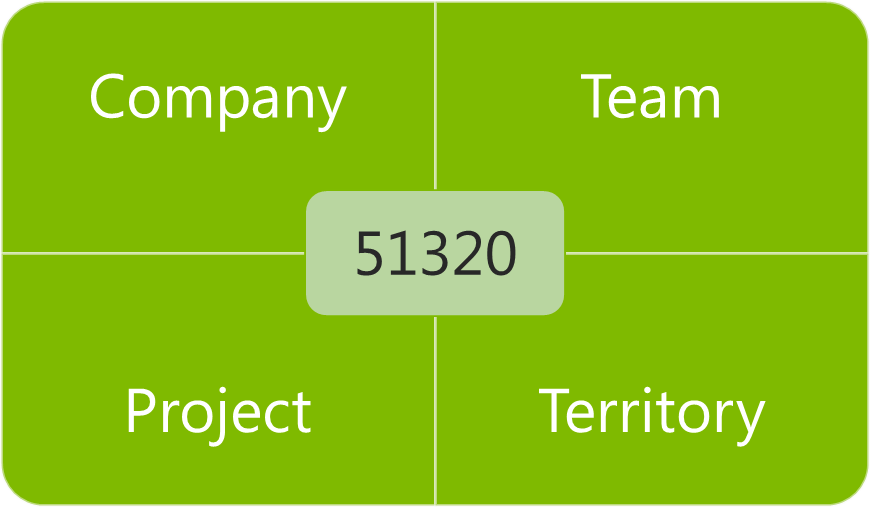 Using dimensions along with account schedules is when you really start to get powerful with your reporting. So far, we’ve only looked at general ledger accounts in rows and periods of time in columns, which is great for financial reporting. However, once you incorporate dimensions you can move beyond just financial reporting and produce other types of reports.
There are three things you need to know about using dimensions with account schedules.
1. If you are using global dimensions, you can get to them from everywhere in NAV, including account schedules. The company shown below uses Department and Project as their global dimensions, so the account schedule filtering options shown are: Department, Project, Dimension 3, and Dimension 4. If you don’t have dimensions defined, you’ll just see Dimension 1, Dimension 2, Dimension 3, and Dimension 4 as your available options.
2. You can use dimensions in rows or in columns or in both rows and columns at the same time! Look in the screen shot above – you have the option of producing totaling by dimension for the same dimensions you have defined in your filters. Think of the possibilities: for this company you could simply see departments in all the rows and a cross section of projects in the columns, effectively giving you a one screen report of projects by department. The general ledger accounts are still there in the design of the rows, and the dates are still there in the filtering of the overall report, but you’ve got two more ways to expand your reporting. Now you’ve moved beyond financial reporting and expanded into reporting on operational areas.
3. You can change the dimensions you report on with account schedules. You are not limited to just the global dimensions, you can actually report on four dimensions in any combination, effectively getting you access to any of the unlimited number of dimensions you can have. In order to do this, you need to define an analysis view, which we’ll go over in the next post, but for now, take a look at how that is different, both in the filtering as well as in the dimension totaling areas of account schedules. This example has an analysis view defined for four different dimensions, which would allow the company to look at entirely different things with their reports.
For a much more in depth discussion of dimensions, take a look at this series devoted to just that topic: 15 Days of Dimensions.
This posting is part of the NAV Account Schedules 101 series. Find the entire list of lessons here.
Don’t forget to visit the Account Schedule Formulas and Account Schedule Examples pages if you’re looking for even more ideas on how to improve your financial reporting using account schedules with Microsoft Dynamics NAV.
Week six recap: Account Schedules 101
Posted: May 23, 2014 Filed under: Uncategorized Leave a commentHere’s the week 6 recap on the NAV Account Schedules 101 series. Follow the links below to view the posts for each of the lessons we covered this week or view the entire series here.
NAV AS 101 Lesson 13: Printing Account Schedules
NAV AS 101 Lesson 14: Exporting to Excel
Don’t forget to visit the Account Schedule Formulas and Account Schedule Examples pages if you’re looking for even more ideas on how to improve your financial reporting using account schedules with Microsoft Dynamics NAV.
NAV AS 101 Lesson 14: Exporting to Excel
Posted: May 22, 2014 Filed under: Uncategorized Leave a commentUsing the Export to Excel function is the single most important time-saver when using NAV account schedules because once you create your first Excel workbook and set all the formatting you’ve created a “shell” that never needs to be set up or changed again. Each month, when you produce your reports for the next fiscal cycle, all you need to do is update that month’s numbers. Not only does this save you a huge amount of time, but your reports also look consistently the same month after month.
This post has video demonstrations showing three different ways to use the export to Excel function. The videos are all done using NAV 2009 R2 Classic, but the functions work exactly the same in all versions of NAV. The only thing that is different is how you get to the Export to Excel function in each version of the software.
NAV 2009 Classic – Choose Functions button at bottom right then choose Export to Excel
NAV2009 RTC – Choose Actions button at top left then choose Functions then choose Export to Excel
NAV2013 – On the Ribbon choose Export to Excel
Produce the same report for three different months
Produce the same report for three different dimensions
Produce financial statement package with three different reports, for two different months
Correction: Oh no! In NAV2013, we’ve lost the ability to update the workbook and still retain formatting. See my post on Account Schedule bugs here for more details on the new recommended best practice on how to deal with this change. I’ll get a new video posted out here with a demo of how to do this later this year.
This posting is part of the NAV Account Schedules 101 series. Find the entire list of lessons here.
Don’t forget to visit the Account Schedule Formulas and Account Schedule Examples pages if you’re looking for even more ideas on how to improve your financial reporting using account schedules with Microsoft Dynamics NAV.
NAV AS 101 Lesson 13: Printing Account Schedules
Posted: May 20, 2014 Filed under: Uncategorized Leave a comment You’ve got a few options to get account schedules out of NAV. You can print them, export them to Microsoft Excel, or you can even simply copy and paste the results out of NAV and into Excel.
I generally recommend companies choose to use the export to Microsoft Excel function because it allows maximum efficiency with maximum flexibility to produce their financial statements. We’ll go over that in the next post in this series.
If you just need a quick dump to Excel so you can play with the numbers a bit, you can simply select all the rows you have on-screen, right-click and copy, and then right-click and paste into Excel. Be warned that you can only copy what’s actually showing on the screen, so if everything is not showing, you’ve got to rearrange your screen a bit to make this work well.
In addition, you can choose to produce your financial reports using XBRL, but I’m not going to consider that an end-user friendly function for the purposes of this post. See your partner to help you get set up if your company wants to do that.
If you must print, here are some tips to help you make those reports look as good as possible. You can print from two different places in NAV. Things are a little bit different between NAV Classic versions and NAV RTC/2013 versions, so I’ll illustrate them all.
[Warning: some of the images in this post get mighty tiny. Click on any picture to bring it up in it’s very own window to save your eyesight. If you’re reading this one on your phone, you’re out of luck, sorry.]
NAV Classic users
If you elect to print from the account schedules overview screen, choose the function button on the bottom right of the screen and choose Print. This brings up the following configuration screen where you can set a few parameters, and then choose Print.
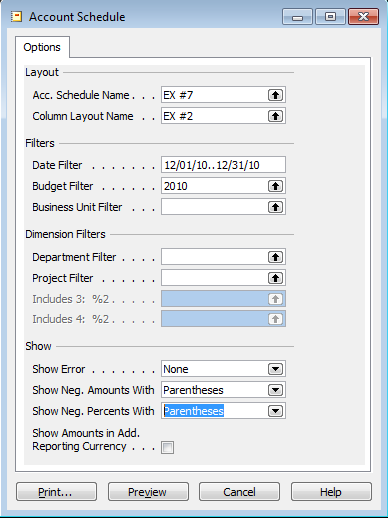
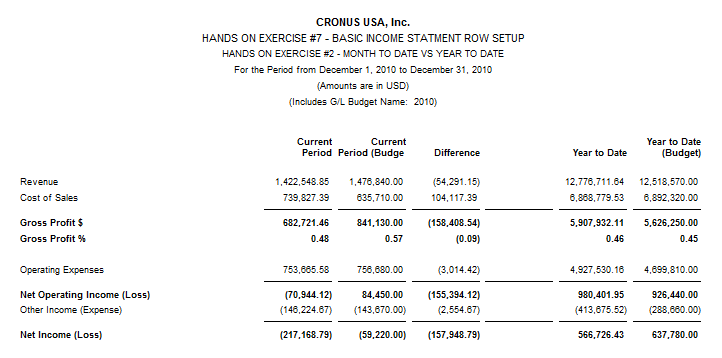
The result you’ll get will look like the screen shot below. There are a few things to note about the result. The information at the top of the page comes from a number of sources. Some of the fields you can control directly, like the row setup and column layout names. In this example, I would want to remove the words “hands on exercise” if I was going to print my schedules. Some of the other fields are coded into the report, so if you want them changed, you’ll need to go into the Object Designer or have your partner change that for you.
The last thing is that the default print setup only allows seven columns, including the description. In this example, I’ve got eight, so my report cuts off the difference column for my year to date numbers. In order to fix that, I can either reduce the number of columns I have, maybe by removing the spacer in the middle, or I can print from a different area.
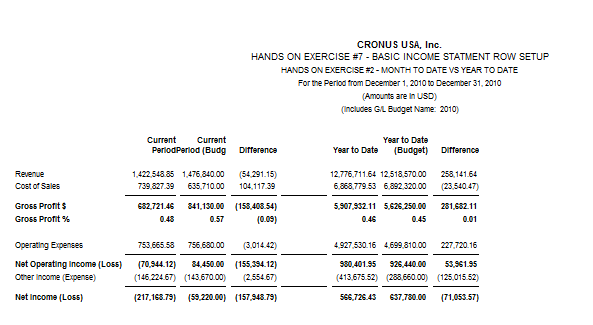
In Classic, go to Financial Management=>General Ledger=>Reports=>Financial Statement=>Account Schedule, Landscape. You’ll see now the report is oriented landscape instead of portrait, so now we can see the difference column that was missing.
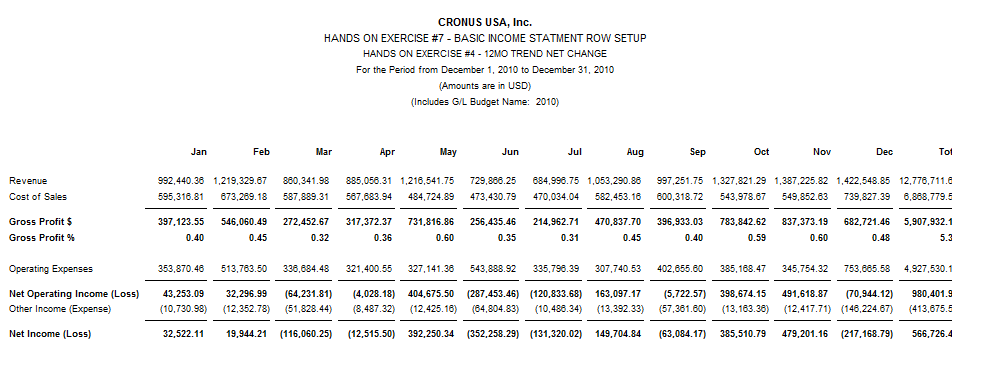
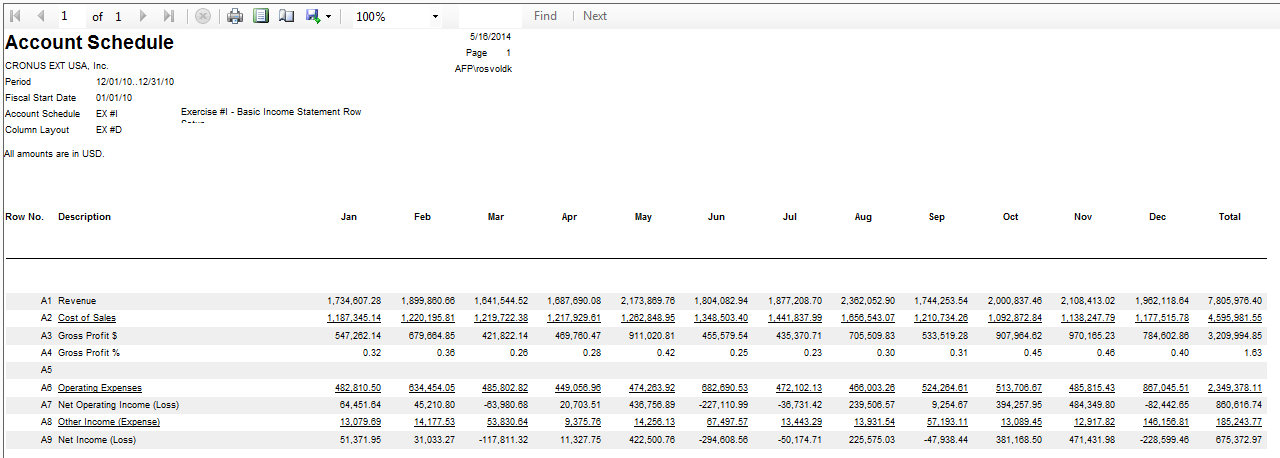
This comes in pretty handy when you’ve got a trended month report to print, which allows 14 columns, including the description, on your report.
NAV Role Tailored Client (RTC) users
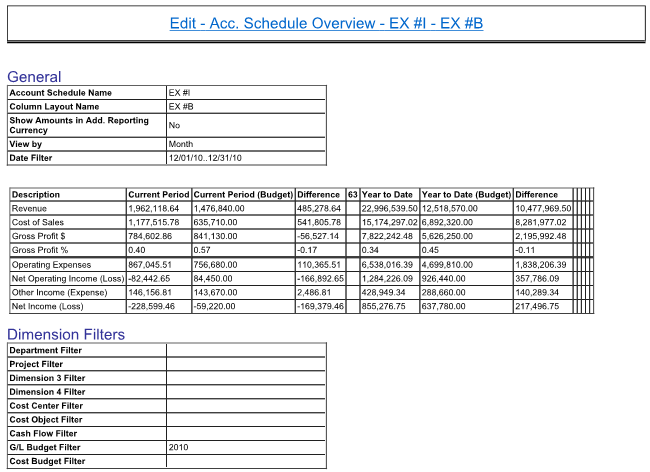
The RTC has made a few changes to printing account schedules, but not many. The most notable is printing from the overview looks significantly different. I would consider this as unusable as a financial statement. When you actually print it from the reports menu, it looks exactly the same as the Classic version, shown above, and you still need to choose between the portrait and landscape versions of account schedules.
NAV 2013 users
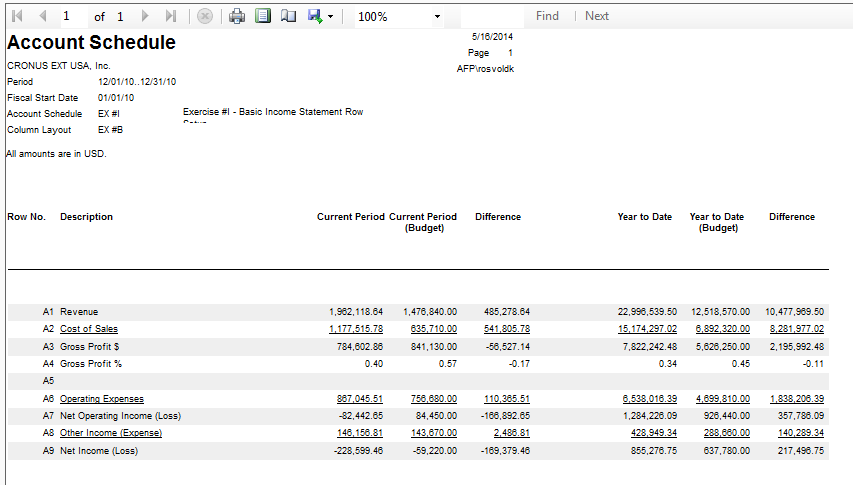
In NAV2013, we’ve got one huge step forward and a couple small steps back with printing. The huge step forward is that we no longer have to choose between portrait and landscape and, we get the same report when printing whether we print from the overview or from the reports menu. We’ve lost the ability to do some small things, like putting brackets around negative numbers, and now the row numbers show up on the report, which I’m not a thrilled about.
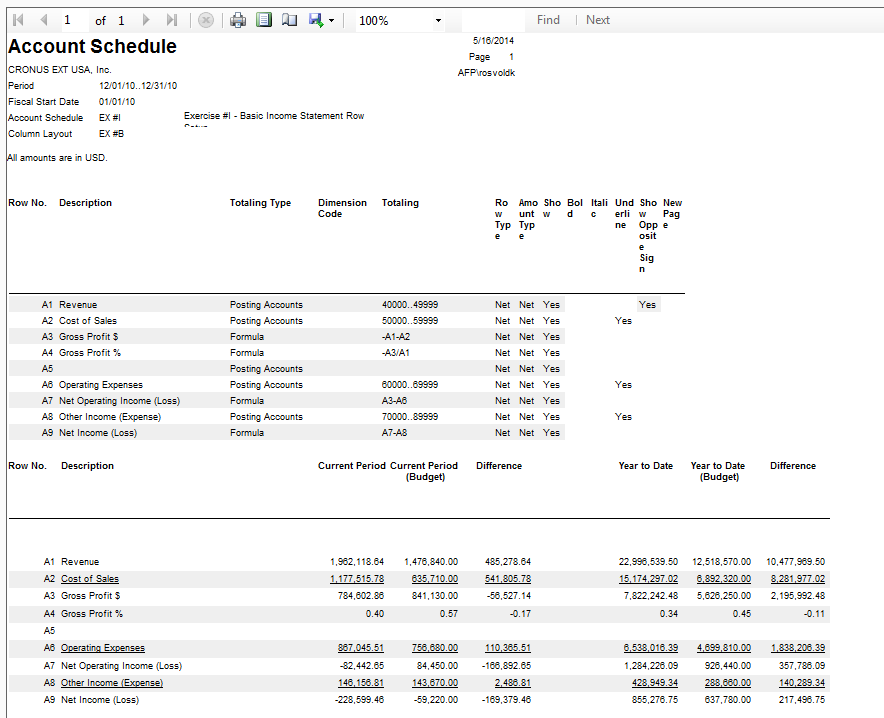
There’s one hidden bonus feature in 2013. If you click a little box in the setup labeled “show account schedule setup”, you get a report that shows your design view right next to your end-user view, which makes it super easy to compare your design and results. We’ve been able to see the layout previously by printing the account schedules layout report, but it’s nice that it’s been added as an option when printing the schedules, all in the same place.
This posting is part of the NAV Account Schedules 101 series. Find the entire list of lessons here.
Don’t forget to visit the Account Schedule Formulas and Account Schedule Examples pages if you’re looking for even more ideas on how to improve your financial reporting using account schedules with Microsoft Dynamics NAV.
Week five recap: Account Schedules 101
Posted: May 16, 2014 Filed under: Uncategorized Leave a commentHere’s the week 5 recap on the NAV Account Schedules 101 series. Follow the links below to view the posts for each of the lessons we covered this week or view the entire series here.
NAV AS 101 Lesson 10: Comparison Period v. Comparison Date
NAV AS 101 Lesson 11: Filtering
NAV AS 101 Lesson 12: Drilling Down
Don’t forget to visit the Account Schedule Formulas and Account Schedule Examples pages if you’re looking for even more ideas on how to improve your financial reporting using account schedules with Microsoft Dynamics NAV.
NAV AS 101 Lesson 12: Drilling Down
Posted: May 16, 2014 Filed under: Uncategorized 2 Comments I don’t know what kind of questions you need to answer as a part of your job, but here are a few of the questions I need to answer in my job every day:
Why is that sales number so low?
Why is that sales number so high?
Where did the expense for “x” end up?
What exactly did that team spend all that money on?
Did we get invoiced for that thing yet?
Did that journal entry get done?
Where did that number come from?
I use account schedules to answer those questions and in most cases, I use the drill down feature to get the answers. Each version of NAV does this a little bit differently, but it’s a very intuitive feature to use no matter what the version.
- CLASSIC: Drill down using the arrow in the cell
- RTC: Right click to drill down
- NAV2013: Double Click to drill down
The mantra you need to learn when using the drill down feature is “drill down to navigate”. In order to get through all the layers of a posting starting with the highly summarized number you see in your account schedule you need to drill down at least a couple of times until you can see the numbers you are looking for. Sometimes you can tell what your answer is by seeing what account or set of accounts the number came from, but other times, you are looking for the entry point of the number – generally either an invoice (sales or purchase) or a journal entry. You can get to all of those juicy answers by drilling down starting from the account schedule, and once you get to the screen that shows you the Navigate function, you can navigate directly to the journal entries that were made and see them in detail or even call up a copy of the invoice you are looking for.
This posting is part of the NAV Account Schedules 101 series. Find the entire list of lessons here.
Don’t forget to visit the Account Schedule Formulas and Account Schedule Examples pages if you’re looking for even more ideas on how to improve your financial reporting using account schedules with Microsoft Dynamics NAV.







 Dynamics NAV Financials