Measuring the return on investment of attending NAVUG Forum
Posted: July 23, 2012 Filed under: Uncategorized | Tags: conference, ERP, NAVUG, networking, ROI, user group Leave a commentAttending NAVUG Forum is exciting for many reasons: getting to see the future of the ERP package we have chosen for our companies, meeting and networking with other people who use that same solution for their organizations, and learning new ways to leverage those tools are just a few. How do you share this experience with the people at your company when you get back home to ensure you are able to return next year? By making sure to measure the return on investment you got for your company while you were there!
Start by making a list of what you want to accomplish while you are at the conference. Planning out what you want to accomplish in the three short days you are here is key.
- Who do you want to meet?
- What do you want to learn?
- What problems do you want to solve?
Make sure to involve others at your company when putting together your list. Are there things you could solve for them? Find out what the big picture is at your company. What is your organization planning to do in the next 3-5 years? What are their challenges technologically in order to meet those goals?
When you arrive at the conference, start to work the list. Take advantage of as many sessions as you can attend in your tracks, and pick and choose some sessions from other tracks that may be outside of your comfort zone. Get involved in networking activities. Bring plenty of business cards and be ready to use your smart phone to exchange information for the first time using QR code scanning! Make sure to stop by the help desk to get advice on more advanced challenges from partners who are volunteering their services during the conference as well as from Microsoft experts. Stop by the vendor hall to check out solutions you know you need and find some that you didn’t know you needed.
Before you get back home, review your time at the conference and what you accomplished. When you return to life back at the office, you’ll quickly forget, so write these things down. Once you’ve got your list together of what you’ve accomplished, both big and small, start to assign value to these things. Were you planning to take a class to learn that new thing? How much would the class have cost? Did you solve a problem at the help desk? What would that have cost you? How about that exchange of information you had with another user? They were able to help you think through a solution for something that would have taken you a few weeks or months to get to. How much time, and money, did having a solution now, instead of later, save you? How much is it worth to you that you can call them up three months from now to ask a clarifying question? Add up the numbers – I guarantee you’ve just justified the cost of attending NAVUG Forum.
Make sure to share what problems you solved, what things you learned, and how much money you saved your company by attending NAVUG Forum when you get back home. Set aside some time to discuss the vision for the future that inspired you with your executive team. Share your involvement with the user group by taking advantage of the free learning and networking opportunities they have and by showing your co-workers how they can also get involved throughout the year. Follow up with the contacts you made while you were at the conference. You will find this network of professionals invaluable in the future.
Hang on to that list. If you question the value of NAVUG Forum, or if someone else does, get out your list and look at the bottom line.
If you need a little more help in getting approval from your company for your NAVUG Forum attendance, the user group provides a great template to help you get started. Find it here: http://navugforum.com/justify-my-trip/
As one added incentive, just by reading this blog, you can get an extra $100 off your NAVUG Forum registration by using this promo code: NAVFIN04. This code can’t be used in combination with other offers.
I’ve attended NAVUG Forum for the last four years. I’ll be attending again in October 2012, and I’m bringing three coworkers with me this year. I’m looking forward to the conference already and I hope that you Meet Me There!
From the 1950 home computer to creating 2.5 quintillion bytes of data daily
Posted: July 19, 2012 Filed under: Uncategorized | Tags: AICPA, technology Leave a comment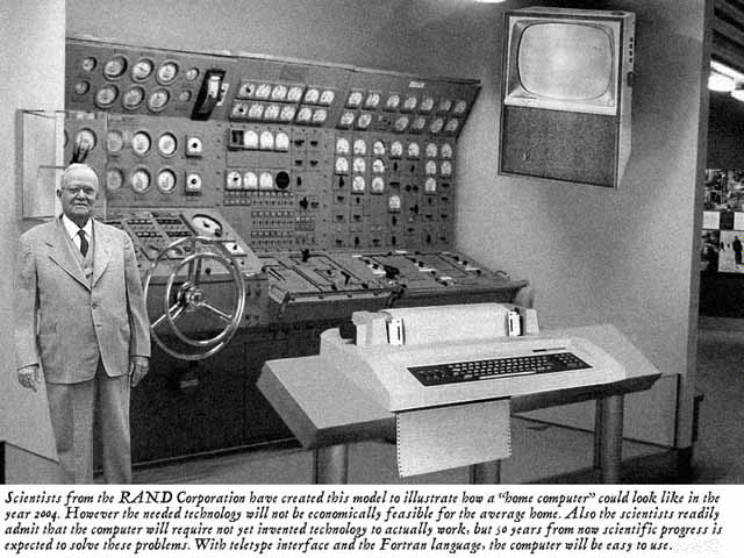 The caption from this photo reads: Scientists from the RAND Corporation have created this model to illustrate how a “home computer” could look in the year 2004. However the needed technology will not be economically feasible for the average home. Also the scientists readily admit that the computer will require not yet invented technology to actually work, but 50 years from now, scientific progress is expected to solve these problems. With teletype interface and the Fortran language, the computer will be easy to use.
Contrast this to the recent article published by the AICPA, where they report:
- every day we create 2.5 quintillion (that’s 2,500,000,000,000,000,000) bytes of data
- the United States needs 140,000 to 190,000 more workers with what they called “deep analytical” expertise
- and another 1.5 million data-literate managers will be needed
Read more about the concept of Big Data, defined as “data sets that grow so large that they are nearly impossible to work with using traditional database management tools, but yet offer a powerful tool when married with strategic use” at the link below.
http://blog.aicpa.org/2012/07/big-data-presents-big-opportunities-for-firms-and-cfos.html
It has never been a better time to be a financial or information technology professional. Look what technology has done for us!
What is your best advice for getting a new NAV user started?
Posted: July 17, 2012 Filed under: Uncategorized | Tags: new to NAV 2 Comments
I have a new employee starting on my team next Monday in the position of Senior Accountant. They have considerable prior financial and systems experience, but no NAV experience. What is your best advice for getting a new employee a great start using Microsoft Dynamics NAV?
NAV Error Message: G/L Account No. ” does not exist
Posted: July 16, 2012 Filed under: Uncategorized | Tags: Account Schedules, consolidation, error, financial statement, general ledger, NAV 1 CommentI was merrily finalizing my financial statements last week, and got this error when running my consolidation. I had successfully run my consolidation error free for over a year, so in disbelief, I immediately reran it, expecting a change in result. Same error. I began to run the mental check list. What was different? What had changed?
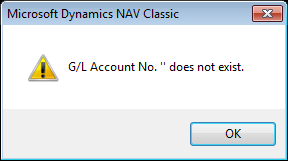
Of course! I had added a new account at the end of the year, and this month was the first month there was activity in the account. Not remembering exactly what I did six months ago, I rechecked my work.
- I had added the new account on my main company
- I had added the new account on my consolidation company
I reran the consolidation; still the same error. What was I missing? The culprit was the Consolidation tab on the on the G/L Account Card. I only had it set up correctly in the consolidation company and had missed filling out these same fields on the main company. I needed for this to be filled out exactly the same on both cards in order for this to work. I fixed the two fields, and voila!, my consolidation was back to its usual, reliable old self and finished up like a champ.
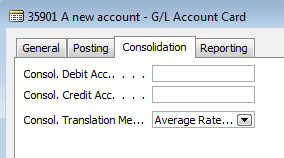 The culprit, showing missed fields
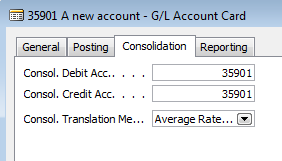 Now properly filled out
Just for good measure, I took a quick tour through my account schedules to make sure I had incorporated this new account either through ranges or individually so this new activity would also be properly captured in the financial statements.
This error can occur in other places, and in plain English is basically telling you that you’ve missed some setup where a general ledger account must be defined. That nifty little double apostrophe means “blank” to NAV. I put “NAV G/L Account No. ” does not exist” into BING looking for someone who may have answered this question before, so if you’re looking for a solution for this error in other areas, try these links.
http://support.microsoft.com/kb/2274642 Microsoft hotfix available when error is generated when you run the export to excel function on the analysis by dimensions reporting in the Spanish version
http://www.mibuso.com/forum/viewtopic.php?t=52338 when posting a sales credit note
http://dynamicsuser.net/forums/p/279520/279520.aspx when posting an invoice
User Poll: Vote and leave your comments regarding what you use to produce NAV financial statements
Posted: July 11, 2012 Filed under: Uncategorized | Tags: Account Schedules, Excel, financial statement, FRx, JET, Management Reporter, SSRS, user poll 6 CommentsWhere can I learn more about NAV analysis reports and analysis by dimensions?
Posted: July 9, 2012 Filed under: Uncategorized | Tags: analysis by dimensions, Analysis Reports, CustomerSource, export to excel, general ledger, item ledger entries, NAV, pivot table, query tool, reporting tool 1 CommentAnalysis reports and analysis by dimensions are the native reporting options that extend NAV reporting to the item ledger entries generated from the sales, purchasing, and inventory areas of the application. I find that many users don’t know that this reporting option exists and think it is one of the more underutilized areas by NAV financial users.
These reporting options can be found on the general ledger, sales & marketing, purchasing, and inventory menus.
The main advantage this reporting tool has over account schedules is that it reaches a further level of detail that just isn’t recorded on the general ledger. Being able to get to quantity information at the item or location level in addition to the dollar values posted makes these tools great as a way to get operational reporting.
What is the difference between the two?
Analysis by dimensions is a query tool. The key to using this tool effectively is to use aggressive filtering, especially if you have a large number of items. It can be a very quick way to get information about what may be going on with a single or small group of items. You can also export to Excel and it shows up in a pivot table.
Analysis Reports allow you to configure and save row setups and column layouts for later use, which makes it a reporting tool. These reports work a lot like account schedules, with some added features to accommodate the additional data you can reach because you’re reporting against the item ledger entry tables instead of the general ledger.
A few hints on analysis reports and analysis by dimensions:
- Skip the analysis report on the general ledger menu and use accounts schedules; you’re not going to get any added value here.
- When posting sales or purchase orders, you must be fully utilizing the sub module, i.e. do not allow any posting of lines to general ledger accounts on the sales or purchase order documents. Any posting that goes “around” these modules will cause your analysis report to show a lower number than what is on your general ledger. Avoid the argument of reporting credibility by understanding this, and either being able to explain the variance, or prevent it from happening altogether.
- Know that analysis reports will not automatically update if you add new items. You’ll need to go in and do this manually to each report every time you add new items.
For those of you who are looking for more resources on Analysis by Dimension and Analysis Views, reference the documents below, found on Customer Source:
Documentation => User Guides => Overview of Training Manuals and Hands-On Labs for Microsoft Dynamics NAV 2009
- Trade in Microsoft Dynamics NAV 2009 – Chapter 9
- Business Intelligence for Information Workers in Microsoft Dynamics NAV 2009 – Chapter 5
Documentation => User Guides => Overview of Training Manuals for Microsoft Dynamics NAV 5.0
- Trade in Microsoft Dynamics NAV 5.0 – Chapter 10
- Business Intelligence for Information Workers in Microsoft Dynamics NAV 5.0 – Chapter 6
This posting is one of the Top 20 Most Viewed in the last year! Follow this link to see the entire list.
Basic row setup options for NAV Account Schedules
Posted: July 5, 2012 Filed under: Uncategorized | Tags: Account Schedules, balance at date, Classic Client, financial statement, net change, row setup, RTC, totaling type 1 CommentThe perpetual problem of the new NAV user is when you get started in a new area of the application, there are way too many options to choose from. How many times have you opened up a new form, only to find twenty or more columns displayed as the default, and many more lurking behind the show columns menu? While we appreciate having all options for all people at some point, new users can find this especially daunting when trying to just get started with something new.
I’ll show you which columns to choose in the row setup for account schedules as a beginning point, and go through some simple explanations of how they are used.
Fields to start with:
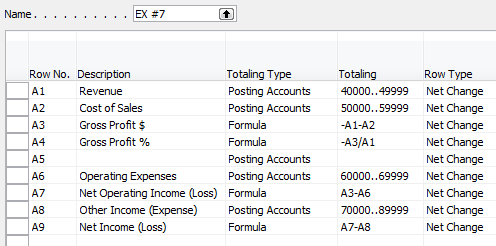
Row No. – The row number is completely optional, but highly recommended. This simple element of the row setup will eventually be one of the key features of your account schedule, allowing you to calculate and organize with ease.
Description – This is the one place you have to communicate, in words, what you’re showing on each line of your report.
Totaling Type: Posting Accounts or Formula – This field tells NAV what you’re going to do here. You’re either going to pull data from your general ledger posting accounts or calculate a formula.
Totaling – Which general ledger accounts you want to pull or what formula you want to calculate.
Row Type: Net Change or Balance at Date – The key here is knowing what type of accounts you’re reporting on. If you’re using income statement accounts (Revenue/Expense), then you need to use net change. If you’re using balance sheet accounts (assets/liabilities), then you need to use Balance at Date.
Shown below are both the design view and the user view of a summarized income statement, showing the use of these five options.
Role Tailored Client


Classic Client

This posting is one of the Top 20 Most Viewed in the last year! Follow this link to see the entire list.
Use insert accounts for a fast start on building a trial balance
Posted: June 11, 2012 Filed under: Uncategorized | Tags: Account Schedules, Classic Client, export to excel, general ledger, insert accounts, NAV, row setup, RTC, trial balance Leave a commentYou’re diving into using account schedules – you’ve figured out where they are, created a brand new one, given it an easy short name and a longer descriptive name and now you’re ready to get started. Now what? You need to begin with the row setup; the foundation of all account schedules.
The row setup defines what you’ll see on the lines of your report. Generally you’ll want to define general ledger accounts, or groups of general ledger accounts, in the row setup when you’re just getting started. Later, you’ll want to add some column layouts but let’s focus on getting that foundation built first.
The easiest way to get going with a new row setup is to put together a trial balance. Your trial balance should be a listing of all your general ledger accounts, one line each, which will show the balance of each account on a particular date, generally a month or period end. If you add them all up, all the accounts should balance to zero, which is one way to prove that your books are in balance.
Role Tailored Client Instructions
If you’re using the role-tailored client (RTC), choose Edit Account Schedule from the action pane.
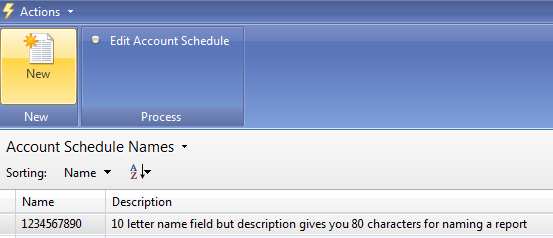
You’ll get a new screen with many blank rows ready to be used. From this screen, choose Actions=>Functions=>Insert Accounts.

This opens up your G/L Account List. Use your mouse to select all the rows you want to add to your row setup.
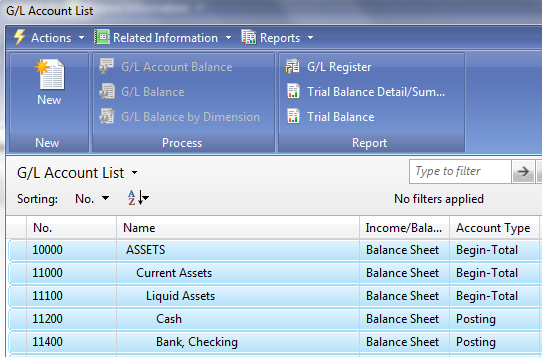
Once you’ve highlighted them all (they should turn light blue), hit OK, and all the accounts you’ve selected will be added to your row setup, one row per account.
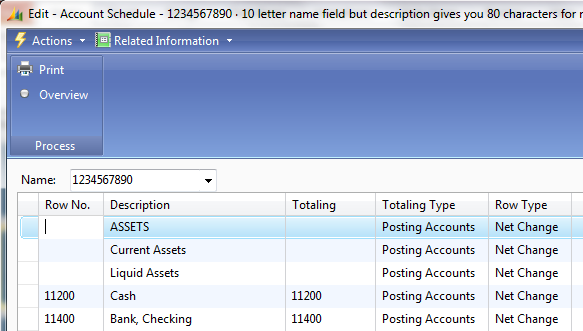
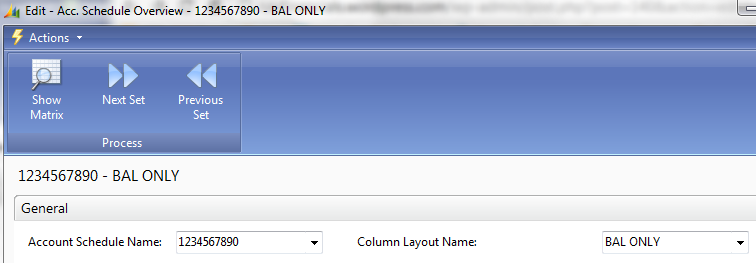
At this point, don’t make any changes to the row setup. Let’s see if it matches the canned trial balance that you can print directly out of NAV. Choose the Overview button (shown in the above screenshot). Select a column layout. If you don’t have one yet, hang in there, we’ll cover that in an upcoming post. For now, I’m going to choose a simple one that shows balance only. Select Show Matrix from the action pane.
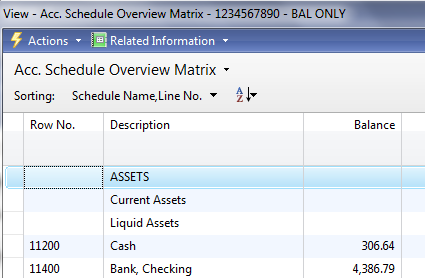
This will show all the accounts you selected in your row setup, now in your account schedule.
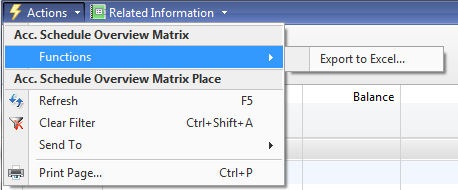
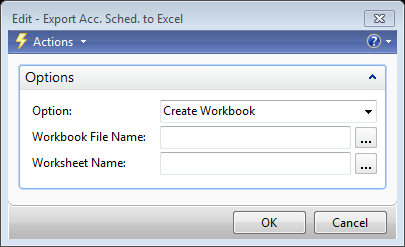
To prove out the balance, dump the account schedule into Excel. Do this by choosing Actions=>Functions=>Export to Excel. On the next window choose the option to Create a New Workbook. Hit OK, and your schedule will export to Excel. Watch out: If you’ve used Begin or End-Total lines in your chart of accounts, you’ll need to remove these lines. These are calculated fields, and should not be a part of your trial balance.
Let’s run the canned trial balance from NAV as a comparison to see if we’ve done this right. Follow this trail to get to the report: Departments=>Financial Management=>General Ledger=>Reports=>Financial Statement=>Trial Balance. Select Actual Balances as your report column and make sure the date filter is set to the same date you used when running the account schedule. Compare the report to the account schedule. Each line should match between the two reports and the total should be zero on both, proving your trial balance is indeed in balance.
Classic Client Instructions
For those who use the classic client, let’s run through the same steps. Starting from Financial Management=>General Ledger=>Analysis & Reporting=>Account Schedules, choose your new account schedule from the list.
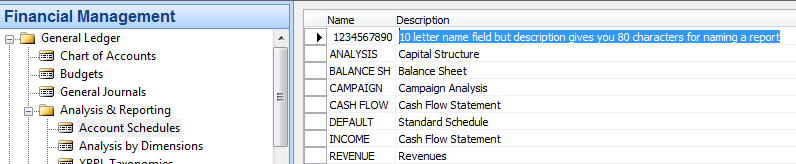
Hit OK, and you’ll get a new screen with many blank rows ready to be used. From the Functions button on the bottom right, choose Insert Accounts.
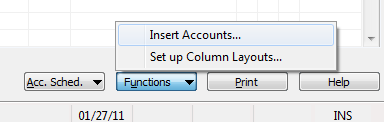
This opens up your G/L Account List. Simply click on the blank cell immediately to the left of the No. field to select all accounts quickly.

Once you’ve highlighted them all (they should turn dark blue), hit OK, and all the accounts you’ve selected will be added to your row setup, one row per account.
At this point, don’t make any changes to the row setup. Let’s see if it matches the canned trial balance that you can print directly out of NAV. Hit OK, and then choose Overview from the Account Schedules button found on the bottom right.

Select a column layout from the Column Layout Name field. If you don’t have one yet, hang in there, we’ll cover that in an upcoming post. For now, I’m going to choose a simple one that shows balance only.
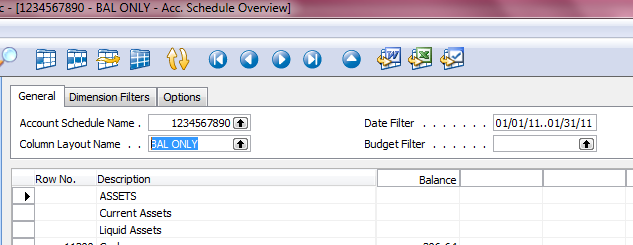
This will show all the accounts you selected in your row setup, now in your account schedule.
To prove out the balance, dump the account schedule into Excel. Do this by choosing Export to Excel from the Functions button on the bottom right.
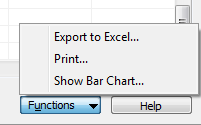
On the next window choose the option to Create a New Workbook. Hit OK and your schedule will export to Excel. Watch out: If you’ve used Begin or End-Total lines in your chart of accounts, you’ll need to remove these lines. These are calculated fields, and should not be a part of your trial balance.
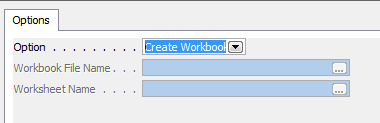
Let’s run the canned trial balance from NAV as a comparison to see if we’ve done this right. Follow this trail to get to the report: Financial Management=>General Ledger=>Reports=>Financial Statement=>Trial Balance. On the Options tab, select Actual Balances as your report column and make sure the date filter is set to the same date you used when running the account schedule. Compare the report to the account schedule. Each line should match between the two reports and the total should be zero on both, proving your trial balance is indeed in balance.
NAV keyboard shortcuts – Classic to RTC
Posted: May 16, 2012 Filed under: Uncategorized | Tags: Classic Client, keyboard shortcut, Microsoft, NAVUG, RTC, tips and tricks Leave a commentWho knew that keyboard shortcuts could be so darn controversial?
I recently got the chance to present a NAV tips and tricks session at the NAVUG Midwest Regional Chapter meeting, and one topic that came up again and again was what keyboard shortcuts were changing in the transition from the classic client to the role-tailored client (RTC).
The first discussion started as a rumor during the social hour the night prior. “Did you hear they’re getting rid of F8?” “No, they can’t get rid of F8!” “What’ll we do without F8?” “Oh my inventory accountant is going to hate that” “Well I heard they’re changing everything.”
Well lucky for us we had quite a few folks there who have already been using the RTC who were able to quite handily put that vicious rumor to rest. F8 is firmly available to copy the field above in the new client, just has it has been in the classic client.
There are quite a few other things that are just simply changing, and I think the changes make a whole lot of sense.
Take F3. F3 has been the constant companion of the NAV user, utilized whenever we needed to designate a new record, a new line, a new document, or a new card. Anything new has been F3. This has been replaced with four new commands in the RTC. Complicated? No, I think that Microsoft has made a concerted effort to simplify by making keyboard shortcuts more consistent with other Microsoft Office products. Even though four new commands are replacing one, I think that Ctrl+N will come quite naturally to someone wanting to create a new record. Ctrl+Insert likewise makes sense for inserting a new line. Ctrl+Shift+C for opening a new card and Ctrl-F2 for creating a new document may be a little taxing, but I’m betting we’ll all get used to it. Frankly, I’m glad to see Microsoft making it easier and more consistent for new users to adopt.
I’m sure I may utter an oath or two when I hit F3 in the RTC and instead of getting a new record, get bumped into a field filter. But I sure will appreciate many of the brand new keyboard shortcuts that support RTC features that we’ve never had before like Alt+Tab to switch among open windows and F5 which now acts as a refresh command, just like it does in other programs.
Check out the link below which goes to a Microsoft .pdf listing out a nice comparative list of keyboard shortcuts between the classic client and the RTC. This will be the first document I give to my end users when we start working on our transition to the RTC. There will always be fear of change, even with small things like keyboard shortcuts.
Encourage folks to look for the consistencies and efficiencies gained with the new ones and remind them; at least they didn’t get rid of F8.
This posting is one of the Top 20 Most Viewed in the last year! Follow this link to see the entire list.
Getting started with a new account schedule
Posted: May 13, 2012 Filed under: Uncategorized | Tags: Account Schedules, Classic Client, NAV, RTC 1 CommentIf you are just getting started with account schedules, you need some basic information to get going. This post will show you where to find account schedules in NAV, how to create a new one, and how to name them. We’ll cover both the role-tailored client (RTC) as well as the classic client.
Where can you find them?
If you’re using NAV with the RTC, choose Departments, then General Ledger from the Financial Management menu, then choose the Account Schedules link under the Reports and Analysis and Analysis & Reporting menus.
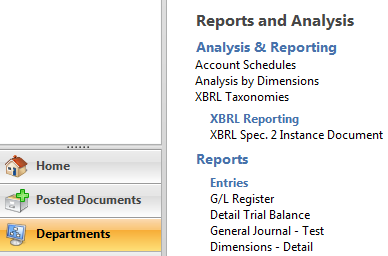
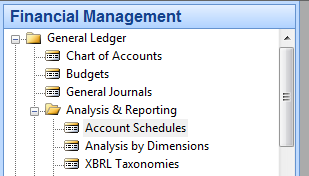
If you’re using NAV 2009 and prior versions with the classic client, choose Financial Management=>General Ledger=>Analysis & Reporting=>Account Schedules.
How do you create a new account schedule?
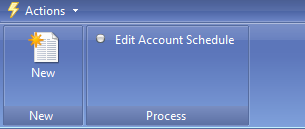
In the RTC, creating a new account schedule is made easy with the New button located on the action pane. If you’re a keyboard shortcuts person, you can use Ctrl-N, or if you prefer to use menu options, go to Actions=>New.
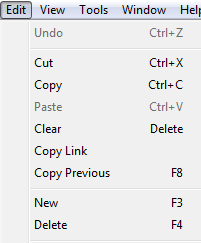
In the classic client, use F3 to create a new record for the account schedule, or select New from the Edit menu.
How do you name a new account schedule?
Once you’ve created a new report using the RTC, you’ve got 10 characters available for the Name field, and 80 characters available for the Description field.

The classic client has the same parameters.

Both clients will allow you to use any combination of numbers, letters, or special characters.
Keep in mind, that regardless of whether you are using RTC or the classic client, the names you use for the description field will be the default names used when you print account schedules directly out of NAV.
This posting is one of the Top 20 Most Viewed in the last year! Follow this link to see the entire list.







 Dynamics NAV Financials