Tips and tricks for a flawless budget load in NAV
Posted: January 21, 2013 Filed under: Uncategorized | Tags: budgets, Excel, export to excel, NAV, tips and tricks 1 CommentHopefully, you’ve completed your budget work for 2013 and all you need to do to finish is to load all that information to NAV so you can begin to report against your actual financial numbers. If you’ve done this before, you might already know that NAV’s budget tool can be a bit fussy and also a bit cryptic about why it won’t accept your carefully prepared data. Here are four quick tips to help you with getting that data into NAV quickly, correctly, and in one try.
1. Export first, then import. This is the single most important detail about getting budget data loaded into NAV. You can choose to export an existing budget or even choose to export a blank new budget. Exporting a budget as your first step establishes a working template you can populate your data into, including dimensions. As long as you start with this template, you are already most of the way there to a successful NAV budget load.
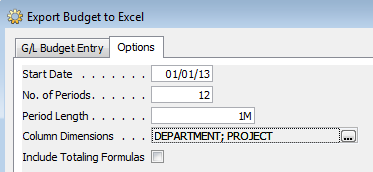
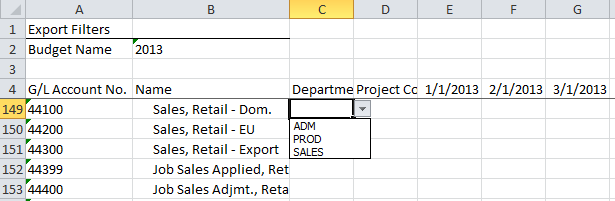
2. If you’re using dimensions, validate your data against the provided drop downs. Make sure all budget lines that use dimensions are only using valid dimension names. Any deviation from the allowable values that already exist in NAV can cause your budget load to error out or load without balancing.
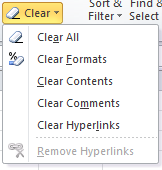
3. Clear the formats from your numbers. Once you’ve copied and pasted or typed your numbers into your Excel template, use the Excel “Clear Formats” function on all cells that contain a numeric value to make sure they are all returned to a formatted status of general. NAV does not accept any other format than the one in the template, and use of other formats, including use of commas in the numbers, will cause the budget tool to give an error and keep you from loading your budget successfully.
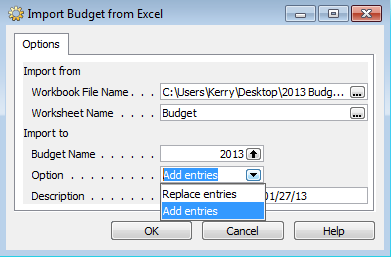
4. Use the “Add Entries” option for a brand new budget load and the “Replace Entries” option for a subsequent version. The add entries option should only be used for a brand new budget load, otherwise the entries will be added on top of the already existing entries, doubling or tripling them. If you need to load a second or third version or some type of correction, always use the replace entries option instead of the add entries option. If you really get stuck with a bunch of errors, the best thing you can do is delete your budget and reload from scratch.
Take one last look through your data to make sure it’s accurate and exactly what you expected. You can use the budget tool to do this, or even better, put together a quick account schedule that shows your entries using “G/L Budget Entries” instead of “G/L Entries”. Make sure to look at your total balances, balances by fiscal period, and balances with dimension filters applied. Once you’re satisfied that all your budgeted data has loaded correctly and completely, you’re ready to produce financial reporting showing actual versus budgeted numbers!
This posting is one of the Top 20 Most Viewed in the last year! Follow this link to see the entire list.
Learning about Microsoft Dynamics NAV 2013: on demand learning from NAVUG is a fantastic resource!
Posted: January 17, 2013 Filed under: Uncategorized | Tags: learning, NAV 2013, NAVUG, training, user group Leave a comment As my company continues to move down the path to upgrading to NAV 2013, learning about the new version is high on our list of priorities. Yesterday, we gathered a group of 18 employees to view a webinar that had been recorded by the NAV user group (NAVUG). The live webinar had been done a month ago, but NAVUG records all of its webinars so user group members can view them on demand later.
I took the opportunity to view the webinar first to vet the material for appropriateness for our group. Being able to see the recording first allowed us to tailor the list of who we invited to view the webinar. Based on the content of the webinar, we invited NAV end users from the customer care, purchasing, finance, IT, warehouse, and marketing departments as well as our CFO and CEO. It was hugely convenient to be able to view the recorded webinar as a group because it allowed us to do this at a time that was convenient to us, we all got to consume the same learning experience at the same time, and we got a chance to discuss what we saw in the context of our own upgrade plans.
The webinar we viewed was titled “NAVUG 2013 Webinar Series: Microsoft Dynamics NAV 2013 – A Functional Preview” and we were excited to see some of the new charting and cash flow improvements, as well as to hear about dimension sets, database performance increases, and improved copy and paste. There were some smiles and ooh and aahs during the discussion of the web client and SharePoint clients for remote access and use of tablet technologies like the iPad and Surface. There was even a smattering of applause when the presenter showed some improved Excel integration features! Most importantly, all the people in the room got to pick up on the real world impact that NAV 2013 improvements will have on their jobs. Our company is still using the Classic Client, so for most of the people attending this was their first exposure to the Role Tailored Client and this webinar really got a lot of them thinking about what the “new” NAV would look like.
I can see already that NAVUG has two more sessions planned in their NAV 2013 Webinar Series. You can bet I’ll be viewing both of these, whether it is at the scheduled time for the webinar, or later, from the recorded session, and finding a way to share the info with other interested folks at my company.
NAVUG NAV 2013 Series: Introduction to ODATA Web Services: How to easily publish your NAV data 01/30/2013 11:00 AM (ET) NAV 2013 brings ODATA Web Services as a new way to access your NAV data from outside the system. Attend this session to find out how you can use ODATA to access your data from many other applications like Excel, SQL Reporting Services, Internet Explorer, smartphones and tablets.
NAVUG NAV 2013 Series: New Feature – Cash Flow 02/14/2013 09:30 AM (ET) We will demo how the new Cash Flow Forecast in NAV 2013 gives an efficient way to forecast short-term cash flow, enable better monitoring of cash receipts and cash disbursements and use the information to take preemptive steps.
For the cost of our annual corporate NAVUG membership, we were able to get 18 people at our company exposed to important concepts about the new version of the software that will be coming their way soon. We didn’t need to incur any travel costs or even any seminar registration fees, and we were able to schedule it at a time that worked for us. I know our company will continue to use the NAVUG library of recorded webinars as we continue to learn about NAV 2013. I hope you find this resource as useful as we have!
This posting is one of the Top 20 Most Viewed in the last year! Follow this link to see the entire list.
Improve your professional skills by attending Convergence
Posted: January 17, 2013 Filed under: Uncategorized | Tags: Convergence, learning, networking Leave a comment Today’s business leaders actively pursue the skills they need to get the job done. Nobody is sitting around, waiting to hand you that knowledge; you’ve got to go out and grab it. Attending Convergence is one way to do that. Here are a few ways I improve my professional skill set every year.
Attend general and concurrent sessions to know what’s coming. Make attending the general session for your ERP solution your top priority. This session is where you get the roadmap for the high level direction of the software. Knowing what’s coming as far as upgrade cycle, types of improvements, and strategic direction is important information to have when you’re back at home. Concurrent sessions are an even more detailed view into what you may see in the next year or two. Watch for trends and direct your thoughts to how the things you are seeing will affect future decisions at your company.
Keep your finger on the pulse of business and technology by networking with your peers. Not all of the learning opportunities are found in formal sessions at Convergence. Take time to talk with people and ask them questions about how they do things in their businesses. What technologies are other people using? What’s working? What’s not working? What are best practices? What do they wish they could do? What’s being done in their industry? Take time to observe what devices people are using around you. Ask them about what app they’ve used lately that’s helped them out. Find out what books or blogs they are reading.
Learn directly from experts. You’ve got huge opportunities at Convergence to talk directly with experts. Now is the time to ask those really nerdy, super technical, theoretical what-if type of questions. Microsoft experts are everywhere! Watch for members of the research and development teams for your software. Stop after sessions to talk with speakers about their content. Make time to show up at the help desk to talk with the Microsoft gold support engineers who are there. All of these people are here at the conference specifically to talk about ERP software, so engage them in a conversation! You will often learn more in one of these conversations than you could ever imagine.
Get inspired by attending the keynotes. One of the key skills I need to exercise as a leader is to instill hope for the future in my team. If you want to see a great model of this skill, go to the keynotes! I get my annual dose of inspiration every year at Convergence.
Make sure you plan to attend Convergence with some specific goals for improving your professional skill set. The conference is full of opportunities. What will you choose to pursue?
Kerry Rosvold has been the Corporate Controller at Augsburg Fortress Publishers since 2008 and has used Microsoft Dynamics NAV as her ERP of choice since 2004. She blogs regularly at www.dynamicsnavfinancials.com.
Refresh your financial reporting in the New Year
Posted: January 7, 2013 Filed under: Uncategorized | Tags: Account Schedules, financial statement, year end Leave a comment Have you looked at your financial reporting with a fresh eye lately? Is it looking a little tired, out of date, or even irrelevant? The start of a New Year is a great time to take a good look at what you’re producing every month to make sure it is the best quality financial reporting you can be giving to your end users.
One of the reasons I like NAV account schedules for my financial reporting is this tool gives me the flexibility to change what I want when I want. One of those times is at the beginning of the new fiscal year.
Here are some of the things that I look for:
- Primary account use and classification – Look through the accounts and categories used for your balance sheet, income statement, and other primary financial statements. Are they still the main accounts being used or are you showing small balances and tiny net changes because the accounts are no longer being used as much as they used to be? If you find some of those immaterial numbers cluttering up your statements, group them together with some other logical account. This will keep your financial statements crisp, concise, and focused on the big picture.
- Names and labeling used – Think about the wording used on your financial statements. Many times, we call an account, or a brand, or a team one thing on a report, but throughout the year the name we actually use in the company becomes something else. If you’re paying attention through the year, you can catch up the names used on your reports to match the more familiar uses that have currently evolved in your company and instantly make your financial reporting connect with your end users by using the same language they do.
- New accounts – The end of the fiscal year is the most likely time for companies to add accounts. Make sure to trace those new accounts through your financial statements and make sure they’re included everywhere. This should keep you from having to track down some crazy imbalance later in the year.
- New budgeting categories – The annual budgeting process will surface all types of new needs, especially when involving operating or management reports. Make sure new budget categories have been included in your reporting, and that you’ve designed your reports to be flexible enough to report on the coming year’s forecast as well as on the prior year’s historical information.
- Recheck formulas – As always, whenever you make any changes to your financial statements, check and double-check that you haven’t changed or broken any calculations. Spending time now to make sure these essential elements are still working is the best way to save yourself time later.
Read my article on MSDynamicsWorld.com – How to Have a Healthy Relationship With Your Microsoft Partner
Posted: December 13, 2012 Filed under: Uncategorized | Tags: ERP, Microsoft, Partner Leave a commentI’ve got an article out on MSDynamicsWorld.com. Here’s an excerpt:
When is the last time you, as a Microsoft customer, spent time thinking about your relationship with your Microsoft partner? Individually, we spend time investing in our relationships with our personal partners; children, friends, and family. As businesses, we also need to expend energy in tending relationships with our business partners. I’ll venture to guess that as a business with a Microsoft Dynamics ERP system, one of your most important relationships is the one you have with your Microsoft partner. Whether your bond is just beginning, having a little bit a trouble, or ongoing, there is always something that can be done to maintain the health of that relationship.
Head on over to MSDynamicsWorld.com to get the rest of the article.
Use show opposite sign to reflect net income correctly on an income statement using NAV account schedules
Posted: December 11, 2012 Filed under: Uncategorized | Tags: Account Schedules, accounting, financial statement, income statement, net income, show opposite sign, tips and tricks, two consecutive operators Leave a commentOne of the concepts I see students in my NAV account schedules class get stuck on is exactly how to use the show opposite sign function when constructing an income statement. It can be a bit mysterious why it behaves the way it does, and it seems to defy the rules of accounting and basic arithmetic all at the same time. Once you understand why it works the way it does, you’ll know how to use it in the future. From the example shown here, we see a very basic income statement.
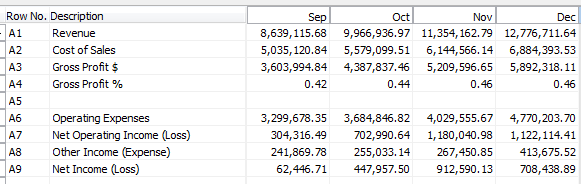
Without using any numbers yet, let’s all agree on some basic calculations:
Revenue – Cost of Sales = Gross Profit $
Gross Profit $ / Revenue = Gross Profit %
Gross Profit $ – Operating Expenses = Net Operating Income (Loss)
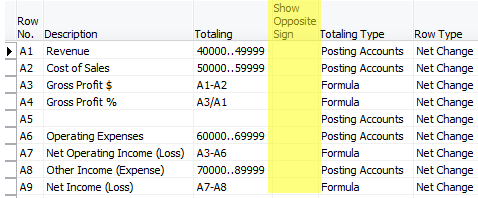
Putting these basic calculations into the design view for this account schedule gives the result below. Notice we’re not going to use the show opposite sign function yet, or make any changes to the basic formulas we just defined.
When we look at the report view for this account schedule we see that we’ve got a significantly wrong result. The revenue is showing as a negative number and all of the calculations below it are incorrect.
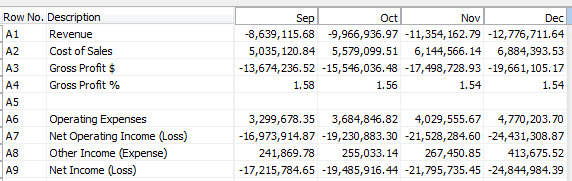
Now, for the accountants out there, you may already have guessed what the problem is. When accounting for revenue, these numbers are assigned a credit value, which shows up as a negative. Most financial statement end users want to see this reflected as a positive number. This is where we need to use show opposite sign. Let’s add that in to the design view, as shown below.
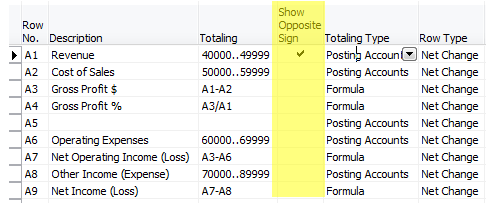
When we look at our new result, you would think all would be correct. We’ve corrected the accounting problem by flipping the sign. However, when you look at the result, we get the following.
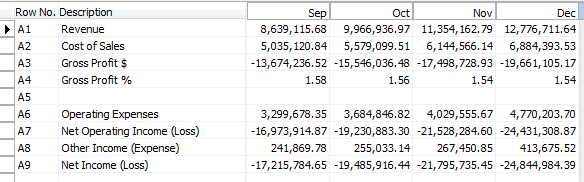
Why in the heck is that gross profit number not right? It seems we’ve got very simple math we’re dealing with here, what could be the problem? Many folks at this point go for the simple solution – just select show opposite sign on the gross profit $ line.
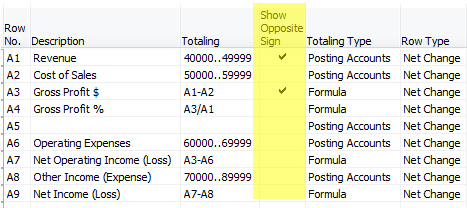
Unfortunately, this doesn’t work either, because you are flipping the sign on both the revenue value as well as the cost of sales value and you simply get the opposite of the same wrong number you got above.
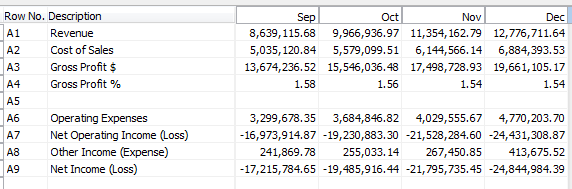
The reason this is happening is because the show opposite sign function is doing exactly what it says it is doing, it is SHOWING the opposite sign. This is really only a presentational mask, and when calculations are done against the value, revenue is still calculating as a negative number, even though it appears on your report as a positive number. This little bit of arithmetic defying programming can make an accountant a little cranky, but it is easy to solve with a little mathematic trickery. In order to fix this, we need to put into place a two part solution. The first part we already know; we must select show opposite sign for our revenue accounts. The second part manipulates the Gross Profit $ and Gross Profit % as shown below, changing the value of the revenue account within the equation in order to calculate correctly.
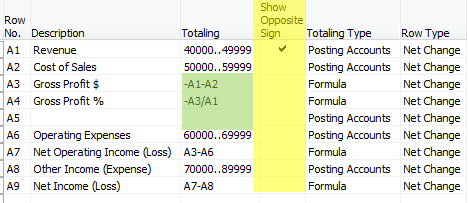
The end result gets us correct results every time.
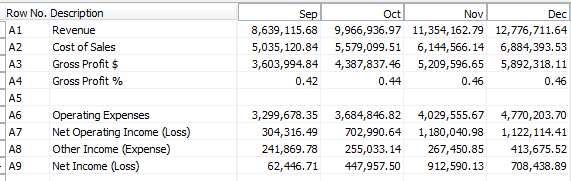
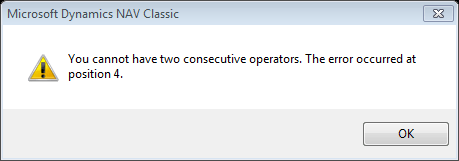
For those of you who are really paying attention, there is one more math mystery in the show opposite sign puzzle. Why have I chosen to show the calculation for Gross Profit % as -A3/A1 instead of simply using A3/-A1? Again, we’ve got to defy the programming with math tricks. Choosing A3/-A1 gives the error shown below. Get around it by moving the negative value to the other side of the equation and you’re good to go.
This posting is one of the Top 20 Most Viewed in the last year! Follow this link to see the entire list.
Guest blog on community.dynamics.com site
Posted: November 20, 2012 Filed under: Uncategorized | Tags: Convergence, Dynamics, Microsoft, networking, user group Leave a commentI’m guest blogging over on the community.dynamics.com site today. Follow the link to learn how to Network and Collaborate at Convergence !
Learning about Microsoft Dynamics NAV 2013
Posted: November 12, 2012 Filed under: Uncategorized | Tags: Convergence, Dynamics, ERP, learning, Microsoft, NAV, NAV 2013, NAVUG, training, upgrading, user group Leave a commentMy company has started seriously discussing what we’re going to do about upgrading our NAV ERP system. With NAV 2013 released to market in October, we’ve got plenty to talk about. Of course, just like you and your companies, we’re nailing down exactly what the benefit of upgrading will be to our company specifically. We’ve talked about performance improvements and greater ability to get to data needed for reporting, but some of those concepts can get pretty intangible in these beginning discussions.
We’ve already talked about the big concepts, but what people really want to know about right now are the real concepts: exactly how will an upgrade in the software increase our productivity, make us more efficient in our jobs, and ultimately, help us to drive revenue, decrease costs, or increase cash?
So, I’m beginning to gather ways to start to show people at my company, in a tangible way, what the upgraded version can do for them. Here’s where I’m at so far:
1) Get groups of stakeholders to start to attend webinars about NAV 2013. I’ve had to chance to attend Microsoft Convergence and see all this stuff, they haven’t. I need to get them exposed to seeing this incredibly different version and what it can do for them. One way I’ll do this is to have them attend webinars sponsored by the NAV user group, NAVUG. They’ve got one scheduled called “A Guided Tour of NAV 2013”, and I’ve got a group organized to attend already. I’m betting we’ll see quite a bit of material about NAV 2013 from the user group in the next year. One of the best things about the user group webinars is that they’re recorded, so if we want to review the webinar later, anyone in my company has that option.
2) Learn as much as I can about the nitty-gritty details so I can promote them in a real way. I’m constantly searching the web (seriously, I “Bing” everything) for new information about just about anything. Right now, I’m focusing on NAV 2013. I just found a great YouTube video, “What’s New Dynamics NAV 2013 – User Productivity Enhancements“. In six quick minutes I got about five takeaways that I can start to use. My favorite? NAV 2013 has improved error messages to help end users resolve problems. I’m going to take this info back to work with me and make sure people know we could have less help desk traffic because the new NAV version makes it a lot easier for end users to solve their own errors on the spot.
3) Get a test copy of NAV 2013 installed so I can start to play around with it myself. I’ve done this with previous versions, so now it’s time. I can get a demo copy installed and start touring the menus, trying things out, and teaching myself how to use the new version. What’ll I try out first? I can’t wait to get my hands on the cash flow forecast! Once I’ve got some level of mastery of the new version, I can start showing folks what improvements will apply to them personally, in their jobs.
I’ll keep posting here as I find useful things to share with you. Hopefully, as you begin your process to discuss the upgrade plan for your company, you’ll find some ideas on things that’ll work for you and your companies.
This posting is one of the Top 20 Most Viewed in the last year! Follow this link to see the entire list.
NAVUG at Microsoft Dynamics Convergence – it’s all about the networking
Posted: November 5, 2012 Filed under: Uncategorized | Tags: Convergence, Microsoft, NAVUG, networking, user group Leave a comment This time of year, you might be thinking about what events you want to attend next year. There are many reasons we attend conferences: for professional development, to keep current with upcoming technologies, and to investigate solutions for new business challenges. For me, attending Convergence is all about the networking. I go every year to refresh relationships with business contacts I’ve already made and to meet new folks as well. Check out this quick one minute video clip that talks about the networking value of the NAV user group (NAVUG) at Microsoft Dynamics Convergence.
Not sure if you can get approved to go? Make sure to include going to Convergence in your annual budgeting process. Documenting the ROI of attending Convergence should be a part of your process. For some quick advice on how to do that, see my article Convincing Your Boss You Should go to Convergence.
The 2013 Microsoft Dynamics Convergence event is held in New Orleans from March 18-21.
Aging methods in NAV – which buckets are you looking for?
Posted: October 30, 2012 Filed under: Uncategorized | Tags: accounts payable, accounts receivable, aging, aging method, bucket, document date, due date, invoice date, NAV, overdue, payment terms, posting date, tips and tricks, transaction date Leave a comment When running any type of financial report, it’s important to ask the right question in order to get the right answer. When running your accounts payable or accounts receivable aging reports, it’s especially important since there are three available options that will give you the same total answer but will break your transactions down into different aging bucket categories. Choosing the correct option for the question you actually want to answer is the key.
Question #1: How overdue is the invoice?
By choosing the Aging Method of Due Date, you are asking NAV to age each bucket on your aging in intervals based on the Due Date of the invoice. Remember the due date is based on a calculation that applies payment terms against the document date of the invoice.
Question #2: How many days have passed since the invoice was posted?
By choosing the Aging Method of Transaction Date, you are asking NAV to age each bucket on your aging in intervals based on the Posting Date. This is sometimes confusing to new users since on both the purchase and sales invoice forms, the two available dates are posting date and document date. The posting date should always be the date you want to post the invoice to your books and therefore the fiscal period the invoice will report in. For the purposes of your aging reports, posting date is equivalent to transaction date.
Question #3: How many days have passed since the vendor billed us – or – since we billed the customer?
By choosing the Aging Method of Document Date, you are asking NAV to age each bucket on your aging in intervals based on the Document Date. This one makes a little more sense to folks because at least the terms are the same. But darn us accountant types, we often call the document date the invoice date when we’re referring to it. Basically, this date should be the date your vendor has provided on the invoice, or from the customer side, the date you shipped and therefore the date you provided on the invoice to the customer. Any payment terms defined on the account will use the document date to calculate the due date.
An example of two invoices shown with all three aging methods
In a perfect world, our posting dates and document dates would all be the same. Let’s pick a perfect example with posting date of 11/01/10 and document date of 11/01/10 and payment terms of Net 21. This would calculate a due date of 11/22/10 on this invoice.
Then let’s pick an imperfect example. Let’s pretend someone at our company turned in that 11/01/10 invoice sometime in December, after the November books were closed. We still need to book this late invoice, so we’ll choose a posting date of 12/01/10, but since it was not the vendor’s error, we’ll use their invoice date of 11/01/10 in order to calculate the payment terms correctly.
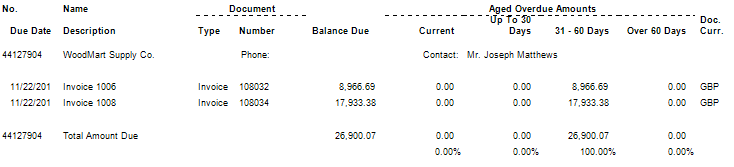
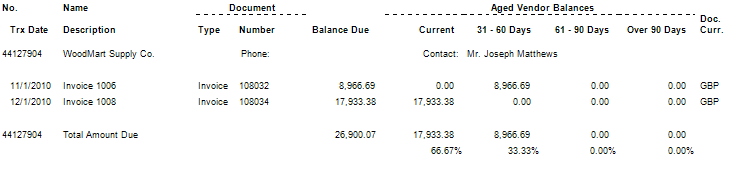
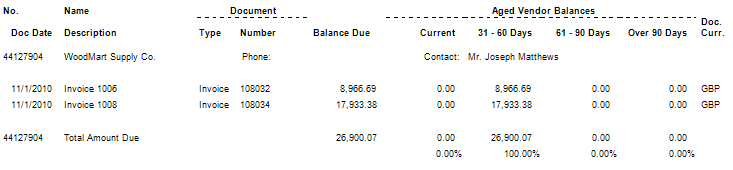
Now, let’s look at an aging as of December 15th, 2010, all three ways. Take note that for all three methods, the balance due is exactly the same. The differences appear in how the aging buckets are defined and how transactions age into the different buckets.
Aging Method of Due Date
Key difference here is the aging buckets start calculating at the due date, so you’ll see column headers of current, up to 30 days, 31-60 days and over 60 days only when using this aging method.
Aging Method of Transaction Date
This aging is based on the posting date, the date that corresponds to the fiscal period you posted the invoice in. Note the late invoice with a 12/1/10 date shows as current.
Aging Method of Document Date
This aging has the same buckets as the one run with transaction date, but is based on the document date or invoice date.
This posting is one of the Top 20 Most Viewed in the last year! Follow this link to see the entire list.







 Dynamics NAV Financials