Complete row setup options for NAV account schedules
Posted: July 30, 2012 Filed under: Uncategorized | Tags: Account Schedules, balance at date, Classic Client, column layout, dimensions, Excel, export to excel, financial statement, general ledger, microsoft dynamics nav, NAV, net change, posting accounts, row setup, RTC, set base for percent, setup options, show opposite sign, totaling type, trial balance 1 CommentAbout a month ago, I published a post called Basic row setup options for NAV account schedules. This is a great place to look if you’re just getting started. However, if you’re looking for what else you can do with Microsoft Dynamics NAV account schedules, then this is where you want to be. This post will go through each and every field available on the account schedule row setup and talk about the available options. The functionality of these fields are exactly the same between the Classic and Role Tailored Clients. The only difference is in how they look on the screen and how you navigate between screens. Take a look at the pictures below to find the look you’re familiar with, but then keep reading for the explanations of what these fields will do in your financial reporting.
Role Tailored Client
This is a view of what I recommend you start with for basic row setup options.

This is a view of all available row setup options.

Classic Client
This is a view of what I recommend you start with for basic row setup options.

This is a view of all available row setup options.

Row setup options – apply to both clients
Row No. is completely optional, but highly recommended. This simple element of the row setup will eventually be one of the key features of your account schedule, allowing you to calculate and organize with ease.
Description is the one place you have to communicate, in words, what you’re showing on each line of your report.
Totaling Type: 6 options to choose from
- Posting Accounts pull data from your accounts designated as posting accounts on the G/L Account Card Account Type field.
- Total Accounts pull data from your accounts designated as a total or as an end-total on the G/L Account Card Account Type field.
- Formula allows you to calculate a basic formula on this row.
- Underline places a single underline .
- Double Underline places a double underline.
- NOTE: This nifty addition showed up with NAV 2009 R2. If you are NAV 2009 SP1 or earlier, this won’t be available to you.
- Both of the underline functions are there to give folks who print account schedules directly out of NAV some formatting options. If you’re exporting to Excel you’ve got some better format options to work with than these.
- Set Base for Percent allows you to designate which row from your row setup will be used as the beginning point for a section to be included in a percent of total calculation. This feature showed up in version 5.0 and must be used together with a formula on another row to designate the end point of the section as well as some setup in the column layout. It’s a little fussy in the setup and inelegant in execution, but is still effective to get those vital comparative percentages onto your account schedules.
Totaling will be which general ledger accounts you want to pull or what formula you want to calculate, depending on what you selected in totaling type.
Row Type: 3 options to choose from
- Net Change should be used, generally, if you’re reporting on income statement accounts (revenue/expense).
- Balance at Date should be used, generally, if you’re reporting on balance sheet accounts (assets/liabilities).
- Beginning Balance will be sparingly used, but you’ll want this for your statement of cash flows at some point.
Amount Type gives you three options: Net Amount, Debit Amount and Credit Amount. You’re going to use Net Amount almost all the time, but I suppose if you were getting very granular in your account schedules and perhaps using them for detailed reconciling reports, this might be useful. If I’m getting down to this level of transactional detail, I’m usually going to the chart of accounts instead of account schedules.
Formatting Fields: Bold, Italic, and Underline These basic formatting fields are there to allow you to emphasize some of the rows of your account schedules. When you select these options on any row, the whole row is effected. You are not able to effect a single “cell” for formatting. What’s the difference between underline here and underline found in the Totaling Type options? You can get a more snug fit on your underline using this option since it appears in the same row of your data instead of in a row if its own.
New Page inserts a page break. This is commonly used when separating the pages of the balance sheet showing assets on the first page and liabilities and equity on the second page. I have also seen it used when folks build multi page account schedules.
Show Opposite Sign is the option you can select to change revenue credit balances or expense debit balances to the opposite sign for the purposes of presenting this data in a more non-finance friendly manner. No salesperson wants to see sales presented with a negative sign; use this to change that credit to a positive number on your reporting.
Show allows you to designate if a row will show (the default) or be hidden on the printed account schedule only. You can click this box as much as you want, but your rows will still show on-screen or when you export to Excel. If you print directly out of account schedules, this feature will work very well for you.
Dimension Totaling is the last option available and you might have noticed that I didn’t show them on pictures above. This is because they are unique for just about every user, and depending on your analysis view setup, may even be different from schedule to schedule. You can use just one, or you can use all four of the available dimension totaling fields, in whatever combination you like. These fields act very much like the Totaling field because this is where you will tell NAV what Dimensions you want shown and totaled from your general ledger accounts.
This posting is one of the Top 20 Most Viewed in the last year! Follow this link to see the entire list.
NAV Error Message: G/L Account No. ” does not exist
Posted: July 16, 2012 Filed under: Uncategorized | Tags: Account Schedules, consolidation, error, financial statement, general ledger, NAV 1 CommentI was merrily finalizing my financial statements last week, and got this error when running my consolidation. I had successfully run my consolidation error free for over a year, so in disbelief, I immediately reran it, expecting a change in result. Same error. I began to run the mental check list. What was different? What had changed?
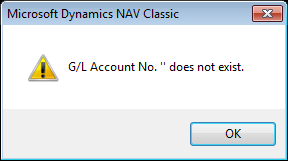
Of course! I had added a new account at the end of the year, and this month was the first month there was activity in the account. Not remembering exactly what I did six months ago, I rechecked my work.
- I had added the new account on my main company
- I had added the new account on my consolidation company
I reran the consolidation; still the same error. What was I missing? The culprit was the Consolidation tab on the on the G/L Account Card. I only had it set up correctly in the consolidation company and had missed filling out these same fields on the main company. I needed for this to be filled out exactly the same on both cards in order for this to work. I fixed the two fields, and voila!, my consolidation was back to its usual, reliable old self and finished up like a champ.
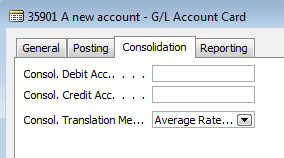 The culprit, showing missed fields
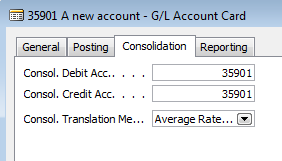 Now properly filled out
Just for good measure, I took a quick tour through my account schedules to make sure I had incorporated this new account either through ranges or individually so this new activity would also be properly captured in the financial statements.
This error can occur in other places, and in plain English is basically telling you that you’ve missed some setup where a general ledger account must be defined. That nifty little double apostrophe means “blank” to NAV. I put “NAV G/L Account No. ” does not exist” into BING looking for someone who may have answered this question before, so if you’re looking for a solution for this error in other areas, try these links.
http://support.microsoft.com/kb/2274642 Microsoft hotfix available when error is generated when you run the export to excel function on the analysis by dimensions reporting in the Spanish version
http://www.mibuso.com/forum/viewtopic.php?t=52338 when posting a sales credit note
http://dynamicsuser.net/forums/p/279520/279520.aspx when posting an invoice
Where can I learn more about NAV analysis reports and analysis by dimensions?
Posted: July 9, 2012 Filed under: Uncategorized | Tags: analysis by dimensions, Analysis Reports, CustomerSource, export to excel, general ledger, item ledger entries, NAV, pivot table, query tool, reporting tool 1 CommentAnalysis reports and analysis by dimensions are the native reporting options that extend NAV reporting to the item ledger entries generated from the sales, purchasing, and inventory areas of the application. I find that many users don’t know that this reporting option exists and think it is one of the more underutilized areas by NAV financial users.
These reporting options can be found on the general ledger, sales & marketing, purchasing, and inventory menus.
The main advantage this reporting tool has over account schedules is that it reaches a further level of detail that just isn’t recorded on the general ledger. Being able to get to quantity information at the item or location level in addition to the dollar values posted makes these tools great as a way to get operational reporting.
What is the difference between the two?
Analysis by dimensions is a query tool. The key to using this tool effectively is to use aggressive filtering, especially if you have a large number of items. It can be a very quick way to get information about what may be going on with a single or small group of items. You can also export to Excel and it shows up in a pivot table.
Analysis Reports allow you to configure and save row setups and column layouts for later use, which makes it a reporting tool. These reports work a lot like account schedules, with some added features to accommodate the additional data you can reach because you’re reporting against the item ledger entry tables instead of the general ledger.
A few hints on analysis reports and analysis by dimensions:
- Skip the analysis report on the general ledger menu and use accounts schedules; you’re not going to get any added value here.
- When posting sales or purchase orders, you must be fully utilizing the sub module, i.e. do not allow any posting of lines to general ledger accounts on the sales or purchase order documents. Any posting that goes “around” these modules will cause your analysis report to show a lower number than what is on your general ledger. Avoid the argument of reporting credibility by understanding this, and either being able to explain the variance, or prevent it from happening altogether.
- Know that analysis reports will not automatically update if you add new items. You’ll need to go in and do this manually to each report every time you add new items.
For those of you who are looking for more resources on Analysis by Dimension and Analysis Views, reference the documents below, found on Customer Source:
Documentation => User Guides => Overview of Training Manuals and Hands-On Labs for Microsoft Dynamics NAV 2009
- Trade in Microsoft Dynamics NAV 2009 – Chapter 9
- Business Intelligence for Information Workers in Microsoft Dynamics NAV 2009 – Chapter 5
Documentation => User Guides => Overview of Training Manuals for Microsoft Dynamics NAV 5.0
- Trade in Microsoft Dynamics NAV 5.0 – Chapter 10
- Business Intelligence for Information Workers in Microsoft Dynamics NAV 5.0 – Chapter 6
This posting is one of the Top 20 Most Viewed in the last year! Follow this link to see the entire list.
Use insert accounts for a fast start on building a trial balance
Posted: June 11, 2012 Filed under: Uncategorized | Tags: Account Schedules, Classic Client, export to excel, general ledger, insert accounts, NAV, row setup, RTC, trial balance Leave a commentYou’re diving into using account schedules – you’ve figured out where they are, created a brand new one, given it an easy short name and a longer descriptive name and now you’re ready to get started. Now what? You need to begin with the row setup; the foundation of all account schedules.
The row setup defines what you’ll see on the lines of your report. Generally you’ll want to define general ledger accounts, or groups of general ledger accounts, in the row setup when you’re just getting started. Later, you’ll want to add some column layouts but let’s focus on getting that foundation built first.
The easiest way to get going with a new row setup is to put together a trial balance. Your trial balance should be a listing of all your general ledger accounts, one line each, which will show the balance of each account on a particular date, generally a month or period end. If you add them all up, all the accounts should balance to zero, which is one way to prove that your books are in balance.
Role Tailored Client Instructions
If you’re using the role-tailored client (RTC), choose Edit Account Schedule from the action pane.
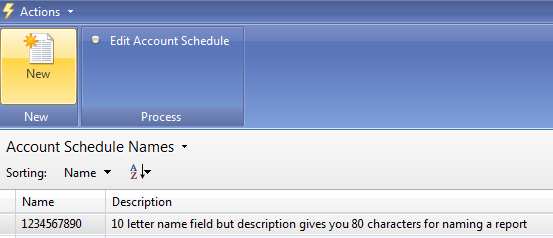
You’ll get a new screen with many blank rows ready to be used. From this screen, choose Actions=>Functions=>Insert Accounts.

This opens up your G/L Account List. Use your mouse to select all the rows you want to add to your row setup.
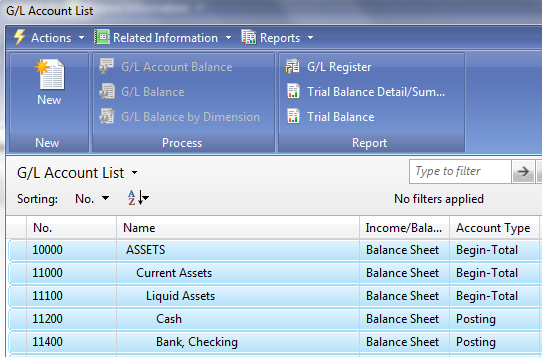
Once you’ve highlighted them all (they should turn light blue), hit OK, and all the accounts you’ve selected will be added to your row setup, one row per account.
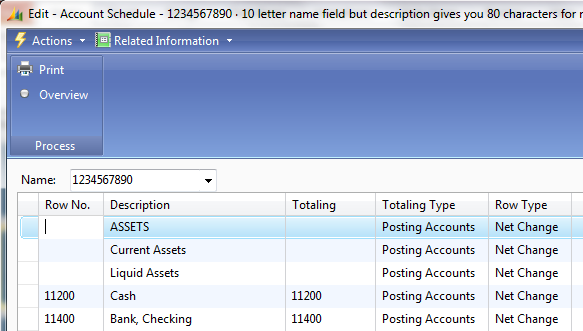
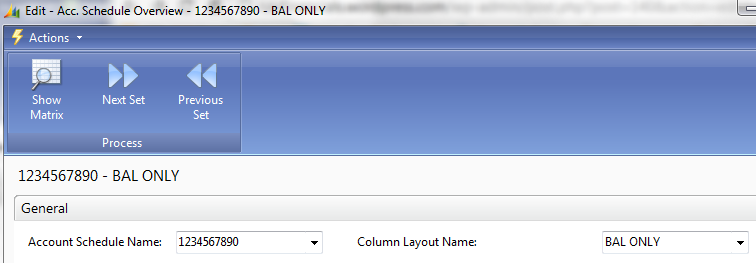
At this point, don’t make any changes to the row setup. Let’s see if it matches the canned trial balance that you can print directly out of NAV. Choose the Overview button (shown in the above screenshot). Select a column layout. If you don’t have one yet, hang in there, we’ll cover that in an upcoming post. For now, I’m going to choose a simple one that shows balance only. Select Show Matrix from the action pane.
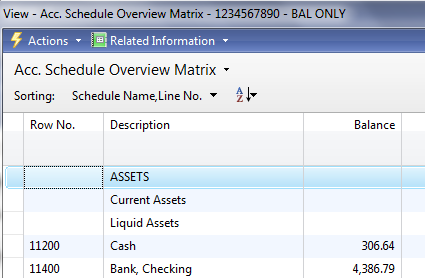
This will show all the accounts you selected in your row setup, now in your account schedule.
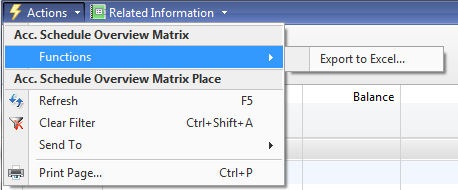
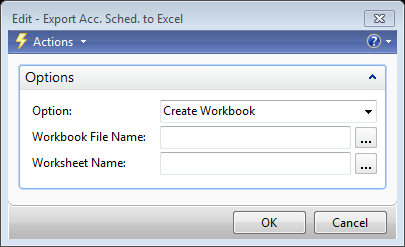
To prove out the balance, dump the account schedule into Excel. Do this by choosing Actions=>Functions=>Export to Excel. On the next window choose the option to Create a New Workbook. Hit OK, and your schedule will export to Excel. Watch out: If you’ve used Begin or End-Total lines in your chart of accounts, you’ll need to remove these lines. These are calculated fields, and should not be a part of your trial balance.
Let’s run the canned trial balance from NAV as a comparison to see if we’ve done this right. Follow this trail to get to the report: Departments=>Financial Management=>General Ledger=>Reports=>Financial Statement=>Trial Balance. Select Actual Balances as your report column and make sure the date filter is set to the same date you used when running the account schedule. Compare the report to the account schedule. Each line should match between the two reports and the total should be zero on both, proving your trial balance is indeed in balance.
Classic Client Instructions
For those who use the classic client, let’s run through the same steps. Starting from Financial Management=>General Ledger=>Analysis & Reporting=>Account Schedules, choose your new account schedule from the list.
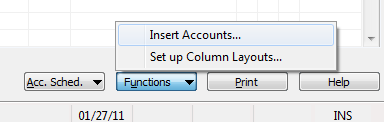
Hit OK, and you’ll get a new screen with many blank rows ready to be used. From the Functions button on the bottom right, choose Insert Accounts.
This opens up your G/L Account List. Simply click on the blank cell immediately to the left of the No. field to select all accounts quickly.

Once you’ve highlighted them all (they should turn dark blue), hit OK, and all the accounts you’ve selected will be added to your row setup, one row per account.
At this point, don’t make any changes to the row setup. Let’s see if it matches the canned trial balance that you can print directly out of NAV. Hit OK, and then choose Overview from the Account Schedules button found on the bottom right.

Select a column layout from the Column Layout Name field. If you don’t have one yet, hang in there, we’ll cover that in an upcoming post. For now, I’m going to choose a simple one that shows balance only.
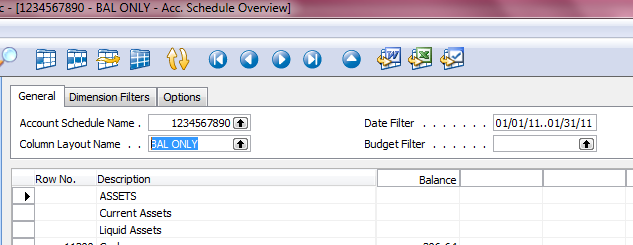
This will show all the accounts you selected in your row setup, now in your account schedule.
To prove out the balance, dump the account schedule into Excel. Do this by choosing Export to Excel from the Functions button on the bottom right.
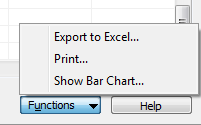
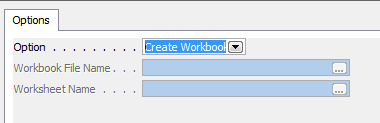
On the next window choose the option to Create a New Workbook. Hit OK and your schedule will export to Excel. Watch out: If you’ve used Begin or End-Total lines in your chart of accounts, you’ll need to remove these lines. These are calculated fields, and should not be a part of your trial balance.
Let’s run the canned trial balance from NAV as a comparison to see if we’ve done this right. Follow this trail to get to the report: Financial Management=>General Ledger=>Reports=>Financial Statement=>Trial Balance. On the Options tab, select Actual Balances as your report column and make sure the date filter is set to the same date you used when running the account schedule. Compare the report to the account schedule. Each line should match between the two reports and the total should be zero on both, proving your trial balance is indeed in balance.
Getting started with a new account schedule
Posted: May 13, 2012 Filed under: Uncategorized | Tags: Account Schedules, Classic Client, NAV, RTC 1 CommentIf you are just getting started with account schedules, you need some basic information to get going. This post will show you where to find account schedules in NAV, how to create a new one, and how to name them. We’ll cover both the role-tailored client (RTC) as well as the classic client.
Where can you find them?
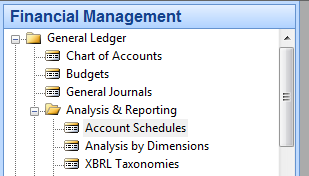
If you’re using NAV with the RTC, choose Departments, then General Ledger from the Financial Management menu, then choose the Account Schedules link under the Reports and Analysis and Analysis & Reporting menus.
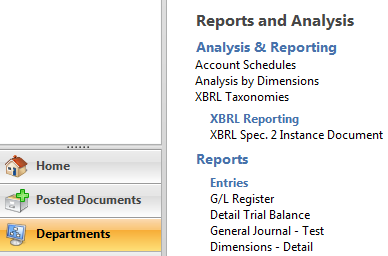
If you’re using NAV 2009 and prior versions with the classic client, choose Financial Management=>General Ledger=>Analysis & Reporting=>Account Schedules.
How do you create a new account schedule?
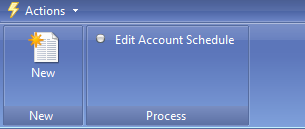
In the RTC, creating a new account schedule is made easy with the New button located on the action pane. If you’re a keyboard shortcuts person, you can use Ctrl-N, or if you prefer to use menu options, go to Actions=>New.
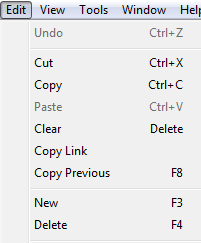
In the classic client, use F3 to create a new record for the account schedule, or select New from the Edit menu.
How do you name a new account schedule?
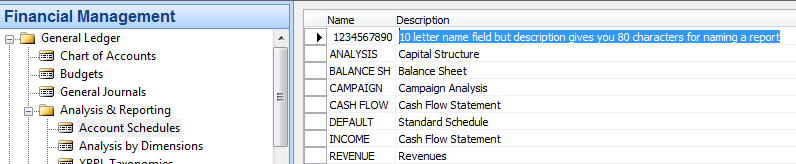
Once you’ve created a new report using the RTC, you’ve got 10 characters available for the Name field, and 80 characters available for the Description field.

The classic client has the same parameters.

Both clients will allow you to use any combination of numbers, letters, or special characters.
Keep in mind, that regardless of whether you are using RTC or the classic client, the names you use for the description field will be the default names used when you print account schedules directly out of NAV.
This posting is one of the Top 20 Most Viewed in the last year! Follow this link to see the entire list.
Why I use NAV Account Schedules
Posted: April 25, 2012 Filed under: Uncategorized | Tags: Account Schedules, budgets, dimensions, Excel, financial statement, general ledger, NAV Leave a commentI use account schedules as the primary source of financial reporting at my company. With all the available choices out there, why do I use account schedules? I’ve got a whole list of reasons.
1) I can custom build all of my financial statements, exactly how I want to see them.
Especially when I talk with prospective NAV customers, I hear a lot of objections as to why NAV doesn’t come with “out of the box” financial statements. If you think about this for a bit, what part of your company’s financials might fit the definition of “out of the box”? Is your chart of accounts the same as someone else’s? What about the name of your accounts? Your numbering convention? Is the way you present your financial statements just like anyone else’s? If you built your financial statements using an out of the box solution, how long would it be before you began to customize them?
Why not build them the way you want them the first time and be able to customize them as your company changes?
2) Account schedules tie directly to the general ledger.
Someone told me once that reporting from the general ledger was the best way to get to the truth. Since my financial statements have got to be accurate and consistent above all else, I like this idea. I know, that without a doubt, my account schedules tie back to my trial balance and my detailed transactional postings. I can prove it out over and over. I can use my account schedules to debunk some of the untruths that come out of some of our other reporting sources. Knowing I can get to the truth makes me trust the results I get from account schedules and gives me confidence in deeming them as the place to get exactly the right answer.
3) Budgets integrate really well with account schedules.
I use the budgets area of NAV extensively. However, I only actually touch the budgets area once a year, when I populate them with our next years’ data. Budgets integrate to account schedules so fluidly that I have no reason to go back and forth between the two during the year as I track how we’re doing in comparison to budget or even as I look ahead to remind myself of what the plan was. I can get this information from account schedules and get all my financial information from one place.
4) Dimensions along with account schedules are a powerful combination.
Account schedules without dimensions are like James Bond without Q. James Bond can certainly hold his own without all the gadgets, but come on, the things that Q adds are really cool! Adding dimensions in almost as many combinations as you can think of gives you added power in your account schedules and lets you stretch beyond mere financial reporting and expand into operational reporting.
5) They export easily to Excel.
My monthly financial statement package is 18 pages, all produced out of account schedules. Each month, I export directly to Excel and produce reports that are consistently formatted and look the same every month. I’ve got good control over the process while still having the flexibility I need when we decide we want to make a change. All of this gets loaded up to SharePoint for the end users who use them, and no tree products are harmed in the production of our financials.
6) Account schedules can be built and maintained by finance folks without IT help.
This is, and always has been, the big seller for me. I’m a DIY kind of person. I do my own landscaping, I bake my own bread (not all the time), I can build a fire while camping, and I’m painting my own living room this spring. These same principles flow through to my business. I want to be able to do it myself. I love my IT colleagues, but goodness knows they have enough to do without having to produce my financials. Account schedules are easy enough to use that I don’t need to know a programming language, or how to accomplish a table join, in order to build them. All I need is knowledge of my chart of accounts, what the structure of my dimensions and budgets are, what the differences are between balance sheet and income statement accounts, and some simple formulas.
Where can I learn more about account schedules?
Posted: April 22, 2012 Filed under: Uncategorized | Tags: Account Schedules, Analysis Reports, BREP, CustomerSource, Dynamics, e-learning, manuals, NAV, training, user guide Leave a commentIf you’re reading this, you are probably looking for answers now, as in “my implementation goes live in a month and I don’t have my financial statements figured out yet”. This is by far the most common question I get from people looking for answers about account schedules.
Assuming you are already a Microsoft Dynamics NAV customer, and you’re current on your BREP (Business Ready Enhancement Plan), you need to go to CustomerSource to get access to e-learning modules and training manuals that are just waiting for you to find them.
If you want to search on your own, here is the place to start. On the left hand navigation bar, choose Documentation=>User Guides and then look for one of these two:
- Overview of Training Manuals and Hands-On Labs for Microsoft Dynamics NAV 2009
- Overview of Training Manuals for Microsoft Dynamics NAV 5.0
Once you get to these pages, you can search through a number of menus to get to exactly the topics you need without using the clunky CustomerSource user guide drop down choices, which are difficult to use at best.
Another good source are the Learning Plans for each version. On the left hand navigation bar, choose Training and Certification, then choose Learning Plans for Microsoft Dynamics from the main page. Choose your product and version, and you’ll have what you need. The Learning Plan for Microsoft Dynamics NAV 2009 is particularly good, providing links from the page directly to what you need. You will find sources for E-Learning, Instructor Led Training, and Training Materials. The link to the Learning Plan for Microsoft Dynamics NAV 5.0 actually points to a PDF version of the NAV 2009 Learning Plan; it looks like the 5.0 plan has been removed.
If, because you’ve taken a look at the Learning Plans and you know the Course Number for the training materials you want to find; here’s another quick way to get at them. At the top of the left hand navigation bar, there is a search box. Simply type in the course number, for example, 80050, and you’ll be taken directly to those training materials which you can immediately download.
If you simply don’t have time to look through the Learning Plans and expansive Overview pages, take my word for it and look up the following courses using the search box to get to more information now:
If you are brand new customer, using NAV2009 with the RTC (Role Tailored client), here’s your best bet: Course 80050 Business Intelligence for Information Workers. You may also try Course 80258 Trade in Microsoft Dynamics NAV 2009 to expand into the topics of analysis reports and analysis by dimensions.
If you are an existing customer, using NAV 5.0 or below with the Classic client, these resources will be more right for you, since they are shown using the Classic client. If you’re not yet using the RTC, you don’t need to struggle through documentation shown in an interface that you’re not using yet. I’ll maintain that the basic functionality of account schedules is the same (so far), and the major difference between the Classic client and the RTC is navigation, as well as look and feel, of the new matrix. Look for Course 8875 Business Intelligence for Information Workers in Microsoft Dynamics NAV 5.0, Course 8939 Trade in Microsoft Dynamics NAV 5.0, and Course 8713 What’s New in Microsoft Dynamics NAV 5.0 Part I (chapter 8 talks about some of the improvements that were made to account schedules between version 4.0 and 5.0).
Find the link to this wealth of information here or under the Blogroll as Microsoft Dynamics CustomerSource.
What is there to talk about regarding NAV financial reporting?
Posted: April 21, 2012 Filed under: Uncategorized | Tags: Account Schedules, add-on, Analysis Reports, BREP, C/SIDE, Dynamics, ERP, Excel, general ledger, ISV, JET, Management Reporter, Microsoft, NAV, NAVUG, NAVUG Academy, Object Designer, PowerPivot, SQL, SSRS Leave a commentIf you’re a Microsoft Dynamics NAV user, like I am, there are a whole ton of choices to make regarding financial reporting.
- Account Schedules, the native financial reporting package that reports on general ledger transactions.
- Analysis Reports, also a native NAV reporting option, that extends reporting to item ledger entries from the sales and purchasing tables.
- Object Designer, the native C/SIDE development tool used for the NAV application, which includes a report writer.
- SSRS (SQL Server Reporting Services), a Microsoft reporting tool package that uses the SQL programming language.
- PowerPivot, the free Microsoft Excel add-on that became available with Microsoft Office 2010, allowing data to load from NAV (and other data sources) through a direct connection to Excel.
- JET Express, a former ISV (Independent Software Vendor) reporting solution, released for NAV 2009 in September 2011 as available for NAV users, and included with the Microsoft BREP (Business Ready Enhancement Plan), instead of as a separately purchased add-on solution.
- Management Reporter, recently released by Microsoft on March 31, 2012 as a free add-on for all Microsoft Dynamics ERPs with the caveat that, for NAV users, it is only available if you already had the licensing for FRx.
- Any large number of additional ISV solutions, sold as separately purchased add-ons to NAV.
As the Controller for my company, it’s my job to stay informed on what’s available and determine which choices are the best possible given the available skills sets of the employees who use them and the overall cost. It’s also my job to make sure I know what the future direction of the ERP software is, so I can advise on decisions we make as a company with that knowledge in hand.
Take note, that from the list above, two major options have been launched in the last seven months. My feeling, as a NAV end-user, is that Microsoft has not delivered a clear direction for their financial reporting strategy for the NAV product, and has left the onus of choice on the user.
I have to admit, I’m the kind of person who likes choices, and I’ve sampled every single option on the list above in one way or another. The reporting strategy for my company is based on three principles: 1) the report must balance to the general ledger, 2) it must be consistently replicated in future periods, 3) it must be able to be maintained by someone in the company with the right skill set.
So yeah, we’ve got a lot to talk about.
I’ve used account schedules as my primary financial reporting solution, at two different companies, since 2004. I have the opportunity to teach about this reporting tool through NAVUG, doing webinars throughout the year, speaking at the annual conference, and even teaching classes for NAVUG Academy. For a while, I’m going to talk about account schedules here, but you’ll occasionally come across other topics as we learn more about the NAV financial reporting landscape, and where it will take us next.
Financial reporting and why we need more information from people who actually do it
Posted: April 18, 2012 Filed under: Uncategorized | Tags: Dynamics, ERP, Microsoft, NAV, NAVUG, tribe Leave a commentThere are lots of folks out there who want to sell you something. There are endless solutions, for a price, for the problem you or your business may have. All of these solutions have merit for one reason or another, or they wouldn’t exist in a competitive capitalist society.
But I’ll tell you a secret. The best solutions I have gotten have been from other people who do the same type of thing I do every day.
I have the great privilege to belong to an amazing tribe of professionals who use Microsoft Dynamics NAV as the ERP software of choice for their businesses. These folks come together at conferences and during webinars throughout the year and even reach out to each other informally through emails and quick phone calls. And do you know what they’re doing? They’re helping each other solve problems.
I’ve learned a lot from Microsoft training sessions, from reading the manual, and from plain old experimentation. But the best learning I continue to get comes from my tribe at NAVUG (NAV User Group).
I’m a Controller at a small company. There is one other person there who has an accounting degree, and two people in the IT department. Without reaching out through NAVUG, it’s easy to get out of date, out of practice, out of touch, and out of synch with what best practices are out there in the rest of the world.
I’ve found that by sharing what I know, I build new relationships through my network who share what they know with me, and you know what? We all win.







 Dynamics NAV Financials