10 easy tips for payment terms success in Microsoft Dynamics NAV
Posted: September 13, 2012 Filed under: Uncategorized | Tags: accounts payable, accounts receivable, aging, customer, discounts, document date, due date, Dynamics, immediate, invoices, Microsoft, NAV, payment terms, suggest vendor payments, tips and tricks, vendor Leave a comment1.  Know that the Document Date is what controls the calculation of payment terms. This is true for both vendor invoices as well as customer invoices.
2. The vendor and customer areas share the same Payment Terms setup. Make sure the folks who maintain these tables know they’ll need to share the codes that are set up here.
3. Basic terms use very basic setup. Payment terms of Net 30 simply require a Due Date Calculation of 30D in order to work.
4. Immediate payment terms can be accomplished in two ways. The first way is to leave the payment terms field blank on the vendor or customer card. When this occurs, NAV makes the assumption that the payment terms are immediate. The second way is to populate the Due Date Calculation with 0D. By putting in zero days, you can still define a payment term and name it as immediate. I don’t like to see blank fields in any of my data, so I recommend using this method.
5.  Discounted terms follow a specific combination in the payment terms table. For discounted terms like 1/10 Net 30 (one percent discount if paid in ten days, otherwise due at thirty days), use this setup.
6. You may have some things you always pay on the first of the month, like rents. How do you get invoices to show up on your payables aging on the first day of the month regardless of whether the month has 31, 30, or 28 days? In the due date calculation, use this simple formula: CM+1D.
7. If you send checks, and you need for that first of the month payment to get in the mail in time to be received on the first, get a little fancier with the formula and use CM-3D. This will calculate the due date as the third to last day of the month, no matter how many days are in the month.
8. If you need to date something as always due the last day of the month, set up the Due Date Calculation as D31. This will always calculate the due date on the last day of the month, regardless of how many days the month has.
9. When running the suggest vendor payment process for payables, the last payment date corresponds to the due dates calculated by the payment terms. The date you put in this field will suggest payments to be made with due dates up to and including the date listed.
10. If any invoice gets posted with incorrect payment terms and you need to correct the due date in order for it to show up properly on your aging, you can go in and correct the due date on the already posted invoice. This can be done from the end-user level and does not require use of the object designer. Drill down to the correct invoice record from the Balance ($) field found on the general tab of the vendor card. Use a triple-click with your mouse on the due date field to change the date quickly and easily. The same steps can be accomplished from the customer card.
This posting is one of the Top 20 Most Viewed in the last year! Follow this link to see the entire list.
Basic column layout options for NAV Account Schedules
Posted: September 10, 2012 Filed under: Uncategorized | Tags: Account Schedules, balance at date, Classic Client, column layout, comparison date formula, comparison period formula, financial statement, fiscal year, general ledger, NAV, net change, RTC 5 CommentsColumn layouts in NAV account schedules are what you build to add more flexibility to your financial statements. You can have an unlimited number of column layouts to match together with your already existing row setups. In general, most basic row setups contain general ledger numbers and column layouts contain dates. As an example, when I produce my income statement, I will have one row setup that reflects a summarized income statement and at least four different column layouts that reflect different configurations of month to date, year to date, comparisons against budget, and twelve month trended views.
Just like with row setups, there are many available options in the column layouts. This large variety of options can sometimes be overwhelming to the new account schedule user. I’ll show you which columns to choose in the column layouts for account schedules as a beginning point, and go through some simple explanations of how they are used.
Fields to start with:
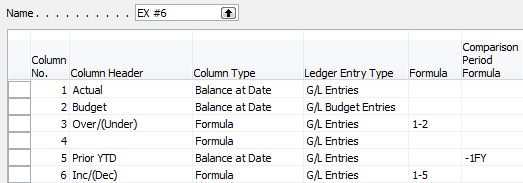
Column No. – The column number is completely optional, but highly recommended. This simple element of the column layout will eventually be one of the key features of your account schedule, allowing you to calculate and organize with ease.
Column Header – This is where you’ll define, in words, what you’re showing in each column of your report. Keep it short; there is a 30 character limit.
Column Type: Net Change, Balance at Date, or Formula – There are actually seven options to choose from here, but I recommend that you limit yourself to these three when you’re just getting started. The key here is knowing what type of accounts you’re reporting on. If you’re using income statement accounts (Revenue/Expense), then you need to use net change. If you’re using balance sheet accounts (Assets/Liabilities), then you need to use Balance at Date. Formula allows you to perform calculations in a column.
Ledger Entry Type – This column will allow you to define what type of ledger entries you will show. This is where you can choose actual general ledger entries or budgeted general ledger entries.
Formula – If you’ve chosen Formula as the Column Type, this is where you’ll put the formula.
Comparison Period Formula – This column allows you to define date formulas that are used to calculate the amounts shown. I generally recommend that beginning account schedule users start out using the comparison period formula field instead of the comparison date formula field. The comparison period formula field references the accounting periods set up in the fiscal year, so this option seems the most consistent, and is especially necessary for companies that may not follow a calendar fiscal year. Common data labels used in this field are CP for current period or -1CP for previous period and FY for fiscal year or -1FY for prior year.
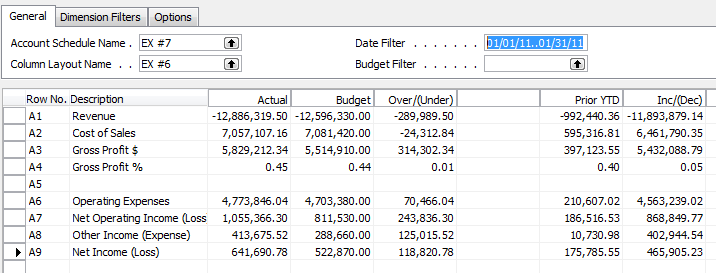
Shown below are both the design view and the user view of a column layout for a summarized income statement showing year to date and prior year to date information in the columns to demonstrate the use of these six basic options in an account schedule.
Role Tailored Client

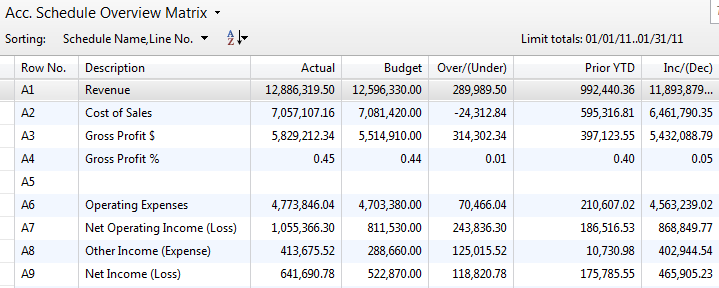
Classic Client
For more information on row setups, please see these posts: Basic row setup options for NAV Account Schedules and Complete row setup options for NAV account schedules.
If you’re just beginning to use account schedules, see Getting started with a new account schedule.
This posting is one of the Top 20 Most Viewed in the last year! Follow this link to see the entire list.
NAVUG FORUM 2012 Overview and IT Track – Keyword: WOW!
Posted: September 6, 2012 Filed under: Uncategorized | Tags: NAV, NAVUG, user group Leave a commentLewis Rosenberg, Information Technology Manager at Mars Fishcare, Information Technology Track Leader, and Programming Committee Chairperson for NAVUG Forum, guest blogs today on what the IT Track has to offer end users at NAVUG Forum, the annual NAV end-user conference held in Seattle, October 15-18 2012.
All I can say after reviewing the list of offerings for this years’ NAVUG Forum in Seattle is WOW! If you have never attended a NAVUG Forum before, this is a “must-attend, must-participate, WOW!” event! There will be so much quality information available from so many quality Dynamics NAV professionals. This is the best opportunity to link up with, meet, and network with so many people that do what you do every day using Dynamics NAV.
The conference begins with an optional day or half-day of training. There are ten different classes to choose from for a small additional fee. The classes being offered span a wide range of subject areas including finance, manufacturing, information technology, and reporting.
The remainder of the event spans three days and offers more than 100 sessions organized by eight subject tracks: BI-Reporting, Finance, Global, IT-Developers, Manufacturing-Supply Chain, NAV 2013, Strategic, Potpourri. You can attend sessions in multiple tracks to get the most out of the conference.
One of the most exciting things about the sessions offered is that they are all led by Dynamics NAV users and professionals like you. All of the sessions encourage participation, sharing of knowledge and solutions. The power of networking is what NAVUG Forum is all about!
This year’s Information Technology track features thirteen sessions covering topics like Cloud Computing, Database Optimization, SharePoint, Web Services, NAV 2013, the Role Tailored Client, and Dynamics NAV Security, Permissions, & Roles.
NAVUG Forum 2012 is at the Grand Hyatt in Seattle Washington from October 16 – October 18. All the information you need is available at http://www.navugforum.com. Connect, Learn, Share! WOW!
Lewis I. Rosenberg Information Technology Manager, Mars Fishcare Programming Committee Chairperson, NAVUGNAVUG Forum: What is being offered in the manufacturing and supply chain track in 2012?
Posted: August 30, 2012 Filed under: Uncategorized | Tags: costing, manufacturing, NAV, NAVUG, supply chain, user group, warehouse Leave a commentMarc Allman, Executive Vice President of AMS Controls and Manufacturing and Supply Chain Track Leader for NAVUG Forum guest blogs today on what the Supply Chain Track has to offer end users at NAVUG Forum, the annual NAV end-user conference held in Seattle, October 15-18 2012.
 The Manufacturing & Supply Chain Track was designed to provide real, hands-on practical knowledge to any users in the manufacturing, purchasing, and warehouse functional areas in NAV.
Whether you’re a manufacturer creating production orders and purchase orders or a distributor just creating purchase orders, the process you use to determine your plans is the same – run MRP. This will be covered in two sessions: Supply Planning 101 and Supply Planning 201.
Once you’ve decided what to make or buy, you must deal the results of your plan. Working with Production Orders and Working with Purchase Orders will provide more insight into these topics.
Several sessions will provide some specific detail into some related topics: Forecasting Functionality, Manufacturing Product Design, Subcontracting, and Warehouse Operations.
Costing is one of the most complex areas within NAV. A two-hour Costing Deep Dive session will tell you everything you ever wanted to know about costing in NAV.
One of the best aspects of an event like NAVUG Forum is the access you get to the experts in the software you use every day. Two roundtable Q&A sessions are your opportunity to get your questions answered: Ask the Experts – Manufacturingand Supply Chain and Ask the Experts – Costing.
Finally, the forthcoming release of NAV 2013 brings with it some significant enhancements to the supply planning area.What’s New is Supply Planning in NAV 2013 will show off the new features.
User Poll: How many NAV dimensions does your company use?
Posted: August 20, 2012 Filed under: Uncategorized | Tags: dimensions, NAV, user poll Leave a commentThe NAV user community wants the ability to copy and paste rows in the RTC
Posted: August 13, 2012 Filed under: Uncategorized | Tags: Account Schedules, copy and paste, ilovenav, Microsoft, NAV, RTC 3 CommentsAs a long time account schedule user, I was pretty excited to see how the role tailored client would change or enhance account schedules. I got my hands on a copy of the Cronus database with the role tailored client and began to test drive my existing account schedules. I discovered a few things that were really great, a few things that were a bit of a step back, but one thing that was a real problem. In the role tailored client, account schedules had completely lost the ability to copy and paste rows from one schedule to another. This was a problem because it was a gigantic efficiency loss in account schedules functionality. Really? Was this such a big deal? Let me give you some examples of how I use this capability which is alive and well in all prior versions of NAV.
1) Creating slightly different versions of a similar column layout. If I create a monthly net change column layout, I can easily create a monthly balance column layout, or a monthly budget column layout, simply by copying the original column layout and changing one variable on the new layout. Copy and paste allows me to create three valuable looks for one report in less than a minute.
2) Testing or trouble shooting a new schedule. I’ll frequently take an existing schedule and change it to serve a different purpose. When doing this, I’ll copy the existing one that I know works, and then paste it into a new schedule to try what I want on it. This ensures I start with setup information exactly the same as the one I know works, so I don’t have to doubt whether I missed something. I can just change what I need for the new schedule and test the new variables one at a time.
3) Section replication. If I have a schedule where I need a section to repeat, I can copy the existing one and paste it in the new spot.
So what do you do in the RTC in order to accomplish any of these things? The answer is: you have to retype and reselect options for the entire schedule manually. Ugh. Really Microsoft?
I’ve talked to a bunch of folks about this. At first, I thought there was just something I was missing, some new navigational feature that I hadn’t yet figured out. The best story I’ve gotten was that with changing account schedules to the matrix form, they just weren’t able to bring along clipboard functionality. Account schedules isn’t the only area in RTC where the copy and paste ability are gone.
The NAV user community has definitely spoken loud and clear about this. An organization called ilovenav asks users:
 “Help us make Microsoft Dynamics NAV an even better product. Please submit and vote on your favorite product suggestions for Microsoft Dynamics NAV. Our goal is to crowd-source this feedback to Microsoft and pick suggestions that we can develop and distribute to the community free of charge”.
To date, there are 161 votes for this fix, and this is the most requested fix registered on the site. Matt Traxinger, the admin for the site says, “This has been announced for NAV 2013. It is not known whether they will include it in a service pack for NAV 2009.”
I think users can make a difference in what happens with their product, and I firmly believe that Microsoft is listening. I see evidence of this again and again in the awesome features they continue to release in the tools we all use every day. If you’ve read this blog for a while, you already know I’m a big account schedules advocate, but I really think Microsoft goofed on this one.
Save yourself a lot of typing and save new NAV users some frustration. Get out there to the ilovenav site and cast your vote for this important product suggestion.
End users talk about why Microsoft Dynamics NAV is simple and easy to learn and use
Posted: August 10, 2012 Filed under: Uncategorized | Tags: Dynamics, end user, Microsoft, NAV, training 2 CommentsI love to hear why other end users have chosen Microsoft Dynamics NAV for their companies and what their experiences have been.

Christopher Patten, CTO with CyraCom International says that Microsoft Dynamics NAV “cuts down on the number of clicks” for end users and “delivers simplified interfaces but also allows us to have back end integration flexibility”. Marc Allman, Executive Vice President of AMS Controls says that Microsoft Dynamics NAV “works in the same fashion that our Outlook and our Excel work; there is a similar look and feel and that has made our users training much much easier”. He says, “our users are comfortable with it and are trained very very quickly”.
See this short video where real end users talk about their experiences with Microsoft Dynamics NAV.
Why NAV users should be using dual monitors
Posted: August 8, 2012 Filed under: Uncategorized | Tags: dual monitors, Excel, NAV, paperless, productivity, ROI 1 Comment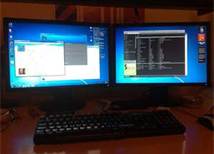 My company began using dual monitors a few years ago for power users, and have been putting them into place for all users this year. Does this change make a real difference in user productivity?
Some real world examples of what my team uses dual monitors for:
- More than one NAV session at a time. As long as you have the licenses for it, you can have more than one NAV session open at a time. This is great for when you need to run a report that ties up your session for a while like the AR aging or AP aging or inventory valuations. Use one session to run these reporting hogs in, and another session to look up information for something else you’re working on.
- Answering email questions. Open up that email on one screen, and reference the information you need on another.
- Spreadsheet stretch. Sometimes when you have a ton of data to deal with, it sure helps to see it all in one place.
- Remote access. If you’re in more than one computer at a time, perhaps your laptop and also a computer back at the office via remote access, being able to see one on each screen is a big help instead of hitting Alt-Tab all day.
- Using the help menu or other documentation. Are you trying to figure out how to use something new? Put up the application on one screen and the help menu (or user guide) up on the other screen.
- Comparison. Whether you’re looking up more than one option on the internet or comparing what you have in your production versus development databases, using dual monitors is a great way to see what you options you have without having to switch between screens to remember what you saw.
- Connecting with your customer. When on the phone with a customer, our customer care team has NAV on one screen and a view of what our customer is looking at on our website on the other. This allows them to better answer the customer’s question about the product, and also make suggestions later as to how we can improve on the customer experience.
- Entry to NAV on one screen, information on another screen. If your work is transactional, and you need to enter invoices on one screen, but reference a document on another screen, this is a great way to use dual monitors. Don’t print out that document, just put it up on your second monitor.
- Paperless processing. Ultimately, dual monitors make paperless processing possible for my company. We’re working on a paperless initiative in our accounts payable area right now which couldn’t have happened without dual monitors. Getting users to reference documents on-screen has been an easy, natural transition and while we’re saving a tree or two, the better argument has been the time saved in not printing, organizing, and filing those documents.
Return on investment of dual monitors
If you’re not convinced yet, take a look at the ROI of dual monitors. Let’s say a second monitor costs $200. Estimates of productivity gains range anywhere from 10% – 50%. If you have an employee who generates $200,000 of revenue annually, at a conservative estimate of 10% productivity gain, this could equate to a $20,000 increase in revenue; a one hundred-fold payout on your initial investment.
This posting is one of the Top 20 Most Viewed in the last year! Follow this link to see the entire list.
Maximize your Microsoft Dynamics NAV 2009 Classic screen space with user level configuration options
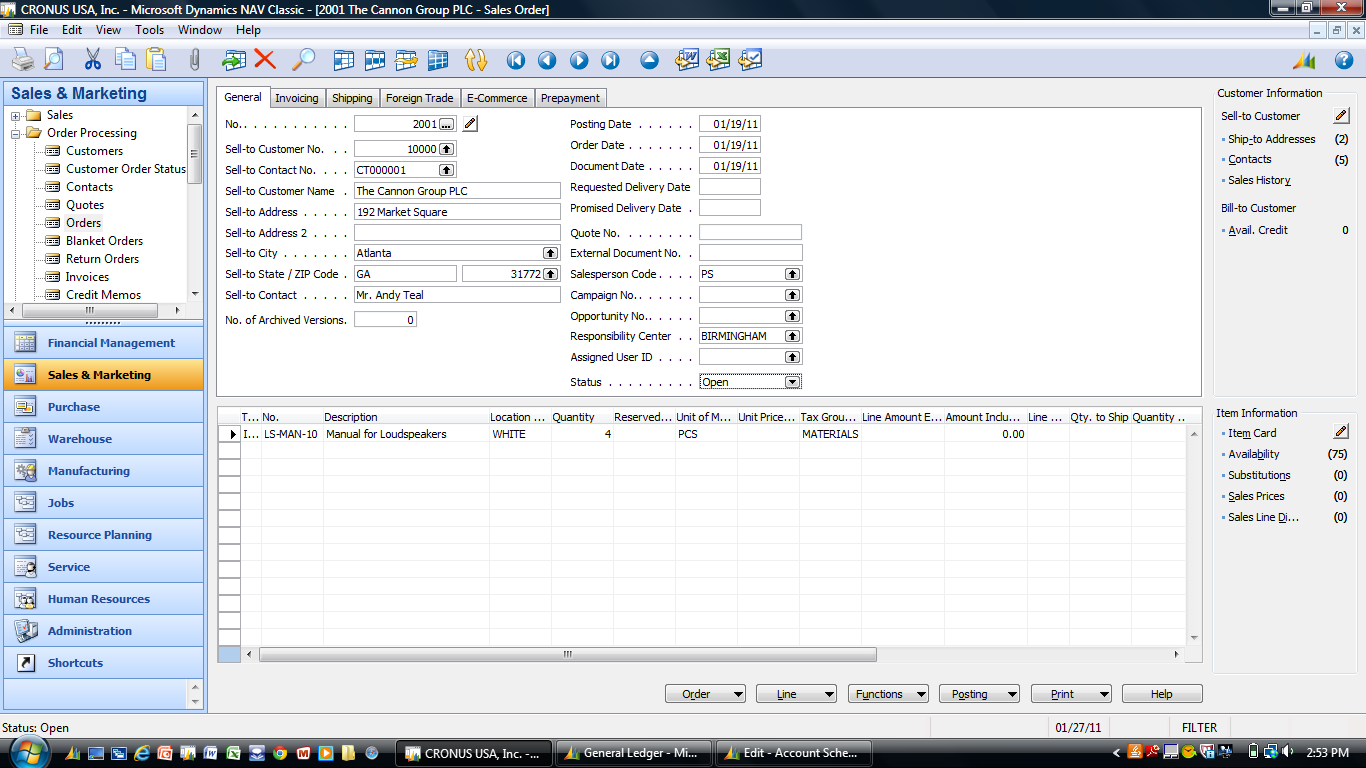
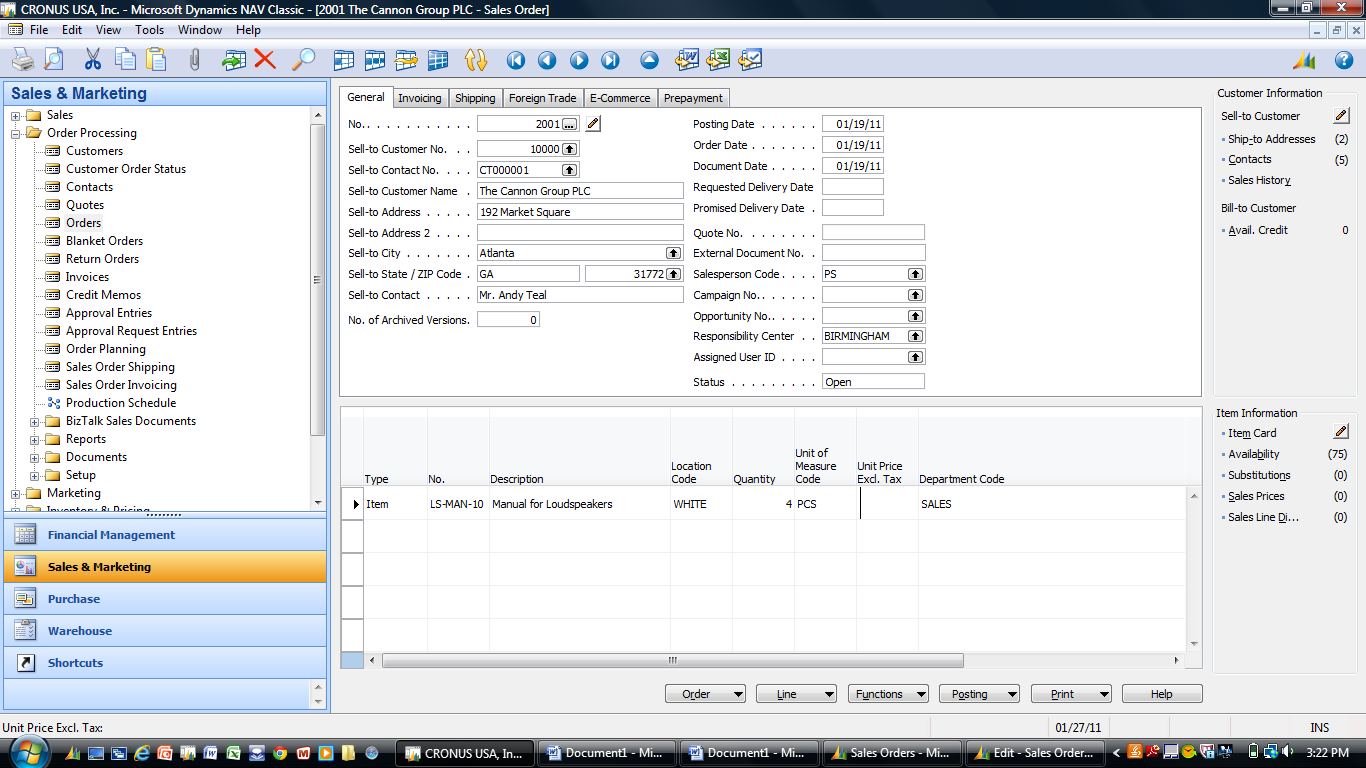
Posted: August 6, 2012 Filed under: Uncategorized | Tags: Classic Client, glued column, increase header, NAV, RTC, user level configuration 1 CommentOne of the first things I do when I get a new person started using NAV is to show them how to customize their screens using different NAV options available at the user level. The NAV defaults start us off with white space in weird places, columns we may not necessarily use, and headers we can’t read. These are all possible to fix easily at the user level, and I’ll share my six tricks with you today.
Today we’re just going to cover the Microsoft Dynamics NAV 2009 Classic client. The Role Tailored Client, with its updated look and feel, is significantly different and Microsoft has done a great job of addressing many of these small challenges with the new client.
- Change the size of the main navigation pane. You can do this by hovering on the vertical blue separator bar until you get a double-sided arrow, and then move your pane to the left or right.
- Get rid of unwanted menu options. If you’re not using the Jobs or Service Menus, right-click on that item and choose hide. You can always add something back to the menu by right clicking and choosing show.
- Increase your header size. Every screen starts out with the header line as one line tall. This means that you can’t read most of the information in your headers. Hover at the bottom of the blank grey box at the top left of the lines area until you get a double ended arrow, then click and pull down to see more lines within the header.
- Check your row height. Depending on your preference, you might prefer rows taller or shorter than what is the default. Choose any grey separator bar on the left side of the lines area between two rows and move it up for shorter or down for taller. Your adjustment will be equally sized for all rows.
- Change your columns. Make sure to show only the things you need. There are almost always more options available with the default than what you will use in day-to-day transactions. If you have a coworker in a similar role, it may be best to check to see what they use regularly when you’re just getting started. Hide anything you don’t need just by using right-click and hide. Just like with the menu options, you can right-click and show if you want to put something back on your screen.
- Make the glued column smaller. In NAV 2009 Classic, on every screen, one column is always designated as the “glued” column. This column is generally the Description column. You’ll know which one this is when you try to resize it to a smaller size and get the error, “You resized the glued column Description, which then expanded automatically to fill otherwise empty space”. This can get frustrating for new users, because it seems there is not a solution. There are two recommendations that I have to get past this.
- Place your mouse to the right of the glued column separator, and move from right to left until you get a double-headed arrow. Left click, hold, and aggressively move to the left, farther than where you want to end up. This will make your glued column narrower, but only if you have a bunch of columns off to the right already.
- Another way to accomplish this is to add a column that you don’t need to the right and make it really really wide, so that it creates visual white space on the right hand portion of your screen.
Before
After
This posting is one of the Top 20 Most Viewed in the last year! Follow this link to see the entire list.
Can you use NAV account schedules to create a statement of cash flows? Yes, you can!
Posted: August 1, 2012 Filed under: Uncategorized | Tags: Account Schedules, financial statement, NAV, statement of cash flows 1 CommentJohn Bellinger of Archerpoint recently posted a great article illustrating how to use account schedules to build the statement of cash flows, using both the indirect as well as the direct methods. For those of you who have struggled with this sometimes challenging financial statement using NAV account schedules, find your answers here!
Here’s a bit from his recent posting:
This blog is an attempt to document how a Cash Flow Statement can be created using standard NAV Account Schedules.
I’ve been asked a few times by Finance Type individuals for a Cash Flow Statement report (yes there is not an out of the box report . . . darn!). It usually takes me a couple attempts to explain how to accomplish using Account Schedules, and I usually kick myself for not keeping an example on hand.
As some may know, there are two methods, Direct and Indirect, that can be used for a Cash Flow Statement. I understand the Indirect Method is the more common of the two, regardless I choose to do both in this blog. Other than the operating activities section, the methods are similar. A well-structured chart of accounts will greatly assist in setup/maintenance of this Account Schedule. You’ll see from my examples that I’m largely using Total Accounts to accomplish; hopefully this will eliminate the necessity to reconsider this account schedule if new accounts are setup in the future. For those of you that are new to NAV or have not yet implanted NAV, a good exercise may be to consider the necessary structure to accomplish a cash flow statement. This may dictate certain accounts/structure in your chart of accounts for your reporting requirements.
For the rest of his posting, including some really useful screen shots to illustrate what he’s showing, follow the link below.
http://www.archerpoint.com/blog/Posts/using-nav-account-schedules-create-cash-flow-statements







 Dynamics NAV Financials