Blogiversary Top 20 (#9) Where can I learn more about NAV analysis reports and analysis by dimensions?
Posted: April 17, 2013 Filed under: Uncategorized | Tags: analysis by dimensions, Analysis Reports, CustomerSource, export to excel, general ledger, item ledger entries, NAV, pivot table, query tool, reporting tool Leave a commentWe’re celebrating our one year blogiversary by reposting the Top 20 Most Viewed in the last year, as determined by you, our readers! Follow this link to see the entire list. Enjoy!
Analysis reports and analysis by dimensions are the native reporting options that extend NAV reporting to the item ledger entries generated from the sales, purchasing, and inventory areas of the application. I find that many users don’t know that this reporting option exists and think it is one of the more underutilized areas by NAV financial users.
These reporting options can be found on the general ledger, sales & marketing, purchasing, and inventory menus.
The main advantage this reporting tool has over account schedules is that it reaches a further level of detail that just isn’t recorded on the general ledger. Being able to get to quantity information at the item or location level in addition to the dollar values posted makes these tools great as a way to get operational reporting.
What is the difference between the two?
Analysis by dimensions is a query tool. The key to using this tool effectively is to use aggressive filtering, especially if you have a large number of items. It can be a very quick way to get information about what may be going on with a single or small group of items. You can also export to Excel and it shows up in a pivot table.
Analysis Reports allow you to configure and save row setups and column layouts for later use, which makes it a reporting tool. These reports work a lot like account schedules, with some added features to accommodate the additional data you can reach because you’re reporting against the item ledger entry tables instead of the general ledger.
A few hints on analysis reports and analysis by dimensions:
- Skip the analysis report on the general ledger menu and use accounts schedules; you’re not going to get any added value here.
- When posting sales or purchase orders, you must be fully utilizing the sub module, i.e. do not allow any posting of lines to general ledger accounts on the sales or purchase order documents. Any posting that goes “around” these modules will cause your analysis report to show a lower number than what is on your general ledger. Avoid the argument of reporting credibility by understanding this, and either being able to explain the variance, or prevent it from happening altogether.
- Know that analysis reports will not automatically update if you add new items. You’ll need to go in and do this manually to each report every time you add new items.
For those of you who are looking for more resources on Analysis by Dimension and Analysis Views, reference the documents below, found on Customer Source:
Documentation => User Guides => Overview of Training Manuals and Hands-On Labs for Microsoft Dynamics NAV 2009
- Trade in Microsoft Dynamics NAV 2009 – Chapter 9
- Business Intelligence for Information Workers in Microsoft Dynamics NAV 2009 – Chapter 5
Documentation => User Guides => Overview of Training Manuals for Microsoft Dynamics NAV 5.0
- Trade in Microsoft Dynamics NAV 5.0 – Chapter 10
- Business Intelligence for Information Workers in Microsoft Dynamics NAV 5.0 – Chapter 6
Blogiversary Top 20 (#10) Learning about Microsoft Dynamics NAV 2013
Posted: April 16, 2013 Filed under: Uncategorized Leave a comment We’re celebrating our one year blogiversary by reposting the Top 20 Most Viewed in the last year, as determined by you, our readers! Follow this link to see the entire list. Enjoy!
My company has started seriously discussing what we’re going to do about upgrading our NAV ERP system. With NAV 2013 released to market in October, we’ve got plenty to talk about. Of course, just like you and your companies, we’re nailing down exactly what the benefit of upgrading will be to our company specifically. We’ve talked about performance improvements and greater ability to get to data needed for reporting, but some of those concepts can get pretty intangible in these beginning discussions.
We’ve already talked about the big concepts, but what people really want to know about right now are the real concepts: exactly how will an upgrade in the software increase our productivity, make us more efficient in our jobs, and ultimately, help us to drive revenue, decrease costs, or increase cash?
So, I’m beginning to gather ways to start to show people at my company, in a tangible way, what the upgraded version can do for them. Here’s where I’m at so far:
1) Get groups of stakeholders to start to attend webinars about NAV 2013. I’ve had to chance to attend Microsoft Convergence and see all this stuff, they haven’t. I need to get them exposed to seeing this incredibly different version and what it can do for them. One way I’ll do this is to have them attend webinars sponsored by the NAV user group, NAVUG. They’ve got one scheduled called “A Guided Tour of NAV 2013”, and I’ve got a group organized to attend already. I’m betting we’ll see quite a bit of material about NAV 2013 from the user group in the next year. One of the best things about the user group webinars is that they’re recorded, so if we want to review the webinar later, anyone in my company has that option.
2) Learn as much as I can about the nitty-gritty details so I can promote them in a real way. I’m constantly searching the web (seriously, I “Bing” everything) for new information about just about anything. Right now, I’m focusing on NAV 2013. I just found a great YouTube video, “What’s New Dynamics NAV 2013 – User Productivity Enhancements“. In six quick minutes I got about five takeaways that I can start to use. My favorite? NAV 2013 has improved error messages to help end users resolve problems. I’m going to take this info back to work with me and make sure people know we could have less help desk traffic because the new NAV version makes it a lot easier for end users to solve their own errors on the spot.
3) Get a test copy of NAV 2013 installed so I can start to play around with it myself. I’ve done this with previous versions, so now it’s time. I can get a demo copy installed and start touring the menus, trying things out, and teaching myself how to use the new version. What’ll I try out first? I can’t wait to get my hands on the cash flow forecast! Once I’ve got some level of mastery of the new version, I can start showing folks what improvements will apply to them personally, in their jobs.
I’ll keep posting here as I find useful things to share with you. Hopefully, as you begin your process to discuss the upgrade plan for your company, you’ll find some ideas on things that’ll work for you and your companies.
Learning about NAV2013: New videos available from technology management
Posted: April 15, 2013 Filed under: Uncategorized | Tags: learning, NAV 2013, tips and tricks, training Leave a comment There is a new series of NAV2013 YouTube videos available on a wide variety of topics, many of them in the financial area. I’ve previewed four of them today. They’re a nice overview of NAV2013 features, and are a great way to get a preview of what the new version looks like. The series is called, “Dynamics Ignite: Business Made Easy” and the company who produced them is technology management. Find their YouTube channel here, or go to individual topics listed below.
Purchase Order Processing in Microsoft Dynamics NAV 2013
Budgets in Microsoft Dynamics NAV 2013
Sales and Purchase Pricing in Microsoft Dynamics NAV 2013
Accounts Payable in Microsoft Dynamics NAV 2013
Assembly Management in Microsoft Dynamics NAV 2013
Sales Order Processing in Microsoft Dynamics NAV 2013
Accounts Receivables in Microsoft Dynamics NAV 2013
Look and Feel of Microsoft Dynamics NAV 2013
General / Nominal Ledger in Microsoft Dynamics NAV 2013
Cash Flow Forecasting Microsoft Dynamics NAV 2013
Blogiversary Top 20 (#11) Complete row setup options for NAV account schedules
Posted: April 15, 2013 Filed under: Uncategorized | Tags: Account Schedules, balance at date, Classic Client, column layout, dimensions, Excel, export to excel, financial statement, general ledger, NAV, net change, posting accounts, row setup, RTC, set base for percent, setup options, show opposite sign, totaling type, trial balance Leave a commentWe’re celebrating our one year blogiversary by reposting the Top 20 Most Viewed in the last year, as determined by you, our readers! Follow this link to see the entire list. Enjoy!
About a month ago, I published a post called Basic row setup options for NAV account schedules. This is a great place to look if you’re just getting started. However, if you’re looking for what else you can do with Microsoft Dynamics NAV account schedules, then this is where you want to be. This post will go through each and every field available on the account schedule row setup and talk about the available options. The functionality of these fields are exactly the same between the Classic and Role Tailored Clients. The only difference is in how they look on the screen and how you navigate between screens. Take a look at the pictures below to find the look you’re familiar with, but then keep reading for the explanations of what these fields will do in your financial reporting.
Role Tailored Client
This is a view of what I recommend you start with for basic row setup options.

This is a view of all available row setup options.

Classic Client
This is a view of what I recommend you start with for basic row setup options.

This is a view of all available row setup options.

Row setup options – apply to both clients
Row No. is completely optional, but highly recommended. This simple element of the row setup will eventually be one of the key features of your account schedule, allowing you to calculate and organize with ease.
Description is the one place you have to communicate, in words, what you’re showing on each line of your report.
Totaling Type: 6 options to choose from
- Posting Accounts pull data from your accounts designated as posting accounts on the G/L Account Card Account Type field.
- Total Accounts pull data from your accounts designated as a total or as an end-total on the G/L Account Card Account Type field.
- Formula allows you to calculate a basic formula on this row.
- Underline places a single underline .
- Double Underline places a double underline.
- NOTE: This nifty addition showed up with NAV 2009 R2. If you are NAV 2009 SP1 or earlier, this won’t be available to you.
- Both of the underline functions are there to give folks who print account schedules directly out of NAV some formatting options. If you’re exporting to Excel you’ve got some better format options to work with than these.
- Set Base for Percent allows you to designate which row from your row setup will be used as the beginning point for a section to be included in a percent of total calculation. This feature showed up in version 5.0 and must be used together with a formula on another row to designate the end point of the section as well as some setup in the column layout. It’s a little fussy in the setup and inelegant in execution, but is still effective to get those vital comparative percentages onto your account schedules.
Totaling will be which general ledger accounts you want to pull or what formula you want to calculate, depending on what you selected in totaling type.
Row Type: 3 options to choose from
- Net Change should be used, generally, if you’re reporting on income statement accounts (revenue/expense).
- Balance at Date should be used, generally, if you’re reporting on balance sheet accounts (assets/liabilities).
- Beginning Balance will be sparingly used, but you’ll want this for your statement of cash flows at some point.
Amount Type gives you three options: Net Amount, Debit Amount and Credit Amount. You’re going to use Net Amount almost all the time, but I suppose if you were getting very granular in your account schedules and perhaps using them for detailed reconciling reports, this might be useful. If I’m getting down to this level of transactional detail, I’m usually going to the chart of accounts instead of account schedules.
Formatting Fields: Bold, Italic, and Underline These basic formatting fields are there to allow you to emphasize some of the rows of your account schedules. When you select these options on any row, the whole row is effected. You are not able to effect a single “cell” for formatting. What’s the difference between underline here and underline found in the Totaling Type options? You can get a more snug fit on your underline using this option since it appears in the same row of your data instead of in a row if its own.
New Page inserts a page break. This is commonly used when separating the pages of the balance sheet showing assets on the first page and liabilities and equity on the second page. I have also seen it used when folks build multi page account schedules.
Show Opposite Sign is the option you can select to change revenue credit balances or expense debit balances to the opposite sign for the purposes of presenting this data in a more non-finance friendly manner. No salesperson wants to see sales presented with a negative sign; use this to change that credit to a positive number on your reporting.
Show allows you to designate if a row will show (the default) or be hidden on the printed account schedule only. You can click this box as much as you want, but your rows will still show on-screen or when you export to Excel. If you print directly out of account schedules, this feature will work very well for you.
Dimension Totaling is the last option available and you might have noticed that I didn’t show them on pictures above. This is because they are unique for just about every user, and depending on your analysis view setup, may even be different from schedule to schedule. You can use just one, or you can use all four of the available dimension totaling fields, in whatever combination you like. These fields act very much like the Totaling field because this is where you will tell NAV what Dimensions you want shown and totaled from your general ledger accounts.
Spots still available in classes next week on Financial Setups and Dimensions
Posted: April 12, 2013 Filed under: Uncategorized | Tags: classes, dimensions, financial setups, NAVUG Academy Leave a comment There are still spots available in the classes I’m teaching on Financial Setups and Dimensions next week, on Wednesday, April 17th. Full class descriptions, and registration links are found on the NAVUG Academy site, or at the links below. See you in class!
Financial Setups in NAV – 9:00am to 1:00pm ET
Get under the hood to understand the inner workings of Microsoft Dynamics NAV financial setups. The class covers all the basics you need to understand how the financial management area can be configured. Whether you’re new to NAV, a prospective customer deciding if NAV is the right fit for your company, a Controller or CFO who is new to a company already using NAV, or even an experienced NAV user who wants to know how to maximize your software, this class will get you the foundation you need to make important configuration decisions regarding your ERP software. This course is open to any NAV user.
Focus on financial considerations like understanding and using posting groups, choosing dimensions, set up of master records for customers, vendors, and items, why number series are important, and what the options are for financial reporting. Understand what options are available to you related to budgeting, intercompany transactions and consolidations, and month end close and get a tour of best practices related to journal entries, accounts payable, and accounts receivable.
Dimensions in Dynamics NAV – 2:00pm to 6:00pm ET
What are dimensions, and why do you want to use them? How can you use dimensions to gain control, consistency, accuracy, and efficiency in your financial postings? How can dimensions make your financial reporting not only flexible but powerful at the same time? This course is open to any NAV user.
Using hands-on exercises in an online NAV database, try out different dimension configurations in multiple scenarios to really understand how they behave. Get a chance to see how dimensions flow through your accounting system from beginning data entry to final financial statement production. This class is your opportunity to finally understand dimensions in Microsoft Dynamics NAV and how they can help you and your business.
Blogiversary Top 20 (#12) Aging methods in NAV – which buckets are you looking for?
Posted: April 12, 2013 Filed under: Uncategorized Leave a comment We’re celebrating our one year blogiversary by reposting the Top 20 Most Viewed in the last year, as determined by you, our readers! Follow this link to see the entire list. Enjoy!
When running any type of financial report, it’s important to ask the right question in order to get the right answer. When running your accounts payable or accounts receivable aging reports, it’s especially important since there are three available options that will give you the same total answer but will break your transactions down into different aging bucket categories. Choosing the correct option for the question you actually want to answer is the key.
Question #1: How overdue is the invoice?
By choosing the Aging Method of Due Date, you are asking NAV to age each bucket on your aging in intervals based on the Due Date of the invoice. Remember the due date is based on a calculation that applies payment terms against the document date of the invoice.
Question #2: How many days have passed since the invoice was posted?
By choosing the Aging Method of Transaction Date, you are asking NAV to age each bucket on your aging in intervals based on the Posting Date. This is sometimes confusing to new users since on both the purchase and sales invoice forms, the two available dates are posting date and document date. The posting date should always be the date you want to post the invoice to your books and therefore the fiscal period the invoice will report in. For the purposes of your aging reports, posting date is equivalent to transaction date.
Question #3: How many days have passed since the vendor billed us – or – since we billed the customer?
By choosing the Aging Method of Document Date, you are asking NAV to age each bucket on your aging in intervals based on the Document Date. This one makes a little more sense to folks because at least the terms are the same. But darn us accountant types, we often call the document date the invoice date when we’re referring to it. Basically, this date should be the date your vendor has provided on the invoice, or from the customer side, the date you shipped and therefore the date you provided on the invoice to the customer. Any payment terms defined on the account will use the document date to calculate the due date.
An example of two invoices shown with all three aging methods
In a perfect world, our posting dates and document dates would all be the same. Let’s pick a perfect example with posting date of 11/01/10 and document date of 11/01/10 and payment terms of Net 21. This would calculate a due date of 11/22/10 on this invoice.
Then let’s pick an imperfect example. Let’s pretend someone at our company turned in that 11/01/10 invoice sometime in December, after the November books were closed. We still need to book this late invoice, so we’ll choose a posting date of 12/01/10, but since it was not the vendor’s error, we’ll use their invoice date of 11/01/10 in order to calculate the payment terms correctly.
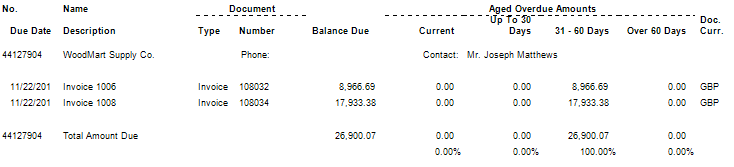
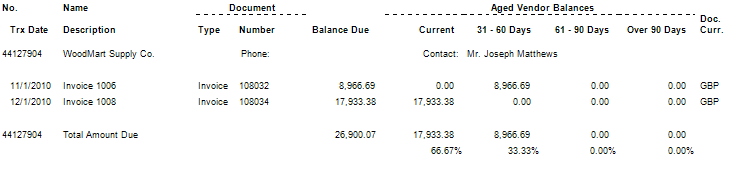
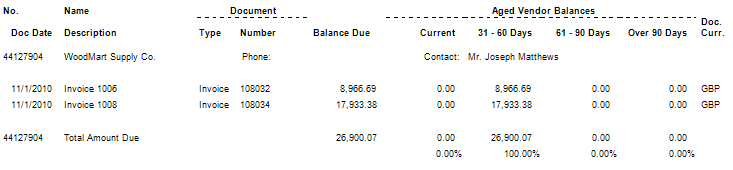
Now, let’s look at an aging as of December 15th, 2010, all three ways. Take note that for all three methods, the balance due is exactly the same. The differences appear in how the aging buckets are defined and how transactions age into the different buckets.
Aging Method of Due Date
Key difference here is the aging buckets start calculating at the due date, so you’ll see column headers of current, up to 30 days, 31-60 days and over 60 days only when using this aging method.
Aging Method of Transaction Date
This aging is based on the posting date, the date that corresponds to the fiscal period you posted the invoice in. Note the late invoice with a 12/1/10 date shows as current.
Aging Method of Document Date
This aging has the same buckets as the one run with transaction date, but is based on the document date or invoice date.
Blogiversary Top 20 (#13) Basic row setup options for NAV Account Schedules
Posted: April 11, 2013 Filed under: Uncategorized | Tags: Account Schedules, balance at date, Classic Client, financial statement, net change, row setup, RTC, totaling type Leave a commentWe’re celebrating our one year blogiversary by reposting the Top 20 Most Viewed in the last year, as determined by you, our readers! Follow this link to see the entire list. Enjoy!
The perpetual problem of the new NAV user is when you get started in a new area of the application, there are way too many options to choose from. How many times have you opened up a new form, only to find twenty or more columns displayed as the default, and many more lurking behind the show columns menu? While we appreciate having all options for all people at some point, new users can find this especially daunting when trying to just get started with something new.
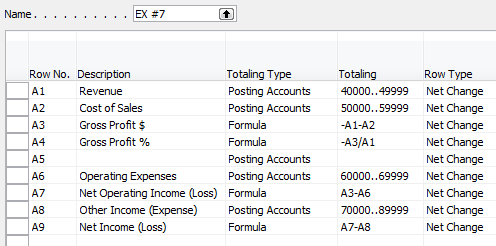
I’ll show you which columns to choose in the row setup for account schedules as a beginning point, and go through some simple explanations of how they are used.
Fields to start with:
Row No. – The row number is completely optional, but highly recommended. This simple element of the row setup will eventually be one of the key features of your account schedule, allowing you to calculate and organize with ease.
Description – This is the one place you have to communicate, in words, what you’re showing on each line of your report.
Totaling Type: Posting Accounts or Formula – This field tells NAV what you’re going to do here. You’re either going to pull data from your general ledger posting accounts or calculate a formula.
Totaling – Which general ledger accounts you want to pull or what formula you want to calculate.
Row Type: Net Change or Balance at Date – The key here is knowing what type of accounts you’re reporting on. If you’re using income statement accounts (Revenue/Expense), then you need to use net change. If you’re using balance sheet accounts (assets/liabilities), then you need to use Balance at Date.
Shown below are both the design view and the user view of a summarized income statement, showing the use of these five options.
Role Tailored Client


Classic Client

Blogiversary Top 20 (#14) Video Demo: How to export NAV account schedules to Microsoft Excel
Posted: April 10, 2013 Filed under: Uncategorized | Tags: Account Schedules, dimensions, Excel, export to excel, financial statement, learning, NAV, NAVUG, NAVUG Academy, training Leave a commentWe’re celebrating our one year blogiversary by reposting the Top 20 Most Viewed in the last year, as determined by you, our readers! Follow this link to see the entire list. Enjoy!
There are some quick and easy ways to publish NAV Account Schedules to Microsoft Excel but some of them end up with some pretty ugly formatting unless you know a few secrets on how to make them look better. This short demo video shows you how to create a nicely formatted NAV Account Schedule in Microsoft Excel that only requires formatting the first time you set it up. Each time you replicate the report after that, you can simply update the report with new numbers and the formatting will remain the same every time.
While this demo shows how to create a financial report with three monthly tabs, you can easily extend this technique in a couple of different ways. I use this same technique to produce my monthly financial statement package. I have eighteen pages in the package I produce each month, and each page is a different account schedule. When I start a new month, I copy the Excel workbook and rename it with the new month, then use exactly this same technique to produce the new month’s reports. By using this technique, the new copied workbook acts as a “shell” to receive my new numbers. From month to month, I am able to maintain consistent formatting in my reporting while producing my financial reports in the most efficient way possible. I can apply the same principles to my monthly team budget reports. In this case, I can produce the same actual versus budget report over and over with a new dimension filter applied for each team, one per each Excel worksheet in the workbook.
If you’d like to learn more about account schedules, please visit my 2013 Classes page. This short video demo comes from my Account Schedules Basics class which I teach through NAVUG Academy. This class offering is just one of many classes that are being offered by NAVUG Academy in 2013 to help you get more out of your use of NAV at your company.
Journal of Accountancy gets excited about Microsoft Office 2013
Posted: April 9, 2013 Filed under: Uncategorized | Tags: Journal of Accountancy, Microsoft, Office2013, Office365 Leave a comment I love it when accountants get excited about software! JoA just published a pretty enthusiastic article about Microsoft Office 2013 highlighting, among many attributes:
- Touch screen
- Cloud
- Mobility
- Many functional enhancements
They cover over 40 Office 2013 enhancements, spend a good amount of time highlighting some in detail, and even include a well done sidebar article on whether users who upgrade should consider renting through the Office365 subscription program versus buying. There’s some great information here.
Follow the link for the whole article, found on the Journal of Accountancy site.
Blogiversary Top 20 (#15) Why NAV users should be using dual monitors
Posted: April 9, 2013 Filed under: Uncategorized | Tags: dual monitors, Excel, NAV, paperless, productivity, ROI Leave a comment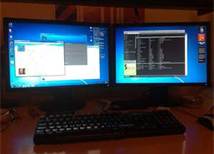 We’re celebrating our one year blogiversary by reposting the Top 20 Most Viewed in the last year, as determined by you, our readers! Follow this link to see the entire list. Enjoy!
My company began using dual monitors a few years ago for power users, and have been putting them into place for all users this year. Does this change make a real difference in user productivity?
Some real world examples of what my team uses dual monitors for:
- More than one NAV session at a time. As long as you have the licenses for it, you can have more than one NAV session open at a time. This is great for when you need to run a report that ties up your session for a while like the AR aging or AP aging or inventory valuations. Use one session to run these reporting hogs in, and another session to look up information for something else you’re working on.
- Answering email questions. Open up that email on one screen, and reference the information you need on another.
- Spreadsheet stretch. Sometimes when you have a ton of data to deal with, it sure helps to see it all in one place.
- Remote access. If you’re in more than one computer at a time, perhaps your laptop and also a computer back at the office via remote access, being able to see one on each screen is a big help instead of hitting Alt-Tab all day.
- Using the help menu or other documentation. Are you trying to figure out how to use something new? Put up the application on one screen and the help menu (or user guide) up on the other screen.
- Comparison. Whether you’re looking up more than one option on the internet or comparing what you have in your production versus development databases, using dual monitors is a great way to see what you options you have without having to switch between screens to remember what you saw.
- Connecting with your customer. When on the phone with a customer, our customer care team has NAV on one screen and a view of what our customer is looking at on our website on the other. This allows them to better answer the customer’s question about the product, and also make suggestions later as to how we can improve on the customer experience.
- Entry to NAV on one screen, information on another screen. If your work is transactional, and you need to enter invoices on one screen, but reference a document on another screen, this is a great way to use dual monitors. Don’t print out that document, just put it up on your second monitor.
- Paperless processing. Ultimately, dual monitors make paperless processing possible for my company. We’re working on a paperless initiative in our accounts payable area right now which couldn’t have happened without dual monitors. Getting users to reference documents on-screen has been an easy, natural transition and while we’re saving a tree or two, the better argument has been the time saved in not printing, organizing, and filing those documents.
Return on investment of dual monitors
If you’re not convinced yet, take a look at the ROI of dual monitors. Let’s say a second monitor costs $200. Estimates of productivity gains range anywhere from 10% – 50%. If you have an employee who generates $200,000 of revenue annually, at a conservative estimate of 10% productivity gain, this could equate to a $20,000 increase in revenue; a one hundred-fold payout on your initial investment.







 Dynamics NAV Financials